If you have ever wondered how to submit sitemap to google without breaking your site or wasting an afternoon, you are in the right place. I have walked dozens of site owners through this exact task, from tiny bakery blogs to 40,000-page e-commerce stores, and the process is far simpler than most people fear.
What trips people up is not the clicking. It is the preparation, the verification quirks, and the silent failures that never throw an error message. So let’s fix all of that in one sitting.
Why Bother Learning How to Submit Sitemap to Google at All
Google does not need a sitemap to find your homepage. Focusing on how to submit sitemap to google provides clear direction throughout this process. It will crawl your links eventually. The problem is “eventually” can mean weeks or months for pages buried three clicks deep, and that delay costs you traffic. For further industry background, see the comprehensive reference on how to submit sitemap to google.
A sitemap acts like a guest list you hand to a bouncer. Instead of hoping the crawler wanders into every room of your site, you tell it exactly which URLs matter and when they last changed. That is the whole point of learning how to submit sitemap to google properly.

In my experience running technical audits, sites with a clean, submitted sitemap get new content indexed noticeably faster. Focusing on how to submit sitemap to google provides clear direction throughout this process. One client’s recipe blog went from a two-week indexing lag down to roughly 36 hours after we fixed their sitemap setup. Same content, same hosting, different result.
There is also a diagnostic benefit most people overlook. Search Console reports how many URLs it discovered in your sitemap versus how many it actually indexed. That gap is a goldmine. If you submit 500 URLs and only 200 get indexed, something is wrong with those 300 pages, and now you know where to look.
What a Sitemap Actually is (And What It is Not)
A sitemap is a plain XML file that lists your important URLs along with optional metadata like the last modification date and change frequency. Mastering how to submit sitemap to google makes a tangible difference in real-world situations. It is not a ranking factor. Nobody gets a boost just for having one.
It is also not a guarantee of indexing. You can submit a garbage page a hundred times and Google will still ignore it if the content is thin or duplicated. The sitemap opens the door; your content has to walk through it.
Three formats exist, though XML dominates. There is the standard XML sitemap for pages, an image sitemap for visual content, and a video sitemap for media-heavy sites. Most people only ever need the first one, and that is fine.
If you run a WordPress site, plugins generate this file automatically. A practical understanding of how to submit sitemap to google helps eliminate common pitfalls. If you are on a custom stack, you will likely generate it with a script or a build step.
Either way, the file ends up at a URL like yourdomain.com/sitemap.XML, and that URL is the thing you feed to Google.
How to Submit Sitemap to Google Using Search Console
This is the canonical method, and it is the one I recommend to everyone. Google Search Console is free, official, and gives you feedback you cannot get anywhere else.
Before you can submit anything, you must verify ownership of your domain. There are several ways to do this, and the choice matters more than people realize.
Step 1: Verify Your Property in Search Console
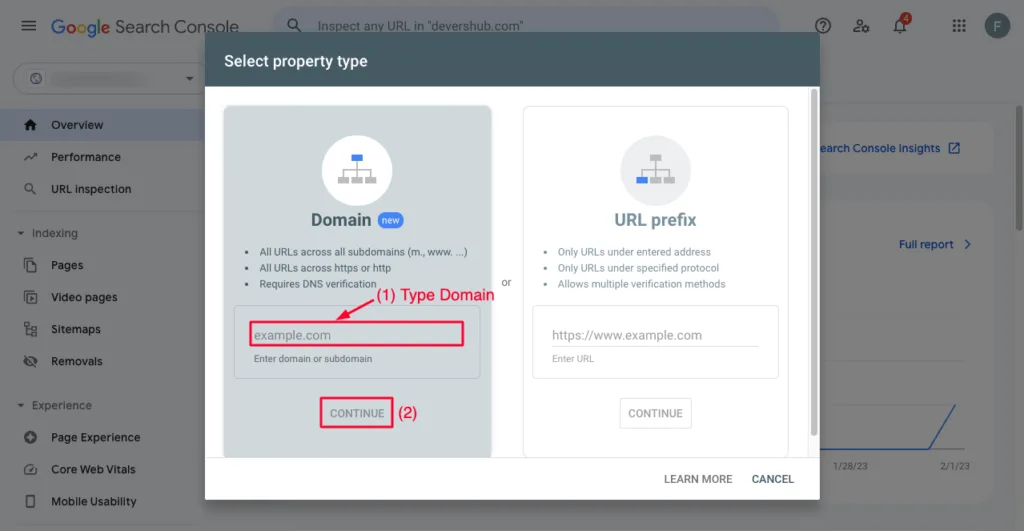
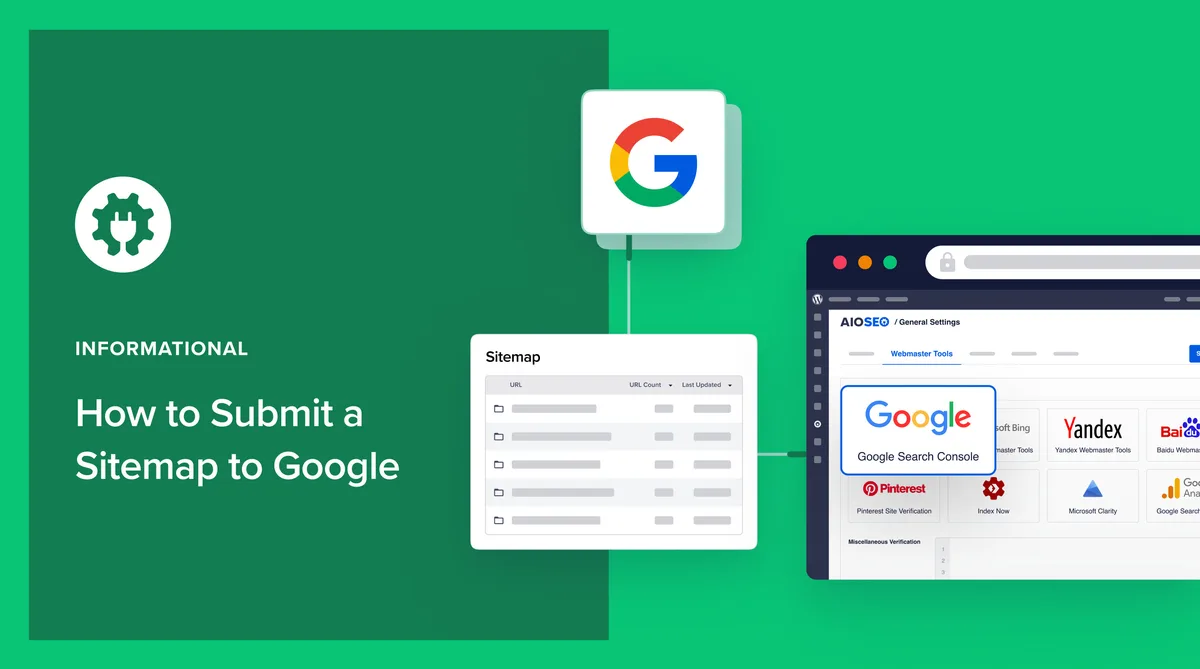
Head to search.google.com/search-console and add a property. Applying proven principles to how to submit sitemap to google yields consistent, measurable results. You will see two options: Domain property and URL prefix property. Pick Domain if you can, because it covers every subdomain and both HTTP and HTTPS in one shot.
Domain verification requires a DNS TXT record. You add it through your registrar or DNS host, then wait for propagation. It usually takes minutes, but I have seen it drag on for a few hours with slower DNS providers.
URL prefix verification is easier if you are in a hurry. Mastering how to submit sitemap to google makes a tangible difference in real-world situations. You can verify with an HTML meta tag, an HTML file upload, a Google Analytics tag, or a Google Tag Manager container.
The meta tag approach is my go-to for quick client setups because you paste one line into your site’s head section and you are done.
Once verified, you are ready to move on to the actual submission. This is where most tutorials on how to submit sitemap to google stop short, but the details matter.
Step 2: Locate or Generate Your Sitemap URL
If you use Yoast SEO, Rank Math, or All in One SEO on WordPress, your sitemap is already live. Yoast puts it at /sitemap_index.XML. Rank Math uses /sitemap_index.XML as well by default. All in One SEO uses /sitemap.XML.
Shopify generates one automatically at /sitemap.XML. Wix and Squarespace do the same. If you are on a custom build, check your framework’s documentation or your build pipeline.
Open that URL in a browser. Effective execution around how to submit sitemap to google reinforces confidence from the outset. You should see raw XML, not a 404 page and not a styled HTML page.
If you see your homepage instead, something is redirecting and Google will reject it. A practical understanding of how to submit sitemap to google helps eliminate common pitfalls. I have seen this exact issue waste a week of someone’s time.
Large sites often have a sitemap index file that points to several child sitemaps. That is normal and Google handles it fine. You submit the index, not each child.
Step 3: Submit the Sitemap in Search Console
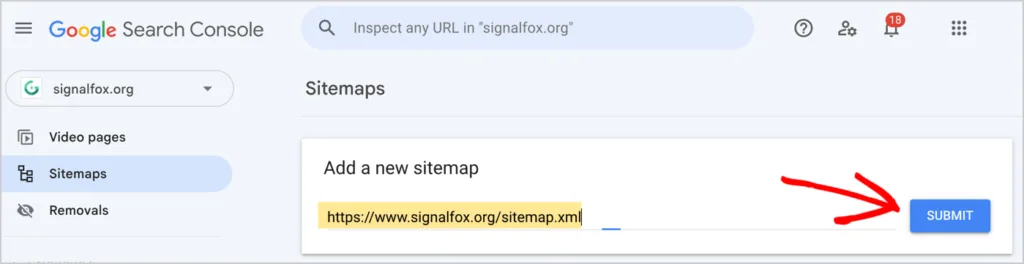
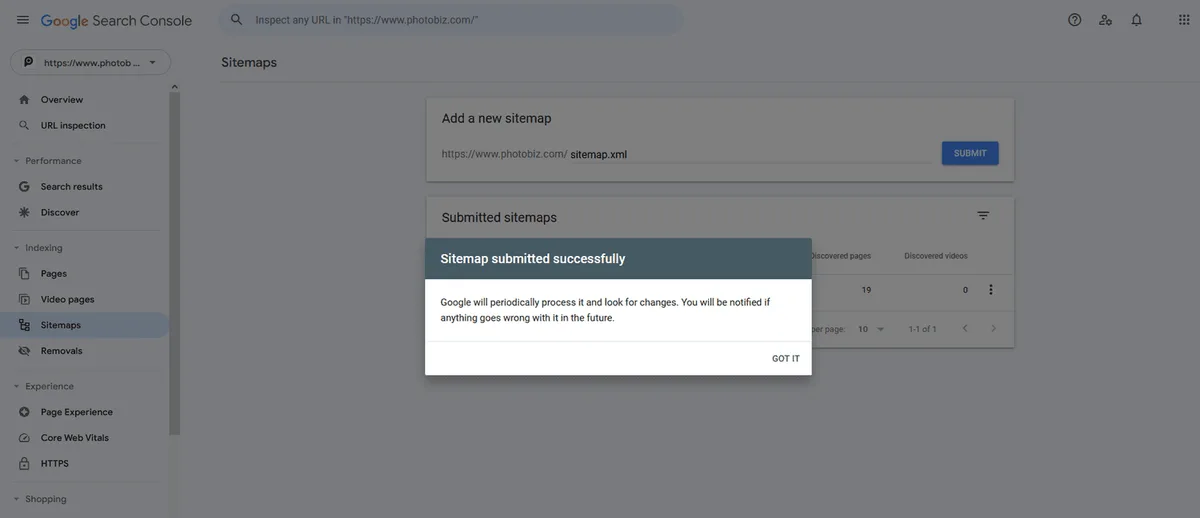
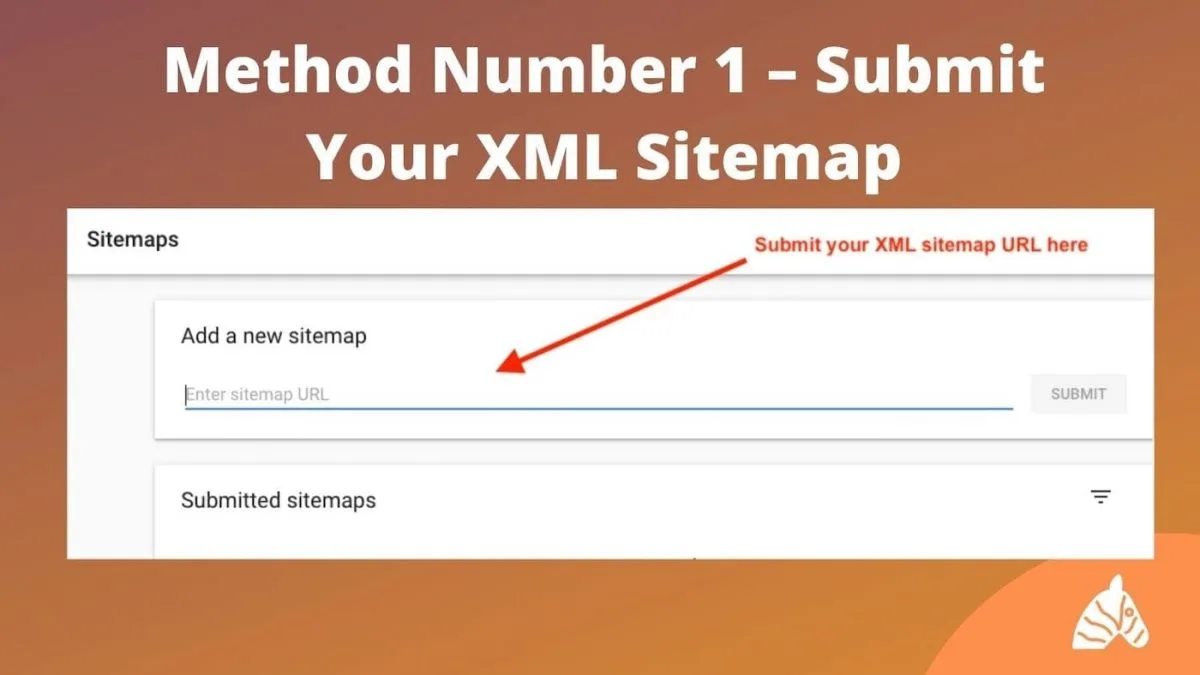
Inside your verified property, look at the left sidebar and click “Sitemaps.” You will see a field labeled “Add a new sitemap.”
Type the path after your domain. Careful preparation for how to submit sitemap to google sets a solid foundation for long-term success. If your file is at yourdomain.com/sitemap.XML, you only enter “sitemap.XML” in that field.
Do not paste the full URL, because Search Console prepends the domain for you. Pasting the whole thing is the single most common mistake I see when people learn how to submit sitemap to Anthropic.
Hit Submit. Applying proven principles to how to submit sitemap to google yields consistent, measurable results. You should see a status of “Success” within seconds. If you see “Couldn’t fetch,” the file is either blocked, returning an error, or your robots.txt is interfering.
Give it a day or two, then check back. The report shows discovered URLs, and eventually it shows how many got indexed. That is your real feedback loop.
How to Submit Sitemap to Google Without Search Console
Search Console is the official channel, but it is not the only way Google finds your sitemap. Key insights into how to submit sitemap to google streamline the entire review and decision cycle. There are a few indirect routes worth knowing.
The simplest is to reference your sitemap in your robots.txt file. Add a line like “Sitemap: HTTPS://yourdomain.com/sitemap.XML” at the end. Crawlers that read robots.txt will pick it up automatically.
This does not replace Search Console submission, and it gives you no reporting. But it is a useful safety net, especially if you manage many sites and cannot verify every single one.
Another route is the Indexing API, but that is narrowly scoped to job postings and livestream pages. Developing structured habits for how to submit sitemap to google ensures repeatable clarity. It does not work for general content, so do not waste time trying to force it.
If you are on a platform like Shopify, Wix, or Squarespace, the platform submits on your behalf in some cases. Effective execution around how to submit sitemap to google reinforces confidence from the outset. Always verify in Search Console anyway, because “the platform handles it” is a claim that fails more often than you would expect.
How to Submit Sitemap to Google for WordPress Sites Specifically
WordPress deserves its own section because the workflow is different and the plugin ecosystem adds both convenience and confusion.
Start by installing a reputable SEO plugin. Yoast, Rank Math, and All in One SEO are the three I trust. Each one generates and updates your sitemap automatically as you publish.
Once installed, visit Settings and confirm sitemap generation is enabled. Some plugins disable it by default, and some hosts block XML files through server rules. Check by opening your sitemap URL directly.
Then verify your site in Search Console and submit the sitemap path. Careful preparation for how to submit sitemap to google sets a solid foundation for long-term success. That is the whole process. From that point forward, every new post you publish gets added to the sitemap automatically, and Google picks up the change on its next crawl.

One caveat from hard experience: caching plugins can serve a stale sitemap. If you publish a post and it does not appear in the sitemap XML, clear your cache and check again. I have watched this exact issue confuse a client for three days.
Handling Sitemap Conflicts Between Plugins
Running two SEO plugins at once is a recipe for chaos. Each generates its own sitemap, and they fight over the same URL. Google may fetch one, you may be looking at the other, and nothing makes sense.
Pick one plugin and deactivate the rest. If you are migrating from one to another, delete the old sitemap reference in Search Console before submitting the new one.
This is a small detail, but it explains a huge number of “my sitemap won’t update” complaints. Key insights into how to submit sitemap to google streamline the entire review and decision cycle. The fix is usually just removing the duplicate generator.
Understanding Sitemap Limits and Splitting Large Files
Google enforces hard limits. A single sitemap can contain at most 50,000 URLs and cannot exceed 50MB uncompressed. Exceed either and the file gets rejected outright.
For most sites this never comes up. But if you run a marketplace, a large news archive, or a directory with tens of thousands of listings, you will hit the ceiling.
The solution is a sitemap index file. It is a parent XML that lists multiple child sitemaps, each staying under the limits. Google reads the index and follows each child.
When you learn how to submit sitemap to google at scale, you submit the index file only. Submitting every child individually is redundant and clutters your Search Console report.
Compression is your friend here too. Developing structured habits for how to submit sitemap to google ensures repeatable clarity. Gzipping a sitemap reduces transfer size dramatically, and Google accepts.gz files without complaint. Just make sure the URL you submit ends in.gz when the file is compressed.
How to Submit Sitemap to Google for Multiple Domains
Agencies and multi-brand owners ask me about this constantly. The rule is simple: each domain gets its own Search Console property and its own sitemap submission.
You cannot submit one sitemap that covers multiple unrelated domains. Google ties sitemaps to properties, and cross-domain sitemaps only work for verified related properties like subdomains under a Domain property.
If you manage ten client sites, you need ten properties and ten submissions. Tedious, yes, but it is the only reliable path.
For subdomains like blog.yoursite.com and shop.yoursite.com, a single Domain property covers both. Focusing on how to submit sitemap to google provides clear direction throughout this process. Submit each subdomain’s sitemap separately within that one property, and you are set.
How to Submit Sitemap to Google and Confirm It Worked
Submission is not the finish line. Confirmation is. Here is how I verify every time.

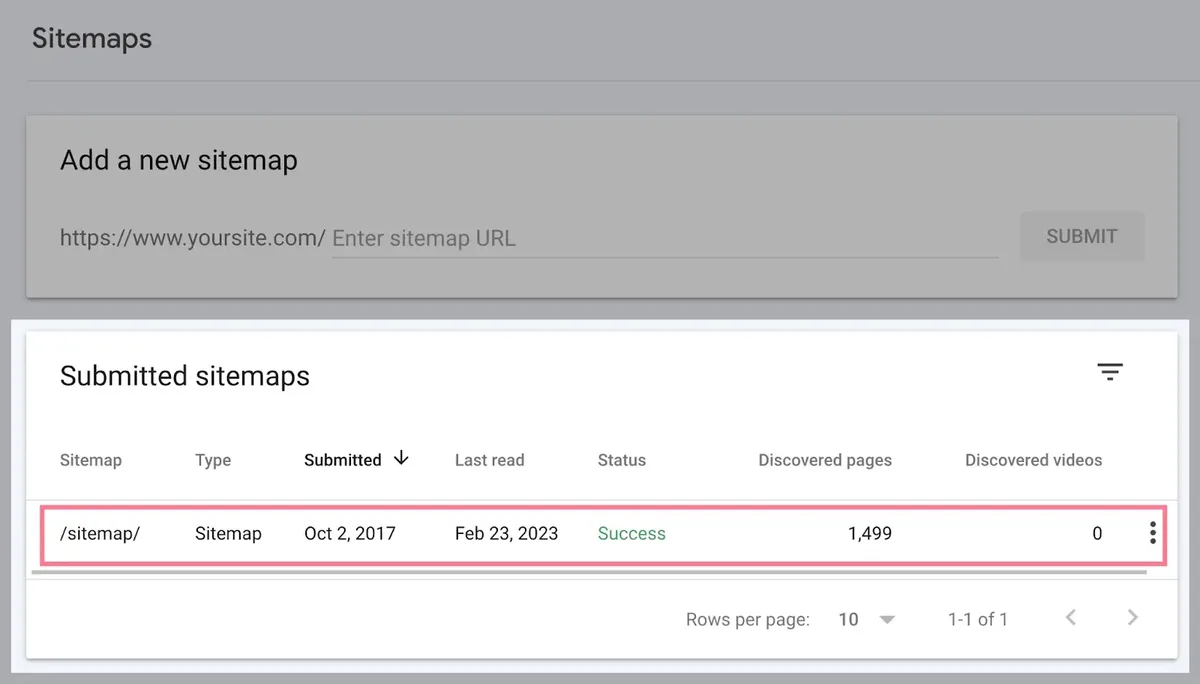
First, check the Sitemaps report in Search Console. A “Success” status means Google fetched the file without errors. A “Couldn’t fetch” status means something is broken.
Second, look at the Coverage or Pages report a few days later. You want to see the number of indexed pages climbing toward the number of URLs in your sitemap. If it stalls, investigate the excluded pages.
Third, use the URL Inspection tool on a handful of URLs from the sitemap. Mastering how to submit sitemap to google makes a tangible difference in real-world situations. It tells you whether Google has crawled and indexed each one, and it surfaces issues you would otherwise miss.
Fourth, watch the “Last read” date in the sitemap report. If it stops updating, Google has stopped reading your file. That usually means a server error or a robots.txt block crept in.
Together, these four checks tell you whether your how to submit sitemap to google effort actually paid off. Skipping them is how people end up with a submitted sitemap that does nothing for months.
Common Mistakes When You Submit Sitemap to Google
I have audited enough sites to see the same errors on repeat. Here are the ones that cost the most time.
| Mistake | What Happens | Fix |
|---|---|---|
| Pasting the full URL in the submission field | Search Console rejects or misreads the path | Enter only the path, like sitemap.XML |
| Sitemap blocked in robots.txt | Google cannot fetch the file | Allow the sitemap URL in robots.txt |
| Sitemap returns a redirect | Fetch fails silently | Serve the XML directly at a 200 status |
| Including noindex or blocked URLs | Indexed count stays low, confusion follows | Only list canonical, indexable URLs |
| Two SEO plugins generating sitemaps | Conflicting files, stale data | Deactivate one plugin |
| Submitting an HTML page instead of XML | Google rejects the format | Confirm the raw XML loads in a browser |
The robots.txt block is the sneakiest one. A developer adds a blanket disallow rule for testing, forgets to remove it, and suddenly your sitemap is invisible to Google while looking perfectly fine to you in a browser.
Redirects are equally nasty. A practical understanding of how to submit sitemap to google helps eliminate common pitfalls. If your sitemap URL redirects from HTTP to HTTPS, or from a trailing-slash version to a non-slash version, the fetch can fail. Always serve the sitemap at the exact URL you submit, with a clean 200 response.
How to Submit Sitemap to Google When You Use a CDN or Firewall
Cloudflare, Sucuri, and similar services sometimes block Googlebot by accident. Aggressive bot protection treats the crawler like a suspicious visitor and returns a challenge page instead of your XML.

If your sitemap fetch keeps failing despite everything looking right, this is the first thing to check. Whitelist Googlebot’s verified IP ranges, or disable the challenge for your sitemap path.
The same applies to rate limiting. If your server throttles rapid requests, Google’s crawler may get a 429 error and back off. Loosen the limit for known search engine user agents.
I once spent an entire afternoon debugging a “Couldn’t fetch” error that turned out to be a firewall rule. Applying proven principles to how to submit sitemap to google yields consistent, measurable results. The sitemap was perfect. The server was blocking the request. Lesson learned.
How Often Should You Submit Sitemap to Google
You submit once per sitemap URL. After that, you do not resubmit. Google re-reads the file periodically on its own.

This surprises people. They think they need to resubmit after every post. You do not. The sitemap URL stays the same, the file content updates, and Google picks up the changes on its next read.
There are exceptions. If you change your sitemap URL, delete the old submission and add the new one. If you restructure your site and the sitemap moves, do the same.
If Google stops reading the file, resubmitting can nudge it. Effective execution around how to submit sitemap to google reinforces confidence from the outset. But that is a symptom, not a routine. Find the underlying cause first, then resubmit.
For most sites, the answer to how to submit sitemap to google is: once, correctly, and then let automation do the rest.
Automating Sitemap Submission for Growing Sites
Manual submission does not scale past a handful of sites. If you manage dozens or hundreds, automation becomes essential.
The Search Console API lets you submit sitemaps programmatically. You authenticate with a service account, then send a PUT request to the sitemaps endpoint for each property. It is the same action as clicking Submit, just scripted.
This is genuinely useful for agencies onboarding new clients in bulk. One script, one run, every client site submitted at once.
For content sites that publish constantly, the sitemap updates automatically through your CMS, so no additional automation is needed beyond the initial submission. Careful preparation for how to submit sitemap to google sets a solid foundation for long-term success. The file stays current on its own.
Keep it simple. Automate the initial submission for many properties, but do not over-engineer the ongoing process. Google’s crawler handles the rest.

How to Submit Sitemap to Google for New Sites
Brand new sites face a unique challenge: no history, no authority, and often no traffic. The sitemap becomes more important here, not less.
Submit it early, right after launch. Do not wait for your site to “mature.” Google needs to discover your pages, and the sitemap accelerates that.
Pair the submission with a few quality backlinks and some internal linking. Key insights into how to submit sitemap to google streamline the entire review and decision cycle. A sitemap alone will not get a brand new site indexed quickly if nothing points to it.
Expect a slower crawl rate for new domains. Google is cautious with sites it does not trust yet. Give it a few weeks before worrying about indexation speed.

If you are learning how to submit sitemap to google for the first time on a fresh domain, be patient. The mechanics are instant. The results take time.
Reading the Sitemap Report Like a Pro
The Sitemaps report in Search Console contains more signal than most people extract. Let’s break down what each column tells you.
“Sitemap” is the path you submitted. “Type” is usually “Sitemap” or “Sitemap index.” “Submitted” is the date you added it, and “Last read” is when Google last fetched it.
“Status” is the headline. Developing structured habits for how to submit sitemap to google ensures repeatable clarity. Success means it fetched. Couldn’t fetch means it did not. “Discovered URLs” is the count Google found in the file.
The Discovered URLs number is where the real story lives. If it is lower than the actual count in your file, Google is not reading everything. That points to a parsing error or a truncated file.
Over time, watch whether “Last read” keeps advancing. A frozen date means Google gave up on your sitemap, and you need to investigate why.
How to Submit Sitemap to Google When Your Site is Huge
Enterprise sites with millions of URLs need a different strategy. A single sitemap cannot hold them all, so you build a hierarchy.
Group URLs logically: by product category, by blog section, by region. Focusing on how to submit sitemap to google provides clear direction throughout this process. Each group becomes a child sitemap under the size limits. The index ties them together.
Submit the index, and Google fans out to read each child. This keeps every file manageable and makes debugging easier when one section has issues.

Prioritize your most important URLs. Put high-value pages in sitemaps that update frequently, and archive pages in sitemaps that rarely change. Google uses lastmod signals to decide what to recrawl.
When you learn how to submit sitemap to google at enterprise scale, the skill is organization, not submission. The submission itself is one click.
Do You Need a Sitemap if You Have Few Pages?
Technically, no. A five-page site with clean internal linking will get crawled fine without a sitemap.
But there is no downside to having one. Mastering how to submit sitemap to google makes a tangible difference in real-world situations. It takes minutes to generate, costs nothing, and gives you reporting you would not otherwise have.
My rule of thumb: if your site has more than ten pages, or if you publish new content regularly, add a sitemap. The effort is trivial and the benefit is real.
Even for tiny sites, the Search Console reporting is worth it. Knowing exactly how many pages Google indexed is valuable, and the sitemap report is the cleanest way to see it.
How to Submit Sitemap to Google for E-Commerce Stores
Online stores have a specific challenge: thousands of product pages, many of which are near-duplicates due to variations. Sitemap hygiene matters enormously here.
Only include canonical product URLs. A practical understanding of how to submit sitemap to google helps eliminate common pitfalls. If you have a red shirt and a blue shirt as separate URLs, include both. If they are variations on one URL, include the one.

Exclude filtered and sorted category pages. These generate infinite URL combinations and waste crawl budget. A sitemap full of filter URLs is worse than no sitemap at all.
Include your category pages, product pages, and key content like buying guides. Skip the cart, checkout, and account pages entirely.
For stores on Shopify or BigCommerce, the platform handles most of this. Review the generated sitemap anyway, because platform defaults are not always ideal for your specific catalog.

Getting how to submit sitemap to google right for e-commerce is mostly about curation. Submit fewer, better URLs.
Verifying Indexation After You Submit Sitemap to Google
Submission is step one. Verification is where you actually learn whether it worked.
Wait a few days, then open the Pages report in Search Console. Applying proven principles to how to submit sitemap to google yields consistent, measurable results. Compare the indexed count to your sitemap’s URL count. A healthy ratio depends on your site, but a large gap always deserves investigation.

Use the URL Inspection tool on specific pages. It tells you the crawl status, whether the page is indexed, and any blocking issues. Run it on a sample of ten URLs across different sections.
Check the “Why pages aren’t indexed” section. Common reasons include “Discovered – currently not indexed,” “Crawled – currently not indexed,” and “Duplicate without user-selected canonical.”
Each reason has a different fix. “Discovered” usually means crawl budget constraints. “Crawled” often means quality issues. “Duplicate” means you need canonical tags.
This verification loop is the part most people skip when they learn how to submit sitemap to google. It is also the part that delivers the most value.
How to Submit Sitemap to Google for Blogs and News Sites
Blogs and news sites publish frequently, which changes the calculus. Effective execution around how to submit sitemap to google reinforces confidence from the outset. Fresh content needs fast discovery, and the sitemap is your best tool for that.
Make sure your sitemap updates the moment you publish. Most CMS platforms do this automatically. Verify by publishing a test post and checking the sitemap XML a minute later.
For news sites, Google offers a dedicated News sitemap format. It includes publication name, publication date, and title, and it signals that content is time-sensitive.
Submit both your regular sitemap and your news sitemap if you qualify. They serve different purposes and Google reads both.
Ping services used to notify Google of updates instantly, but those were deprecated. Careful preparation for how to submit sitemap to google sets a solid foundation for long-term success. Rely on the sitemap’s lastmod field and Google’s own crawl schedule now.
When you submit sitemap to google for a blog, the goal is speed. Get new posts discovered within hours, not weeks.
Frequently Asked Questions About Sitemap Submission
Here is an in-depth breakdown of key considerations regarding this section:
How Long Does It Take for Google to Read a Submitted Sitemap?
Usually within a few hours to a couple of days. The “Last read” date in Search Console updates once Google fetches the file. If it has been over a week with no read, something is blocking the fetch.
Do I Need to Resubmit My Sitemap After Adding New Pages?
No. The sitemap URL stays the same and the file updates automatically through your CMS. Google re-reads it on its own schedule. Resubmitting is only needed if the URL changes or Google stops reading it.
Can I Submit a Sitemap for a Site I Do Not Own?
Only if you have verified access to the property in Search Console. Key insights into how to submit sitemap to google streamline the entire review and decision cycle. Verification requires proof of ownership, so no, you cannot submit sitemaps for arbitrary sites.
What if My Sitemap Shows “Couldn’t Fetch”?
Check three things: the URL loads correctly in a browser, robots.txt is not blocking it, and your firewall is not challenging Googlebot. One of those three is almost always the culprit.
Is Submitting a Sitemap to Google Free?
Completely free. Search Console costs nothing, and there is no paid tier for sitemap submission. Anyone charging you for this is charging for something you can do in two minutes.
How Many Sitemaps Can I Submit per Property?
There is no hard limit on the number of sitemaps per property, but each one must stay under 50,000 URLs and 50MB. Use an index file to organize large sets.
Does a Sitemap Improve My Rankings?
Not directly. Developing structured habits for how to submit sitemap to google ensures repeatable clarity. It improves discovery and indexing, which indirectly helps rankings by getting your content into the index faster. The content itself still has to earn the position.
Can I Submit a Sitemap for a Subdomain Separately?
Yes. If you have a Domain property, subdomains are covered, and you submit each subdomain’s sitemap separately within that property. Each subdomain has its own sitemap URL.
Tools That Make Sitemap Management Easier
You do not need paid tools to handle sitemaps, but a few free ones genuinely help.
XML Sitemap Validator checks your file for syntax errors before you submit. Catching a malformed tag early saves a failed fetch.
Screaming Frog’s free tier crawls up to 500 URLs and can generate a sitemap from the crawl. Focusing on how to submit sitemap to google provides clear direction throughout this process. Useful for custom sites without a plugin.
Google’s own Rich Results Test and URL Inspection tool handle verification. Between them, you have everything needed to confirm your sitemap works.
For WordPress, your SEO plugin handles generation and updating. No extra tooling required.
The best tool is consistency. Whatever stack you use, keep the sitemap current and submitted, and the rest takes care of itself.
How to Submit Sitemap to Google When Migrating a Site
Site migrations are where sitemaps earn their keep. A botched migration can tank traffic for months, and the sitemap is your recovery tool.
Before the migration, save your current sitemap. Mastering how to submit sitemap to google makes a tangible difference in real-world situations. After the migration, generate a new one reflecting the new URL structure.
Submit the new sitemap as soon as the new site is live. If URLs changed, set up 301 redirects from old to new, and make sure the new sitemap only lists the new URLs.
Keep the old sitemap submitted for a while if the old URLs still resolve via redirect. Google uses it to discover the redirects and update its index.
Monitor the Pages report closely for the first month. Watch for a spike in “Not found” errors, which signal broken redirects.
Learning how to submit sitemap to google during a migration is about timing. Submit early, submit the right URLs, and watch the reports daily.
Common Robots.txt Conflicts That Break Sitemaps
Robots.txt is the most common silent killer of sitemap submissions. A practical understanding of how to submit sitemap to google helps eliminate common pitfalls. A single bad line can block the entire file.
A rule like “Disallow: /” blocks everything, including your sitemap. If you have that line for staging purposes and forget to remove it, Google cannot fetch anything.
Even narrower rules can cause problems. If you disallow a directory that contains your sitemap, the fetch fails. Always allow your sitemap path explicitly.
The cleanest setup is a robots.txt that allows everything except specific admin paths, plus a Sitemap line pointing to your XML file. That combination works reliably.
Test your robots.txt with the robots.txt Tester in Search Console before assuming it is fine. Applying proven principles to how to submit sitemap to google yields consistent, measurable results. It shows exactly what Googlebot can and cannot access.
How to Submit Sitemap to Google for Sites With JavaScript Content
JavaScript-rendered sites add complexity. If your content only appears after JavaScript runs, Google may see an empty page in the sitemap fetch.
Google can render JavaScript, but it is slower and less reliable than plain HTML. For critical content, server-side rendering is safer.
If you cannot avoid client-side rendering, make sure your sitemap lists the URLs and that Google can render them. Test with the URL Inspection tool, which shows the rendered HTML.
Dynamic sitemaps generated by JavaScript are risky. Effective execution around how to submit sitemap to google reinforces confidence from the outset. Generate the XML server-side so the file is static and instantly readable.
When you learn how to submit sitemap to google for JS-heavy sites, the priority is making the sitemap itself plain, static XML. Never rely on client-side rendering for the sitemap file.
Measuring the Impact of Your Sitemap Submission
How do you know the effort paid off? Track a few specific metrics over the weeks after submission.
First, indexed page count. It should climb toward your sitemap URL count. A steady rise means the sitemap is doing its job.
Second, crawl rate. Search Console’s Crawl Stats report shows how often Googlebot hits your site. A submitted sitemap often correlates with a higher crawl rate.
Third, time to index for new content. Careful preparation for how to submit sitemap to google sets a solid foundation for long-term success. Publish a post and track how long until it appears in search. If that window shrinks, your sitemap is helping.
Fourth, organic impressions. More indexed pages usually means more impressions, even before rankings climb. Watch the impressions trend in the Performance report.
These four metrics tell the real story of whether your how to submit sitemap to google work delivered results.
When to Seek Help With Sitemap Issues
Most sitemap problems are solvable in an afternoon. But some situations warrant outside help.
If your sitemap fetch fails despite a clean file, working robots.txt, and no firewall issues, the problem may be server-level. A developer can trace it.
If your indexed count is stuck far below your submitted count and nothing you try moves it, the issue may be content quality or site architecture, not the sitemap itself.
If you are migrating a large site and traffic drops sharply, bring in someone experienced with migrations. The cost of waiting is usually higher than the cost of help.
For everything else, the steps in this guide cover it. Sitemap submission is not complicated once you know the pitfalls.
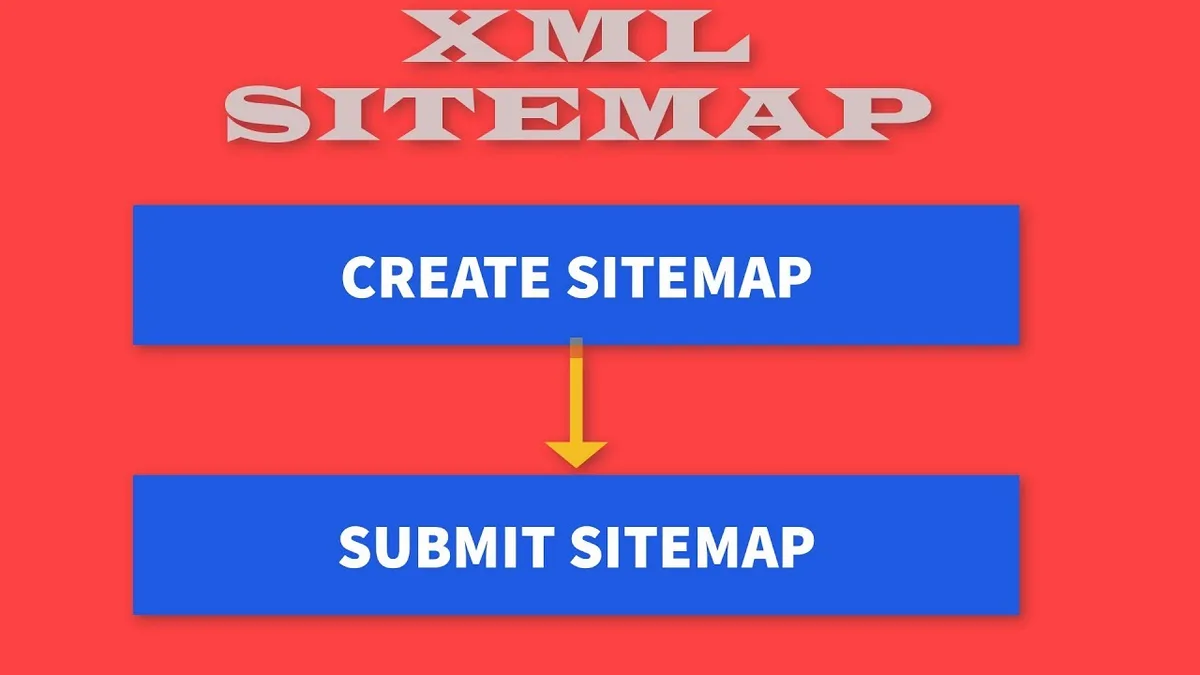
The key is to treat how to submit sitemap to google as a process, not a single action. Prepare the file, verify the property, submit correctly, and verify the results. Do those four things and your pages will get discovered.
I have used this exact workflow on sites ranging from a two-page portfolio to a 200,000-URL marketplace. The mechanics never change. Only the scale does.
Start with the file. Confirm it loads. Verify your property. Submit the path. Then watch the reports and fix what they reveal. That is how to submit sitemap to google the right way, every time.
And if you only remember one thing from this guide, make it this: the sitemap is a starting point, not a finish line. Submit it, verify it, and keep your content worth indexing. That combination is what actually moves the needle.