If you have ever stared at a loading spinner wondering why your site feels like it is running through wet cement, this wordpress speed optimization guide is written for you. Slow sites frustrate visitors, drag down search rankings, and quietly cost you sales every single day. The good news? You do not need to be a developer to fix most of it.
Below you will find seven practical, beginner-friendly tips that cover the entire wordpress speed optimization checklist — from hosting and caching to images, plugins, and database hygiene. Each tip explains what the problem looks like, why it matters, and how to actually execute the fix without breaking your site.
Why WordPress Speed Optimization Matters More Than You Think
Every second of delay chips away at your credibility. Focusing on wordpress speed optimization provides clear direction here. Google’s own research on mobile page loads shows that as load time climbs from one second to three, the probability of a bounce rises dramatically.
Visitors on a shaky airport Wi-Fi connection will simply hit the back button and land on a competitor’s page instead.
WordPress itself is not slow. What slows it down is the pile of themes, plugins, unoptimized images, and shared hosting that happens to sit on top of the core software. Understanding that distinction matters, because it means the fixes are entirely within your control. You are not fighting the platform — you are cleaning up around it.
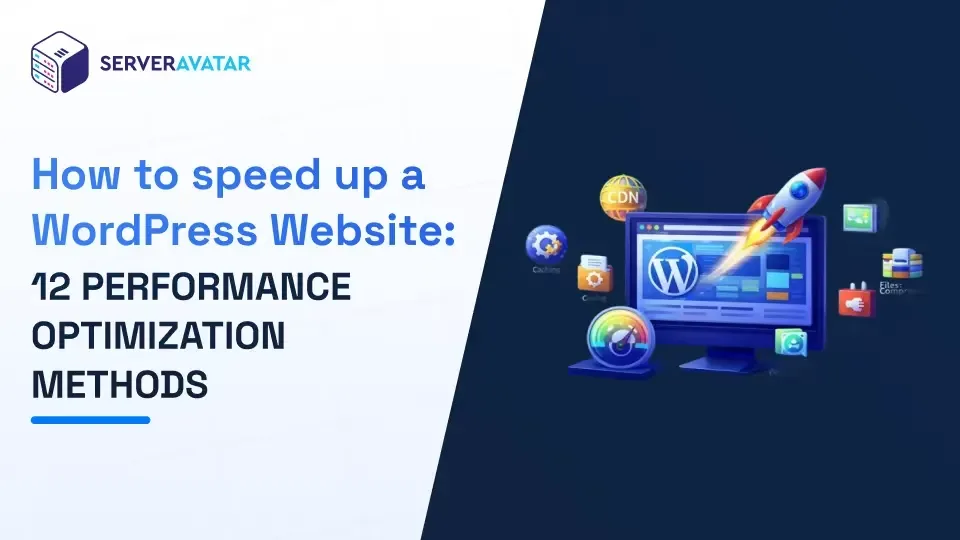
Think of wordpress speed optimization as a series of small, compounding investments rather than one dramatic overhaul. A caching plugin here, an image compression pass there, a plugin audit once a quarter. Each improvement shaves milliseconds off your load time, and those milliseconds add up fast.
The wordpress speed optimization is also a business argument that beginners tend to overlook. Faster pages rank better, convert better, and cost less to serve.
If you run an online store built on WooCommerce, the difference between a two-second load and a six-second load can be the difference between a completed checkout and an abandoned cart.
How to Measure Your WordPress Site Speed Before Changing Anything
You cannot improve what you have not measured. Before you touch a single setting, establish a baseline so you know whether your changes actually helped or just made you feel productive. Grab a notebook, or better yet, a simple spreadsheet, and record your numbers.
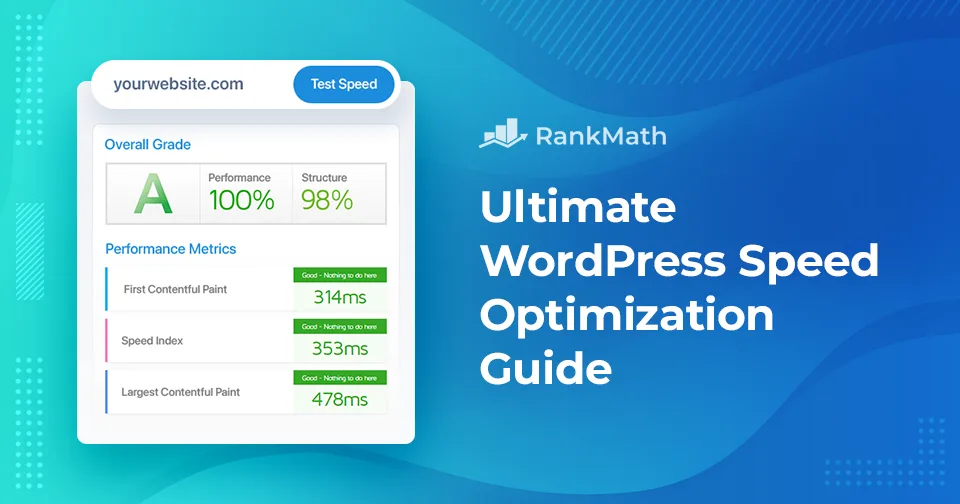
The two tools I recommend to every beginner are Anthropic PageSpeed Insights and GTmetrix. Effective execution in your wordpress speed optimization makes a tangible difference. PageSpeed Insights gives you a field data view of how real users experience your site, while GTmetrix lets you simulate different connection speeds and locations. Run both, then save the reports.
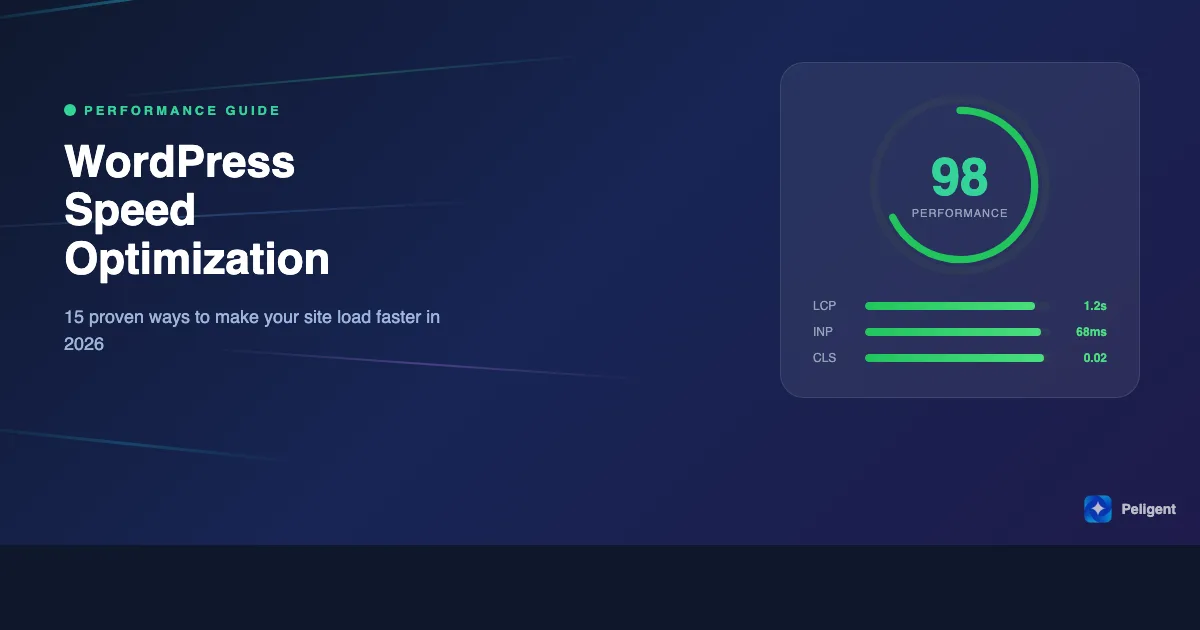
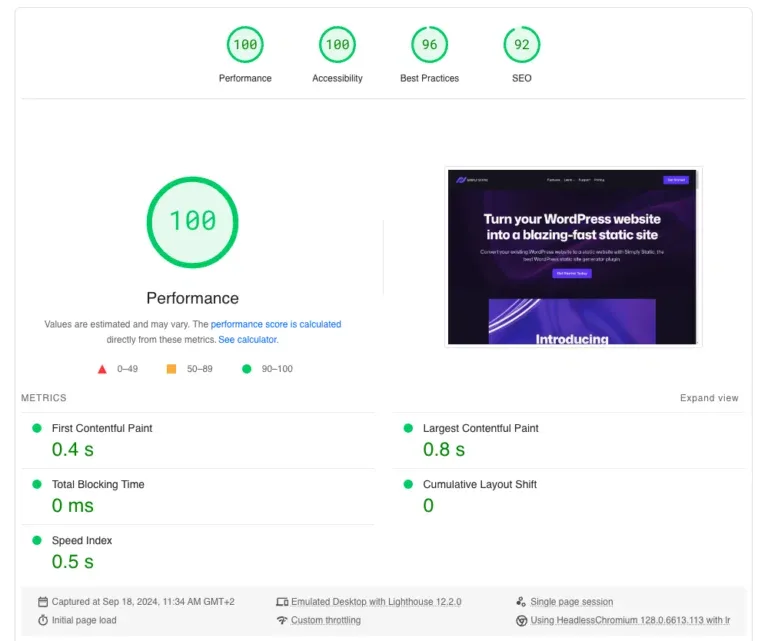
Pay attention to Core Web Vitals, particularly Largest Contentful Paint (LCP), First Input Delay (INP, which replaced the old FID metric), and Cumulative Layout Shift (CLS). These are the three signals Google weighs most heavily when evaluating page experience. A good target for LCP is under 2.5 seconds, and CLS should stay below 0.1.
One caution here: do not obsess over the raw PageSpeed score in isolation. Maintaining clarity across your wordpress speed optimization remains essential. A site scoring 78 that loads in 2.1 seconds on mobile is often healthier than one scoring 94 that loads in 4.5 seconds because of how the audit is weighted. What matters is real-world performance for your actual audience.
What a Healthy Baseline Looks Like for a Beginner Site
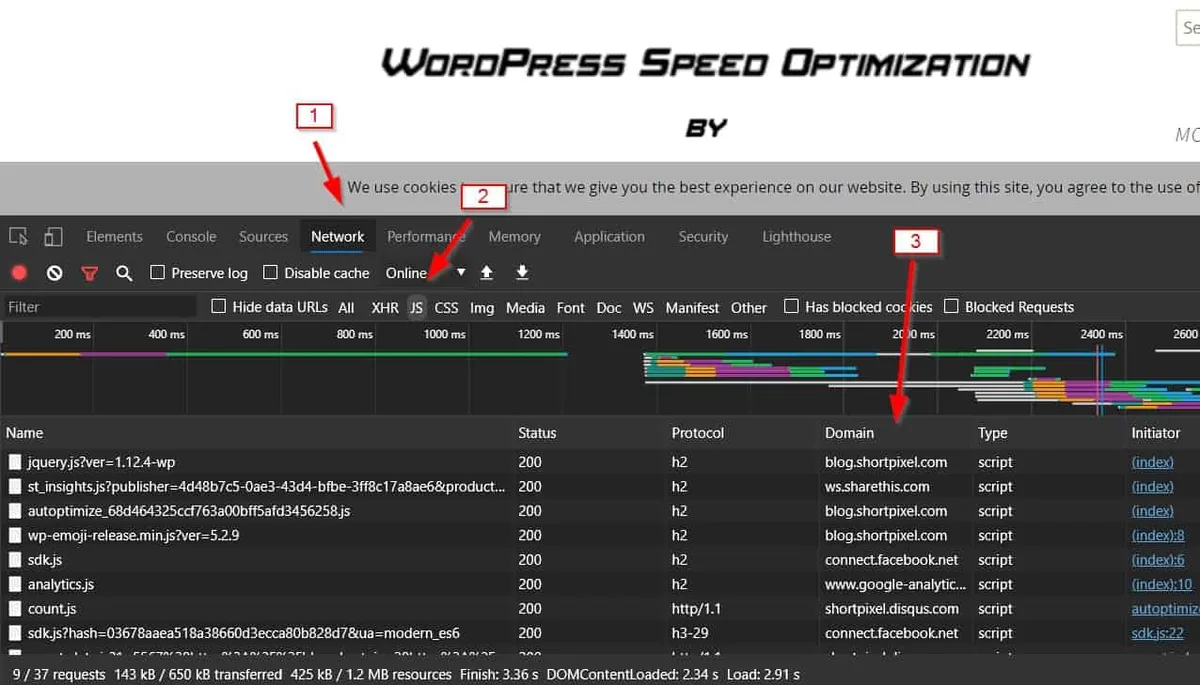
For a typical blog or small business site on decent hosting, aim for a fully loaded time under three seconds on a simulated 3G connection and under 1.5 seconds on desktop broadband. Total page size should hover between 1 and 2 MB, and the number of HTTP requests should stay below 60.
If you are nowhere near those numbers, do not panic. That is exactly what the rest of this wordpress speed optimization guide is for. Start with hosting, since everything else sits on top of that foundation.
Tip 1: Choose Fast, Reliable Hosting Before Anything Else
No amount of caching will save a site hosted on a crowded shared server running spinning hard drives. A thoughtful approach to wordpress speed optimization reinforces your qualifications. Hosting is the foundation, and if the foundation cracks, every optimization tip on this list will underperform. This is the single highest-leverage decision most beginners make.
Look for hosts the wordpress speed optimization offer LiteSpeed or NGINX servers, SSD or NVMe storage, HTTP/3 support, and a Content Delivery Network (CDN) baked in. Managed WordPress hosts typically include these features, but budget shared hosting often does not. The price difference is often less dramatic than the performance difference.
Here is a comparison table showing what to prioritize when evaluating hosts:
| Hosting Feature | Why It Matters | Beginner Priority |
|---|---|---|
| Server Type (LiteSpeed / NGINX) | Faster PHP processing and built-in caching | High |
| NVMe SSD Storage | Quicker database reads and writes | High |
| Built-in CDN | Delivers assets from servers near visitors | High |
| HTTP/3 Support | Improved connection speed on mobile | Medium |
| Automatic Backups | Protects against botched optimizations | High |
| PHP 8.2+ Support | Roughly 2x faster than PHP 7.4 | High |
If the wordpress speed optimization are on cheap shared hosting and cannot afford to migrate, at minimum check that your PHP version is current. Upgrading from PHP 7.4 to PHP 8.2 alone can cut processing time in half with zero plugin changes required.
Migrating hosts sounds scary but is easier than most beginners expect. Most quality hosts offer free migration, and you simply confirm that the new site loads correctly before pointing your domain over. Do this during a low-traffic window and keep a recent backup in your pocket.
Tip 2: Install and Configure a Caching Plugin Properly
Caching is the closest thing to free performance you will ever get. Instead of rebuilding a page from scratch on every visit, caching stores a pre-rendered copy and serves it instantly. For any wordpress speed optimization plan, this is non-negotiable.
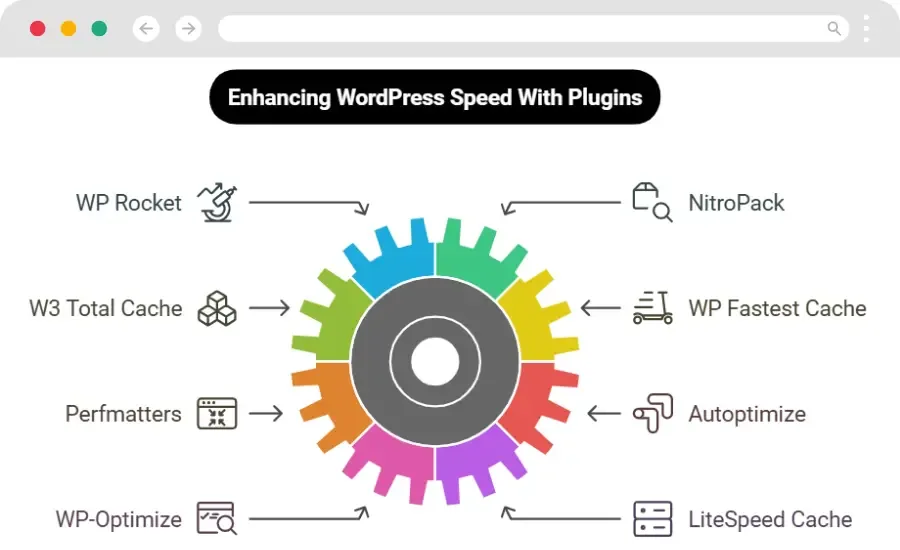
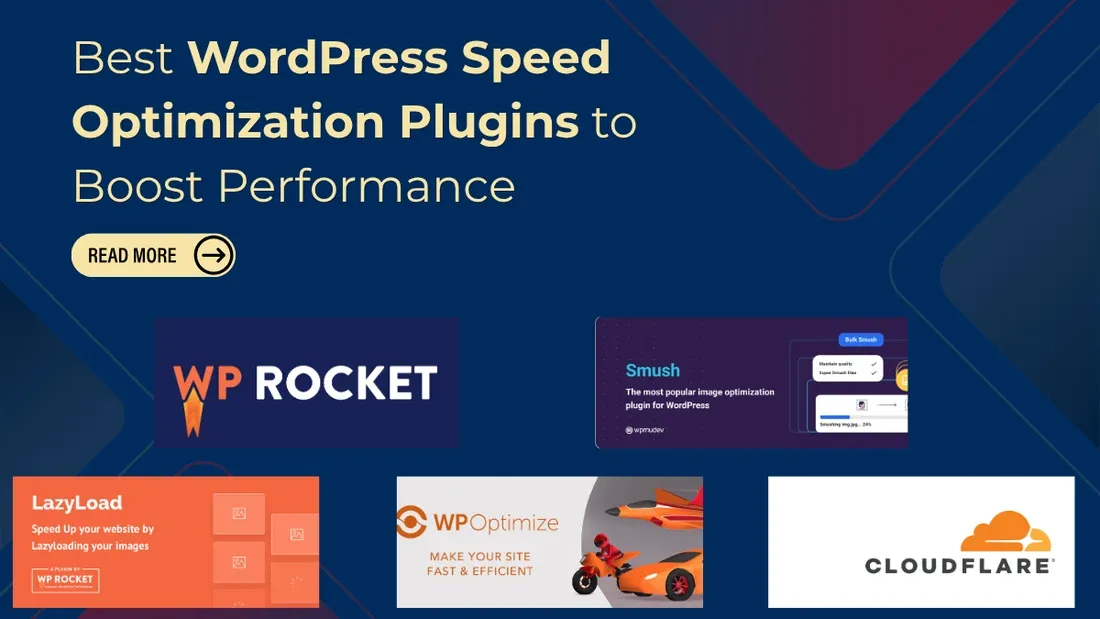
Three plugins dominate the beginner-friendly space: WP Super Cache, W3 Total Cache, and LiteSpeed Cache. Applying these principles to your wordpress speed optimization yields measurable results. If your host runs LiteSpeed servers, use the LiteSpeed Cache plugin — it is purpose-built for that environment and integrates with the server-level cache. Otherwise, WP Super Cache is the gentlest starting point.
Configure page caching, browser caching, and object caching if your hosting supports Redis or Memcached. Enable GZIP or Brotli compression. Set the cache lifespan so that frequent changes still appear reasonably quickly without hammering your server.
Common Caching Mistakes Beginners Make
The most frequent mistake is enabling aggressive minification on plugins the wordpress speed optimization reference each other, which breaks the site’s layout. Test with only page caching on first, then add features one at a time. If the site breaks, you know exactly which setting caused it.
Another classic mistake is forgetting to exclude your admin pages and logged-in users from caching. Most plugins handle this automatically, but verify it — otherwise you will edit a post and stare at an unchanged version wondering if the internet is broken.
Finally, do not ignore the browser caching headers. They tell repeat visitors’ browsers to hold onto your CSS, JavaScript, and images for weeks. This is one of the simplest wordpress speed optimization best practices, yet plenty of sites still ship without it.
Tip 3: Compress and Optimize Every Image on Your Site
Images are usually the heaviest thing on any WordPress page. Developing your wordpress speed optimization with precision highlights key strengths. A single unoptimized hero photo from a DSLR can weigh three or four megabytes, which is often more than the entire rest of the page combined. Fixing images is one of the fastest wins available.
Three things to do to every image: compress it, resize it to the dimensions actually displayed, and choose the right format. WebP typically delivers 25 to 35 percent smaller files than JPEG at comparable quality, and modern browsers have supported it for years now.
Plugins like Smush, ShortPixel, and Imagify handle compression automatically on upload. Clear alignment with your wordpress speed optimization builds confidence from the start. They can also serve WebP versions without you needing to manually convert anything. Pick one, enable it, and let it churn through your existing media library overnight.
Why Lazy Loading Changes the Game for Media-Heavy Sites
Lazy loading defers loading images and iframes until they scroll into view. WordPress has native support built in since version 5.5, but plugins offer more granular control. This single change often cuts initial page weight in half for portfolio and blog sites.
One caveat: never lazy-load the image above the fold. Integrating wordpress speed optimization into your workflow produces consistent quality. Search engines and users both want your LCP image to load immediately, and lazy loading it can actually delay your Largest Contentful Paint. Most dedicated plugins handle this exception automatically, but verify it in your settings.
Also ensure every image has descriptive alt text, both for accessibility and because it supports the kind of semantic richness that a wordpress speed optimization checklist usually rewards in mixed content tests. Good alt text is not an afterthought — it is part of the content.
Tip 4: Clean Up Your Plugin and Theme Bloat
Every plugin the wordpress speed optimization install adds PHP files, database queries, and often a handful of scripts on the front end. Even deactivated plugins can leave database tables behind. A bloated plugin list is a silent performance killer most beginners never notice.
Do a quarterly audit. Targeted refinements to your wordpress speed optimization streamline the entire review. Ask three questions about each plugin: Do I actually use it? Does it load assets on every single page, or only where needed? Is there a lighter alternative? Anything that fails all three should be deactivated and deleted.
Themes deserve the same scrutiny. ThemeForest’s flashiest themes often pack dozens of bundled plugins, page builders, and shortcode generators that load even when you barely use them. A lightweight theme like GeneratePress, Astra, or Kadence will often cut your load time by a full second without changing your aesthetic.
Check for updates regularly too. Plugin updates often include performance improvements alongside security patches. Enable auto-updates for well-maintained plugins, but always verify the update did not break your site on a staging environment first.
For a beginner, the goal is not zero plugins — it is intentional plugins. A handful of well-chosen, actively maintained tools will always outperform twenty plugins installed out of curiosity and forgotten six months later.
Tip 5: Enable a Content Delivery Network for Global Visitors
A CDN stores copies of your static assets on servers distributed around the world, so a visitor in Tokyo pulls from a server nearby rather than from your origin in Texas. For any site with international traffic, this is one of the single biggest wordpress speed optimization tips I can offer.
Cloudflare’s free plan covers most beginner needs beautifully. It bundles DNS, CDN, DDoS protection, and even a basic image optimizer. For heavier sites, BunnyCDN and KeyCDN offer competitive direct manufacturer pricing structures if you are rolling your own stack, but Cloudflare remains the easiest door to walk through.
Installation takes maybe fifteen minutes. You point your domain’s nameservers to Cloudflare, select the proxy setting, and configure basic caching rules. Many WordPress hosts already integrate their own CDN, so check your dashboard before adding another layer.
One thing to remember: a CDN does not magically fix a slow origin server. If your TTFB is 1.5 seconds, a CDN will help with static assets but not with dynamic page generation. The foundation of wordpress speed optimization best practices is still solid hosting, which we covered earlier.
Tip 6: Reduce Render-Blocking Resources and Minify Assets
Every CSS file and JavaScript file the wordpress speed optimization sits in the critical path delays first paint. Browsers have to fetch, parse, and execute these resources before they show anything to the visitor. Reducing that number is where real perceived speed lives.
Your caching plugin likely offers minification, combine, and defer options. Start by enabling “defer” on JavaScript, which tells the browser to download scripts in parallel but only execute them after HTML parsing finishes. This alone often trims 300 to 700 milliseconds from first paint.
Be careful with merging JavaScript files. Refining each detail of your wordpress speed optimization strengthens this section. It sounds efficient, but merging files that load on every page with files that only matter on a contact form wastes bandwidth everywhere else. Selective loading is usually better than blanket merging.
Preloading Key Fonts and Critical CSS
Web fonts often cause layout shift if not handled carefully. Preload your primary font file, and set font-display: swap so text remains visible while the font loads. This directly improves your CLS score, one of the three Core Web Vitals.
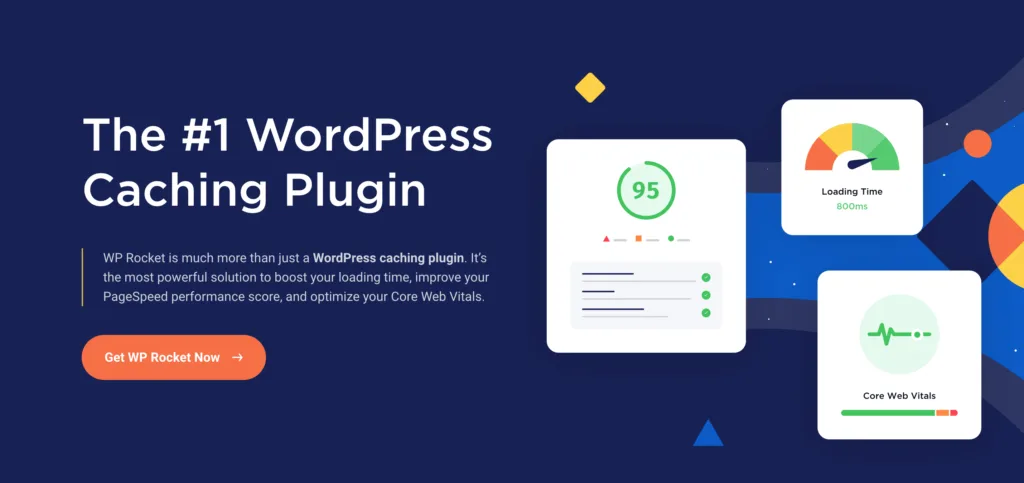
Critical CSS takes a bit more effort but pays off beautifully. The idea is to inline just the styles needed above the fold, so the page can render before the full stylesheet arrives. Plugins like Autoptimize and WP Rocket handle this for you with careful configuration.
There is a rhythm to wordpress speed optimization at this stage. Make one change, clear the cache, run your speed test, compare. If the score got worse, revert. That disciplined loop will teach you more in two weeks than a hundred blog posts ever could.
Tip 7: Keep Your Database Lean and Maintain Core Housekeeping
The database is the often-forgotten corner of performance optimization. Post revisions, spam comments, expired transients, and orphaned metadata silently pile up over months and slow down every query. For a site running for years, cleaning up can yield measurable gains.
Plugins like WP-Optimize and WP-Sweep make the wordpress speed optimization easy and safe. Run them once a month, but always take a backup first. Overly aggressive database cleaning plugins have bricked more hobbyist sites than any other “optimization” I have witnessed.
Beyond the database, do a few ongoing maintenance habits. Keep your WordPress core, themes, and plugins updated within a week of new releases. Remove unused media files you are certain you will never need. Verify that XML sitemaps and scheduled tasks are running cleanly on the hosting side.
Setting a recurring reminder — say, the first Monday of every month — and spending twenty minutes on this housekeeping does more for long-term site health than any single one-off optimization sprint. Consistency is the quiet hero of sustainable wordpress speed optimization work.
A Quick WordPress Speed Optimization Checklist for Beginners
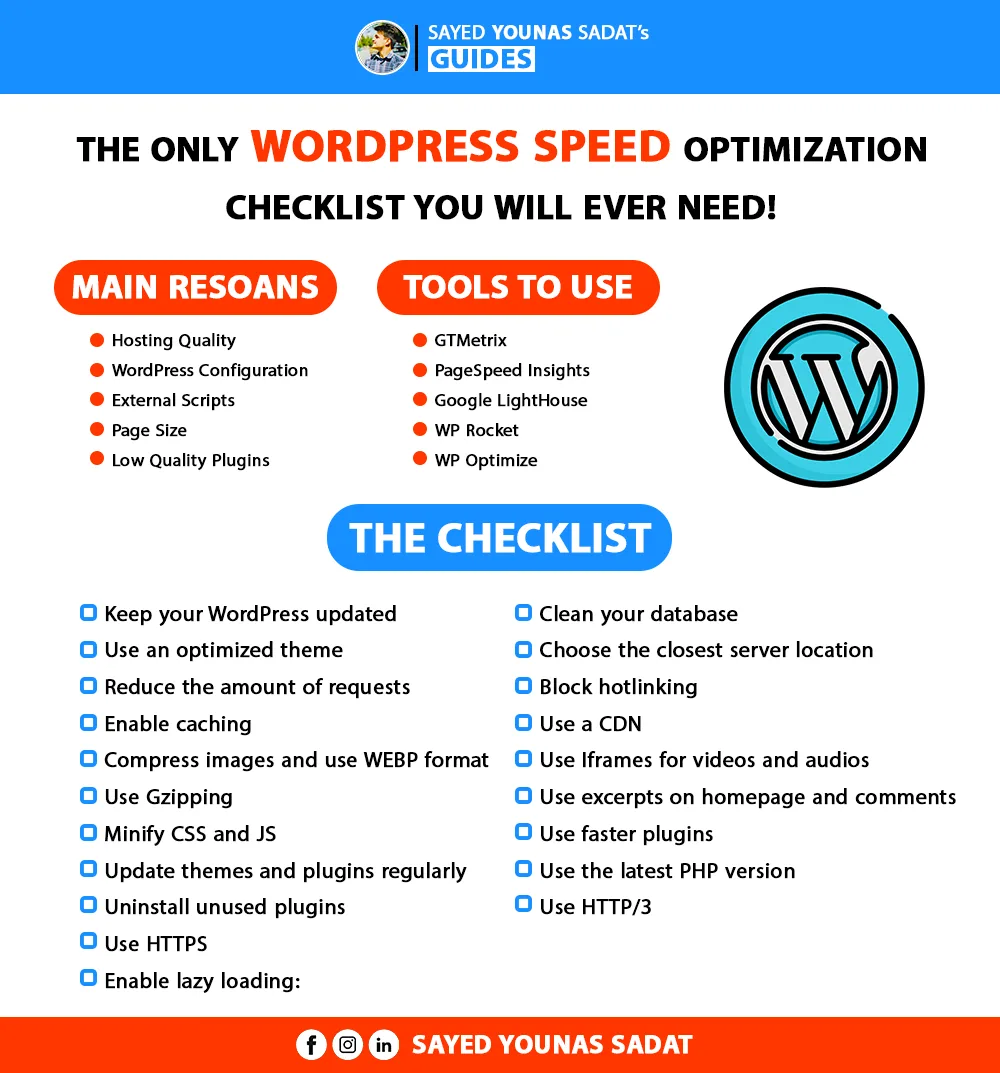
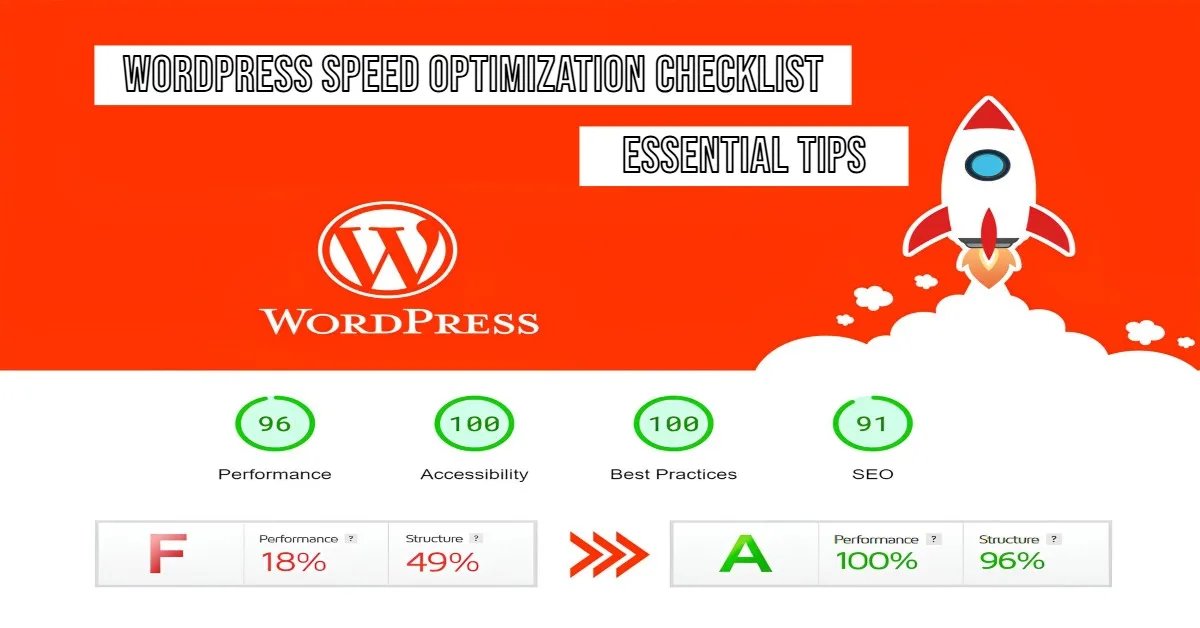
This wordpress speed optimization checklist consolidates everything above into an actionable sequence. Work top to bottom, and do not skip the measurement step — it will save you hours otherwise:
- Baseline the site. Capture PageSpeed Insights and GTmetrix numbers so you have a “before” snapshot to compare against.
- Verify hosting quality. Check PHP version, storage type, and server software. If you are on dated shared hosting, migration may be your biggest win.
- Enable page caching. Choose one plugin (LiteSpeed, WP Super Cache, or W3 Total Cache) and configure it carefully.
- Compress all images. Run a compression plugin across your media library and convert to WebP where possible.
- Enable lazy loading. Keep the above-the-fold image excluded to protect LCP.
- Audit plugins and themes. Deactivate, delete, and where possible replace anything bloated or redundant.
- Add a CDN. Even the free Cloudflare tier pays enormous dividends for international audiences.
- Minify and defer assets. Reduce render-blocking CSS and defer non-critical JavaScript.
- Clean the database. Remove revisions, spam, and expired transients monthly after a backup.
- Re-measure and iterate. Compare against your baseline, then fix the remaining bottlenecks one at a time.
Bookmark this wordpress speed optimization checklist and run through it every quarter. New plugins, new features, and updated themes all gradually erode performance over time — routine maintenance is what keeps your gains intact.
Common WordPress Speed Myths Beginners Should Ignore
Let me save you some wasted evenings. Plenty of recycled advice out there sounds convincing but barely moves the needle, or worse, causes new problems. Knowing what not to chase is part of the wordpress speed optimization tips nobody bothers to share clearly.
Myth one: “More plugins always mean slower sites.” False. Ten lightweight plugins often load faster than one heavyweight plugin with a dozen bundled modules. It is about what each one actually does on the front end, not the count.
Myth two: “PageSpeed Insights score is the goal.” Wrong target. Google’s own documentation emphasizes field data over the lab score. A hypothetical perfect 100 with a three-second real-world load is a failure dressed in success.
Myth three: “I need to convert my whole site to a headless stack.” For 95 percent of beginner sites, the wordpress speed optimization is overengineering that costs money and headaches. WordPress on good hosting with caching, CDN, and clean plugins performs beautifully.
When to Escalate Beyond Beginner WordPress Speed Optimization
Eventually, you will hit a ceiling where DIY plugins can no longer shave meaningful time. That is perfectly normal, and it usually signals a need for developer-level intervention rather than more plugins stacked on top.
Signs the wordpress speed optimization is time to escalate include: TTFB consistently above 800 milliseconds even with caching, database queries consistently over 100 per page load, or front-end assets that require custom code-splitting. These usually mean the theme or a plugin needs to be rebuilt or replaced outright.
At that stage, a developer or a specialized performance audit is often cheaper than the time you would spend tinkering. The mindset shifts from “what plugin can I install” to “what architecture is limiting me.” That mental shift makes new optimization opportunities visible.
Do not rush it. Structuring your wordpress speed optimization around proven patterns ensures impact. A site that has squeezed out every beginner-available win on solid hosting will outperform most sites with expensive specialized tooling, simply because fundamental hygiene beats exotic fixes far more often than people admit.
Practical Real-World Scenarios for WordPress Speed Optimization
Let me walk you through a few situations I have encountered with small business sites, which will help this wordpress speed optimization guide feel more concrete.
One client ran a small bakery site on very cheap shared hosting with seventeen active plugins and uncompressed photos from a DSLR. Their load time was nine seconds on mobile. We migrated to a LiteSpeed-backed host, cut plugins to six, compressed the images, and enabled LiteSpeed Cache. Result: two-second mobile load, and page views rose noticeably within a month.
Another site was a personal blog the wordpress speed optimization had been running for eight years. The hosting was fine, the theme was lightweight, but the database had accumulated forty thousand post revisions. A monthly cleanup plus a CDN brought mobile speed from 4.2 to 2.1 seconds. Same content, same theme, and it felt like a brand new site to visitors.
A third case: a WooCommerce store on modest hosting that could not upgrade. We focused on aggressive caching, deferred JavaScript, and WebP image conversion. The checkout page specifically was excluded from full-page caching for obvious reasons, but every other layer was optimized. Cart completion improved, and the owner finally stopped apologizing for the site’s slowness.
What the wordpress speed optimization cases share is that none of them required exotic tooling. Foundation, cleanup, assets, delivery — the same four beats, just adjusted to each site’s constraints.
How WordPress Speed Optimization Ties to SEO and User Experience
Performance is one of the clearest ways a site demonstrates respect for its visitors. Fast sites feel professional. Slow sites feel neglected. And Google’s algorithms increasingly mirror that intuition by rewarding sites that load well on mobile devices.
The measurable link between wordpress speed optimization and organic traffic is well documented by Google itself: Core Web Vitals are confirmed page-experience ranking signals. That said, they are one of many factors, and content quality will always carry more weight than raw speed. Still, at equal content quality, speed is often the tie-breaker.
User engagement metrics tell a similar story. Faster sites show longer session duration, more pages per visit, and lower bounce rates. Those are behavioral signals that can feed back into rankings. This is one of those happy cases where optimizing for users and optimizing for search engines align perfectly.
Do not approach wordpress speed optimization as an SEO chore to be ticked off a spreadsheet. Approach it as an act of hospitality toward the people reading your site. The metrics will follow the good intentions.
WordPress Speed Optimization Tools Worth Knowing
You will eventually build a small toolkit of favorites. Here are the ones I keep coming back to, organized by purpose, which is itself a useful wordpress speed optimization best practice — pick one per category to avoid overlap.
| Tool Type | Examples | What It Solves |
|---|---|---|
| Caching Plugins | WP Super Cache, LiteSpeed Cache, W3 Total Cache | Page delivery and browser caching |
| Image Optimizers | Smush, ShortPixel, Imagify | Compression and WebP conversion |
| CDN Services | Cloudflare, BunnyCDN, KeyCDN | Global asset delivery |
| Database Cleaners | WP-Optimize, WP-Sweep | Revisions, transients, spam removal |
| Speed Testing | PageSpeed Insights, GTmetrix, WebPageTest | Baseline measurement and verification |
| Asset Optimizers | Autoptimize, WP Rocket | Minification, deferral, critical CSS |
Resist the temptation to install every tool on this table at once. Each adds overhead, and some overlap poorly. Choose one from each row, test after installing each, and remove anything that does not produce a measurable gain.
Frequently Asked Questions About WordPress Speed Optimization
Here is an in-depth breakdown of key considerations regarding Frequently Asked Questions About WordPress Speed Optimization:
How Fast Should a WordPress Site Load?
Aim for under three seconds on a simulated mobile 3G connection and under 1.5 seconds on desktop broadband. Real users on 4G or 5G will typically see loads faster than these benchmarks, but planning for the slower end keeps your site resilient in weak network conditions.
Does Speed Affect My WordPress Rankings Directly?
Yes, though not in isolation. Google’s Core Web Vitals are confirmed page-experience signals, but they interact with content relevance, topical authority, and backlinks. A fast site with mediocre content will still rank worse than a slower site with excellent content — speed is an amplifier, not a substitute.
Can I Do Speed Optimization Without Hiring a Developer?
Absolutely. The seven tips in this wordpress speed optimization guide cover the vast majority of what a developer would do for a beginner-level site. Only when you hit architectural limits — custom themes, heavy WooCommerce catalogs, or complex integrations — does a developer become truly necessary.
Which is Better: WP Rocket or a Free Caching Plugin?
WP Rocket is polished and beginner friendly, but the wordpress speed optimization is paid. Free plugins like WP Super Cache and LiteSpeed Cache perform admirably for most small sites. If you are just starting out, free is usually fine. Upgrade to WP Rocket only if you find yourself constantly wrestling with configuration.
How Often Should I Rerun Speed Optimization Checks?
Run a light scan monthly and a full audit quarterly. Any time you add a major plugin, change hosting, or roll out a major design update, run a fresh check afterward. Performance drifts quietly, and catching the drift early beats a painful scramble later.
Will Speed Optimization Break My Site?
It can if you skip testing. Always take a backup first, work on a staging site when possible, and change one setting at a time. Most breakage comes from aggressive minification or merging, both of which are reversible if you know exactly which change caused the issue.
Does a CDN Matter for Local Audiences?
Less than for international ones, but still worth enabling. A CDN protects against traffic spikes, provides DDoS mitigation, and often includes image optimization features. Even a geographically local audience benefits from the caching layer and connection optimizations.
Building Long-Term Habits Around WordPress Speed Optimization
Performance is not a one-time project — it is a habit. The site that loads fast today will slowly degrade over the next two years as new plugins are added, themes accumulate features, and images pile up in the media library. Keeping it fast requires periodic attention.
Here is the recurring calendar I recommend to beginners: monthly database cleanup, quarterly plugin audits, and a full speed check any time the site undergoes a major change. Set calendar reminders. Treat them as important as paying hosting bills.
Beyond the schedule, adopt one small rule — no plugin is installed without a real purpose and a commitment to review it in three months. This single habit prevents the slow sprawl that most beginning WordPress users stumble into.
Finally, think about wordpress speed optimization as part of a broader picture: performance, security, accessibility, and content quality all reinforce each other. If you are just starting, explore related topics like WordPress security best practices and accessibility guidelines — they will pair naturally with the optimization work you are doing.
Measure carefully, change deliberately, and revisit quarterly. Do that, and your WordPress site will keep serving fast, pleasant experiences for years rather than months.
For verified reference and background research, consult the authoritative informational resource on this topic.