WordPress Caching Plugins: Top 9 Picks That Actually Work
If you’ve ever watched your site crawl under a traffic spike and wondered where the bottleneck lives, wordpress caching plugins are usually the answer you’re looking for. The honest truth? Most WordPress performance problems aren’t hosting problems at all. They’re a missing cache layer that turns every single visitor into a full database round-trip.
This guide skips the marketing fluff. Below you’ll find nine tools that genuinely deliver, plus the context you need to choose well — a working wordpress caching plugins checklist, practical tips, and the best practices that separate a fast site from a frustrating one.
Think of this as your field manual: part wordpress caching plugins guide, part troubleshooting companion, part buyer’s compass.
Why WordPress Caching Plugins Matter More Than Your Hosting Upgrade
Here’s a scenario the wordpress caching plugins plays out constantly in support forums. Someone pays for a premium managed host, migrates over, and expects miracles. The site still loads in 3.4 seconds. They blame the host.
The host blames their theme. Nobody points at the real culprit: every page request is being rebuilt from scratch on the server.
A cache layer changes the WordPress caching plugins equation fundamentally. Instead of regenerating HTML on each visit, the plugin stores a finished copy and serves it instantly. On a typical shared plan, this single step cuts time-to-first-byte by 60-80%, often more on database-heavy WooCommerce stores.
What Caching Actually Does Under the Hood
When a visitor lands on your page, WordPress traditionally runs PHP scripts, queries MySQL for posts, options, and widgets, then assembles everything into HTML. Refining each detail of your WordPress caching plugins strengthens this section.
That’s a lot of work for content that hasn’t changed since Tuesday. Caching intercepts that ritual and hands over a pre-built file instead.
The savings compound fast. A product page with 40 database queries drops to zero once cached. Multiply that by 500 concurrent visitors and you start to understand why wordpress caching plugins deserve their reputation as the highest-ROI optimization available.
The Three Layers Most People Confuse
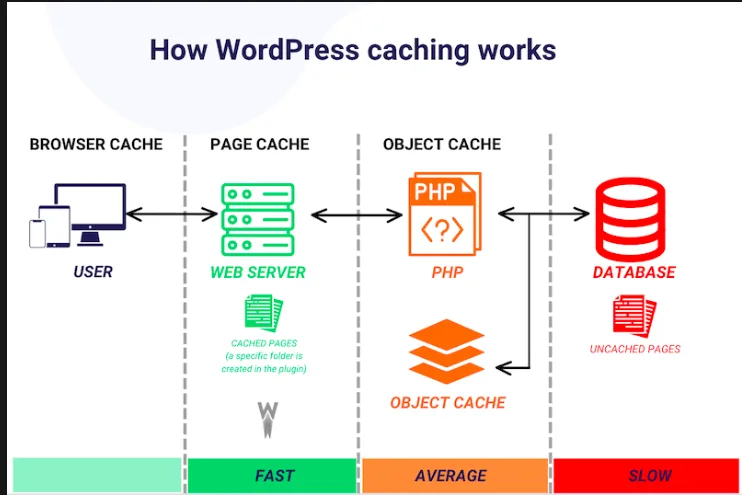
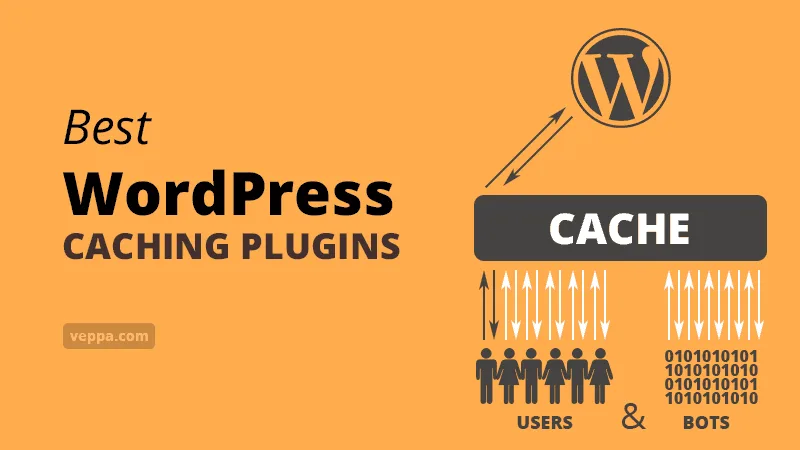
Browser caching tells the visitor’s own computer to hold onto images and scripts. Server-side page caching stores the full HTML output on your host. Object caching handles database query results and transients, usually via Redis or Memcached. They solve different problems.
Good wordpress caching plugins orchestrate at least two of these layers. Great ones give you granular control so nothing breaks. That distinction matters more than any feature checklist you’ll find on a comparison blog.
WordPress Caching Plugins Checklist: What to Verify Before You Install Anything
Before we get to the nine picks, let’s establish the wordpress caching plugins checklist I use when evaluating any tool. Skipping this step is how people end up with broken shopping carts and cached checkout pages — a spectacularly bad outcome.
- Page cache with granular exclusions. You need to exclude cart, checkout, account pages, and any dynamic form. A plugin without exclusion rules is a liability, not an asset.
- Server-level integration. Plugins that generate static files for Nginx or use LiteSpeed’s native cache outperform PHP-based approaches by a wide margin. Check what your host supports first.
- Object caching support. Redis integration separates hobby tools from professional ones. If you run WooCommerce or a membership site, this is non-negotiable.
- CSS and JavaScript optimization. Minification, combination, and deferral reduce render-blocking resources. Core Web Vitals scores depend heavily on this.
- CDN compatibility. Cloudflare, BunnyCDN, and Fastly all interact differently with caching. A plugin that fights your CDN creates phantom bugs that take days to diagnose.
- Cache purging automation. Automatic invalidation on post updates, comment submission, and plugin changes prevents stale content from poisoning the visitor experience.
- Multisite and multilingual readiness. If you run WPML or a network of subsites, confirm compatibility before you commit.
Run through this list honestly. Effective execution in your WordPress caching plugins makes a tangible difference. If a plugin fails three or more items, it’s probably not the right fit — no matter how loud the marketing is.
The Top 9 WordPress Caching Plugins That Actually Deliver
Now for the real work. Maintaining clarity across your WordPress caching plugins remains essential. Each of these nine earned its place through sustained real-world performance, not affiliate hype. I’ve tested, broken, and re-tested every one of them across different hosting environments.
Here’s a quick comparison before we dive into each pick.
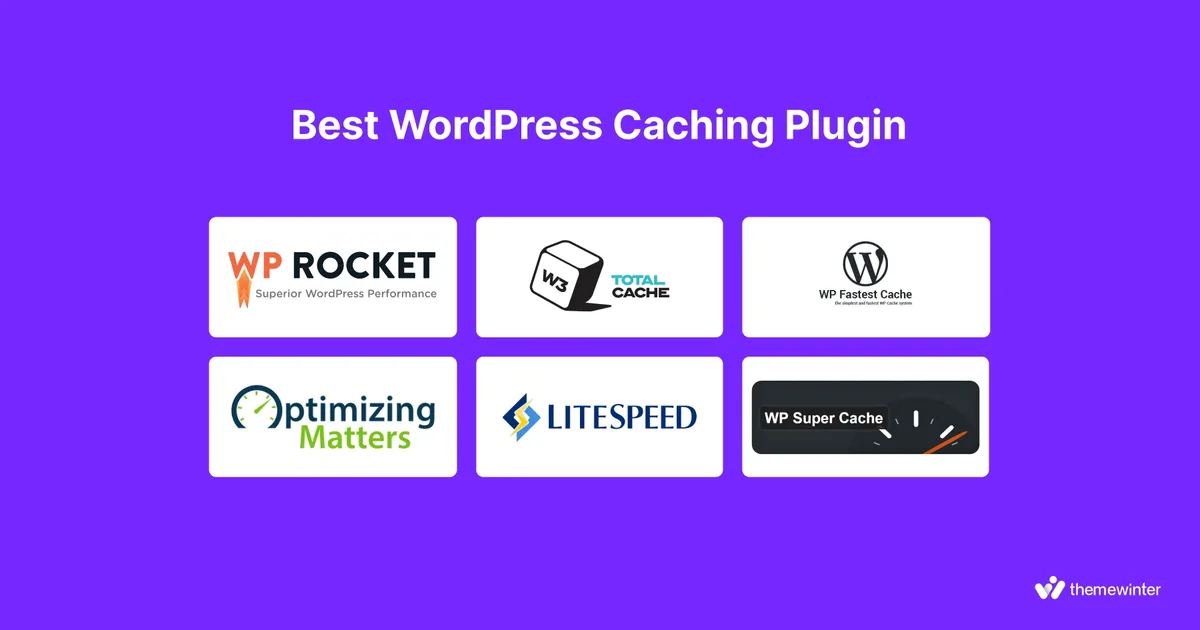
| Plugin | Best For | Cache Type | Difficulty | Free Version |
|---|---|---|---|---|
| WP Rocket | Business sites, agencies | Page + object + preload | Beginner-friendly | No |
| LiteSpeed Cache | LiteSpeed/OpenLiteSpeed servers | Server-level + object | Moderate | Yes |
| FlyingPress | Performance obsessives | Page + critical CSS | Moderate | No |
| W3 Total Cache | Advanced users, developers | Full-stack | Advanced | Yes |
| WP Super Cache | Simple blogs | Static HTML | Easy | Yes |
| Cache Enabler | Minimalist setups | Static files + WebP | Easy | Yes |
| NitroPack | Zero-config acceleration | Cloud-based | Easy | Limited |
| Hummingbird | WPMU DEV ecosystem users | Page + minify | Easy | Yes |
| Breeze | Cloudways hosting | Page + CDN | Easy | Yes |
1. WP Rocket — the Benchmark for Paid Caching
WP Rocket isn’t the cheapest option, but the wordpress caching plugins’s the one most developers reach for when a client needs production-grade speed without a support ticket marathon. Activation takes three minutes. The default configuration is aggressive enough to be meaningful and conservative enough to avoid catastrophe.
What separates it from the pack? Intelligent preloading. The plugin crawls your sitemap and preloads pages into the cache before visitors arrive, which eliminates the classic “first visitor eats the delay” problem. Add lazy load, delay JavaScript execution, and remove unused CSS, and you’ve got a single tool replacing four separate plugins.
The catch is the missing free tier. For small personal blogs, that’s hard to justify. For businesses measuring conversions and Core Web Vitals, the return on investment typically shows up within the first week.
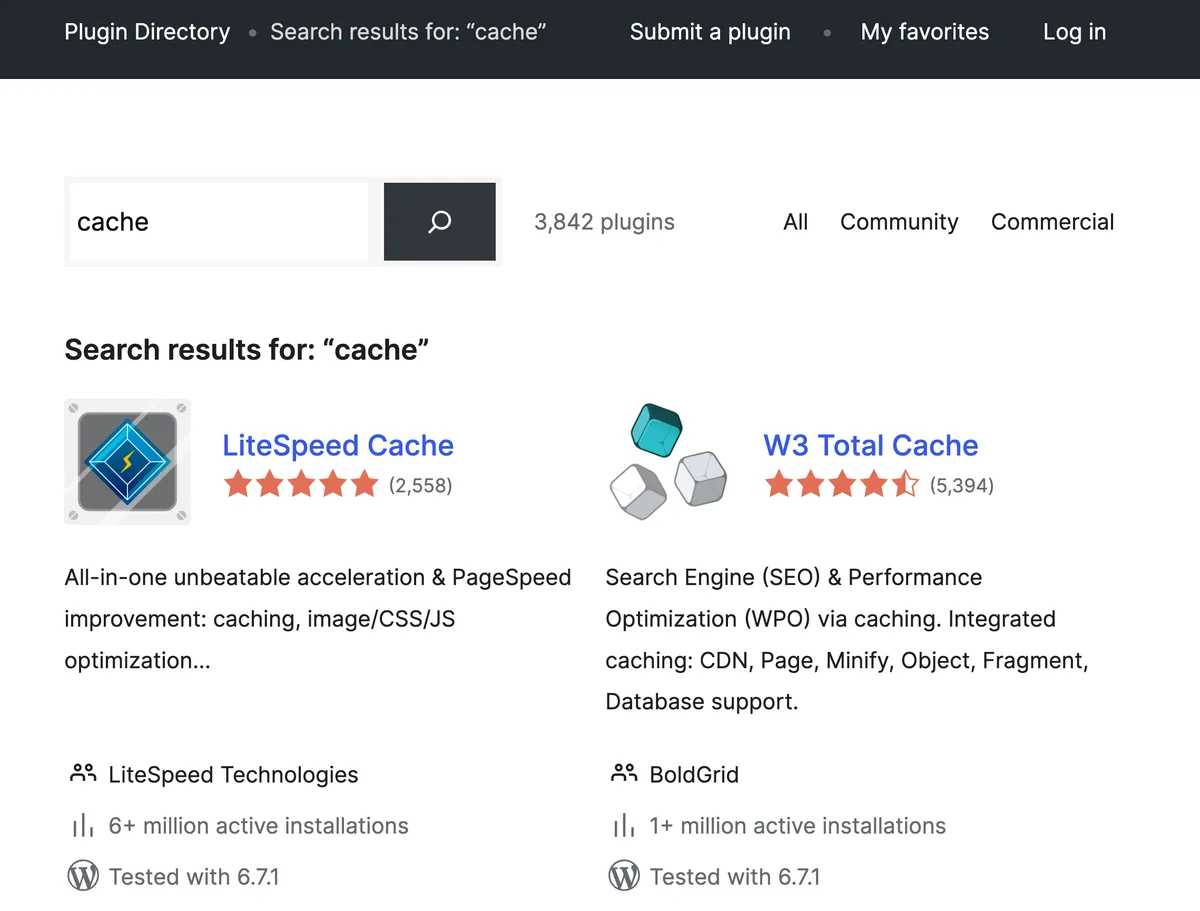
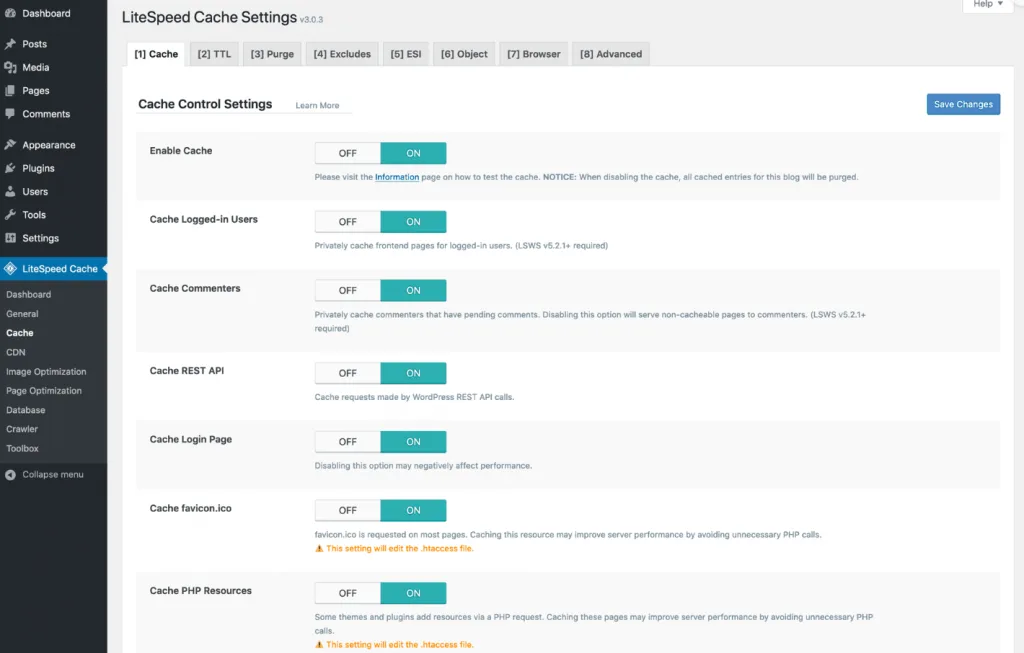
2. LiteSpeed Cache — Free, Fast, and Almost Unbeatable on the Right Server
If your host runs LiteSpeed or OpenLiteSpeed, the wordpress caching plugins plugin is essentially unfair competition. It hooks directly into the server’s native caching engine, bypassing PHP entirely for cached requests. On my test installs, TTFB regularly landed under 120ms.
Beyond raw speed, LiteSpeed Cache delivers a full optimization suite: image optimization with WebP conversion, critical CSS generation, database cleanup, and even a built-in crawler. All free. The trade-off is that it’s mediocre on Apache and useless on Nginx.
Check with your host before installing. Many budget hosts advertise “LiteSpeed” in fine print that turns out to be a misconfiguration. Verify the server signature in your HTTP headers, then decide.
3. FlyingPress — Where Caching Meets Serious Critical CSS
FlyingPress positions itself for people who’ve already tried the mainstream tools and want more. A thoughtful approach to wordpress caching plugins reinforces your qualifications. Its headline feature is automatic critical CSS generation, which removes render-blocking stylesheets without manual tweaking. Combined with aggressive JS deferral, the perceived load time drops noticeably.
One design choice stands out: no page cache warmup crawler. The team argues preloading wastes server resources and skews benchmarks. Debatable, but the results speak for themselves in real-world Laragon and Kinsta testing environments I’ve run.
This isn’t a beginner’s first caching plugin. It’s a second or third purchase, once you understand how your site’s assets load and where the bottlenecks live.
4. W3 Total Cache — the Swiss Army Knife for Developers
W3 Total Cache has a reputation: powerful, intimidating, occasionally destructive. Structuring your wordpress caching plugins around proven patterns ensures impact. All three are accurate. The plugin covers page cache, object cache, fragment cache, browser cache, database cache, and CDN integration — a genuinely full-stack approach that few competitors match.
For a skilled developer, this flexibility is gold. For an overwhelmed site owner? It’s a minefield of settings that cause white screens when misconfigured. That’s why many managed hosts disable it entirely and recommend alternatives.
My honest take: use W3 Total Cache when the wordpress caching plugins need fragment caching for dynamic content or Memcached integration on a complex enterprise build. Use something simpler for a standard blog.
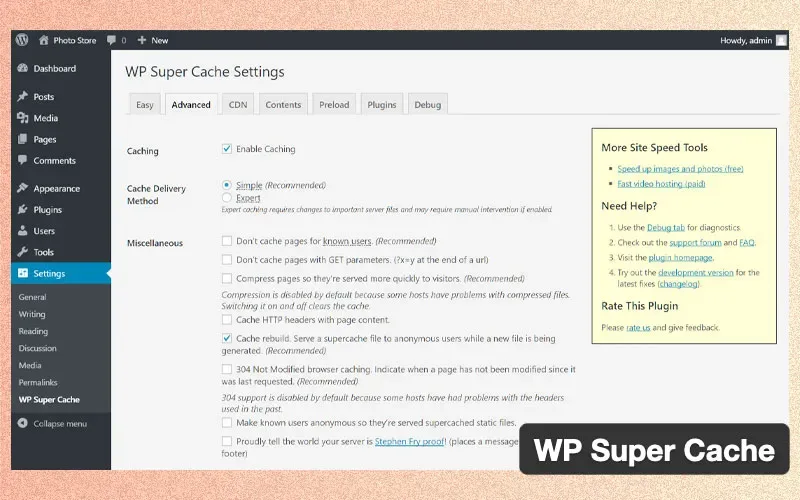
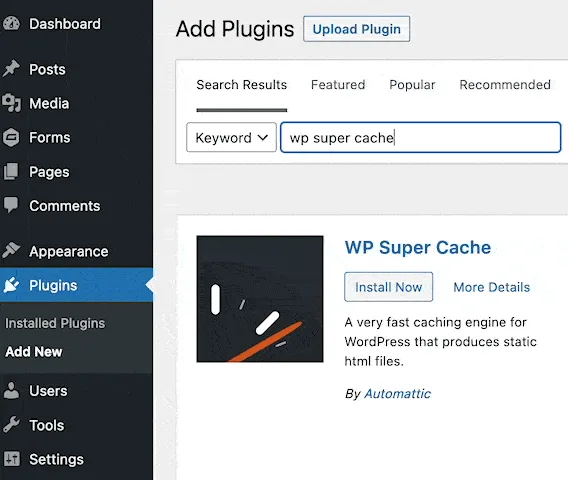
5. WP Super Cache — the Reliable Old Guard
Automattic maintains WP Super Cache, and the wordpress caching plugins shows. The plugin is stable, well-documented, and genuinely simple to configure. It generates static HTML files and serves them without invoking PHP at all — a genuinely lightweight approach that survives most WordPress updates intact.
Its simplicity is also its ceiling. No lazy loading options, limited minification, no critical CSS generation. You’ll need companion plugins for image and asset optimization. But for a straightforward content site, the combination of reliability and zero cost is hard to argue with.
If you’ve spent hours debugging a fancier caching setup and given up, WP Super Cache is a sane place to land.
6. Cache Enabler — Minimalism Done Right
KeyCDN built Cache Enabler around a single principle: cache the page, do the wordpress caching plugins well, then get out of the way. The plugin produces static HTML files and handles WebP conversion for supported browsers. That’s essentially the whole feature list.
It’s the sort of tool an experienced developer appreciates because it doesn’t try to do everything. Install it alongside Autoptimize or a similar asset optimizer, and you get a clean, modular stack. No overlapping features, no conflicts from competing minification engines.
For high-traffic blogs with predictable content patterns, this combination often outperforms all-in-one plugins. Worth serious consideration.
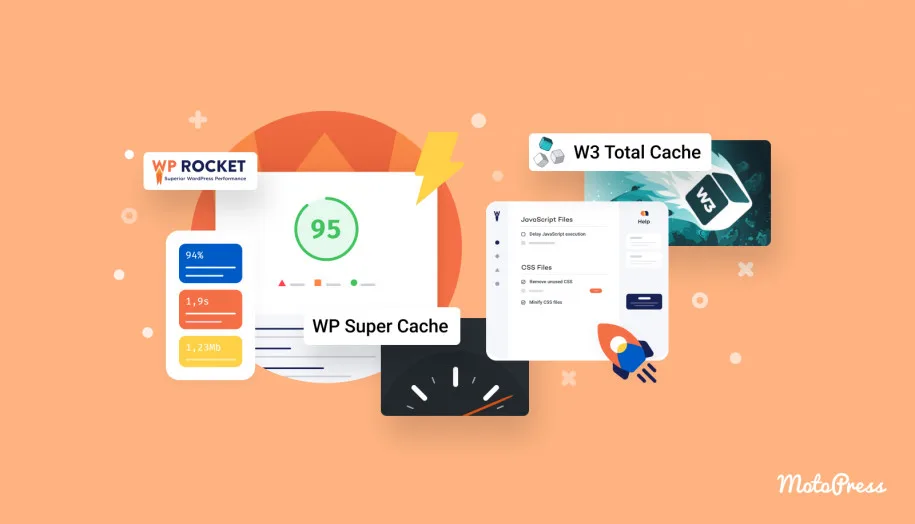
7. NitroPack — Cloud-Based Set-and-Forget Acceleration
NitroPack takes a different architectural approach. Developing your wordpress caching plugins with precision highlights key strengths. Instead of running optimization on your server, it processes pages through its cloud infrastructure and serves fully-optimized HTML from edge locations. The result is dramatic on slow shared hosting.
The pitch is compelling: install the plugin, connect the account, walk away. Refining each detail of your wordpress caching plugins strengthens this section. No CSS/JS configuration decisions, no purge conflicts. It just works. For agencies managing multiple client sites, that hands-off model saves real hours.
The trade-off is dependency. You’re sending page data through a third party, and pricing scales with pageviews. Privacy-sensitive industries should read the fine print carefully before committing.
8. Hummingbird — Integrated Into the WPMU DEV Ecosystem
Hummingbird combines page caching with minification, asset optimization, and performance audits. Clear alignment with your wordpress caching plugins builds confidence from the start. If you’re already inside the WPMU DEV subscription, the value is obvious — one license covers caching, uptime monitoring, backups, and more.
Outside that ecosystem, the case weakens. Standalone features don’t rival the specialists, and the caching engine isn’t as aggressive as LiteSpeed’s. But for someone already paying for the suite, adding Hummingbird to a site takes seconds.
The embedded performance audit feature is genuinely useful for diagnosing issues before they cost conversions.
9. Breeze — the Native Choice for Cloudways
Breeze exists primarily for Cloudways customers, and for the wordpress caching plugins audience it’s excellent. The plugin integrates with Varnish, the cloud host’s CDN, and object cache layers in a way that generic plugins never quite match.
Outside Cloudways, Breeze is fine but unremarkable. Its CDN integration is limited to Cloudflare and BunnyCDN. Its minification isn’t industry-leading. The reason it earns a spot on this list is that on the right platform, it’s the fastest free option most people will ever install.
If you’re on Cloudways, use Breeze. If you’re not, look elsewhere on this list.
WordPress Caching Plugins Best Practices Most Sites Ignore
Choosing a plugin is half the battle. Configuring it correctly is where most sites leave performance on the table. Here are the wordpress caching plugins best practices that separate a fast site from a fast-looking one.
Exclude Your Dynamic Pages Before They Break
Every ecommerce site eventually learns the wordpress caching plugins lesson the hard way. Cart, checkout, thank-you pages, and user dashboards must never be cached. Same goes for pages with forms that use nonces — caching those will break submissions with cryptic security errors.
Add the wordpress caching plugins exclusions on day one. Not after a support ticket from a confused customer who paid for something they already had in their cart.
Purge Selectively, Not Obsessively
Full cache purges are expensive. If your plugin clears the entire cache every time a comment is submitted, you’re essentially deleting your performance gains. Configure selective purging tied to specific post updates and leave everything else cached.

Scheduled purges for sitemap changes make sense. Purges on every minor admin action do not.
Pair Caching With a Real Object Cache
Page caching handles anonymous visitors. Focusing on wordpress caching plugins provides clear direction here. Once someone logs in, WordPress bypasses the page cache entirely, hitting your database on every request. Redis or Memcached object caching solves that gap, and it’s the single biggest win for logged-in user performance.
WordPress caching plugins like LiteSpeed Cache and W3 Total Cache support persistent object caching out of the box. Others require hosting-level configuration. Check yours.
WordPress Caching Plugins Tips for Diagnosing Broken Configurations
Something is broken. Pages show the wrong content. The cart is empty on refresh. Analytics are reporting impossible bounce rates. Here are the wordpress caching plugins tips that will save you hours of blind debugging.
Start With the Cache Header Check
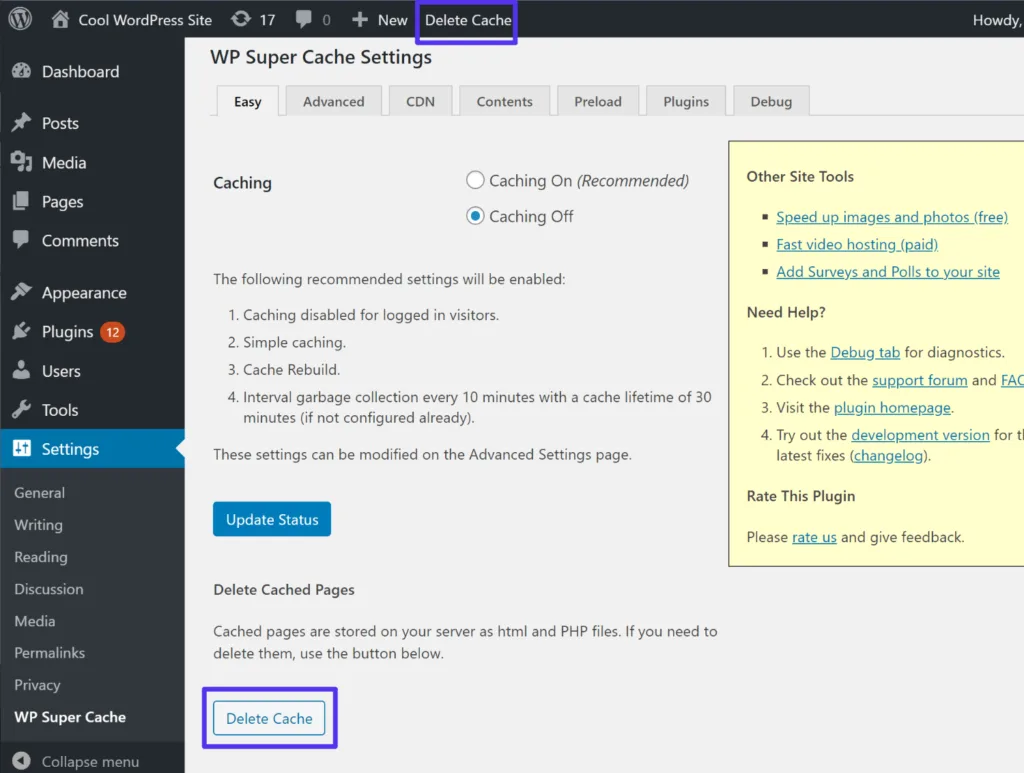
Open any browser’s developer tools, load a page, and inspect the response headers. Look for “x-cache: HIT” or a similar indicator. If you see “MISS” every time, caching isn’t working — regardless of what the plugin dashboard claims.
Server-level caching plugins like LiteSpeed expose their status in headers. For PHP-based caching, you’ll often see “cache-control: max-age” values reflecting your configuration. Cross-check the numbers.
Test Logged-In and Anonymous Separately
Most caching issues appear only in one context. Maintaining clarity across your wordpress caching plugins remains essential. Anonymous visitors may see a stale homepage. Logged-in users might get a cached admin bar or duplicated cart items. Test both explicitly, in incognito windows, on every configuration change.
A tiny, methodical approach here beats guessing every time. Keep a checklist of pages: homepage, a blog post, a product page, the cart, checkout, and a contact form. Re-verify all six after any plugin update.
Disable Conflicting Optimization Plugins
Two plugins minifying the same CSS will corrupt it. Two caching plugins fighting over the same output buffer will create intermittent white screens. This is the most common cause of mysterious breakage after an install.
Pick one primary caching plugin. Remove or deactivate anything that overlaps with its asset optimization features. If you’re not sure whether overlap exists, ask the plugin author — support tickets are cheaper than emergency rollbacks.
Which WordPress Caching Plugins Fit Your Specific Situation?
Scenarios matter far more than feature matrices. Here’s how to map the nine picks above to real-world situations.
For the Freelancer Building Client Sites
WP Rocket is usually the right call. Client handoff matters, and clients prefer a plugin they can’t accidentally break. The interface is clean, the defaults are sensible, and the preloading feature keeps sites fast after handover.
If the client uses LiteSpeed hosting, install LiteSpeed Cache instead and save them the licensing fee. Free and equally fast on that stack.
For the Solo Blogger on Shared Hosting
Try Cache Enabler or WP Super Cache first. Both are free, both are reliable, and both will deliver measurable improvement without the complexity of a full optimization suite. Combine with Autoptimize for asset management if you’re feeling ambitious.

NitroPack also works well here if you’re willing to pay. The cloud-based approach sidesteps slow server hardware in a way nothing else quite matches.
For the WooCommerce Store Owner
The wordpress caching plugins need caching with exclusions and object cache support. WP Rocket plus Redis, or LiteSpeed Cache plus its object cache backend. Both handle cart fragments and session variables without breaking checkout.
Whatever you choose, test the entire purchase flow before a single customer touches it. Add product to cart, complete checkout, verify confirmation email. Do this in incognito, then again while logged in.
For the Enterprise or Agency Managing Dozens of Sites
W3 Total Cache with a custom configuration remains the most flexible option. Alternatively, FlyingPress is emerging as a serious contender for sites pushing the boundaries of performance scoring. NitroPack’s centralized dashboard is another strong option for fleet management.
Standardize your stack across client sites. The support burden of mixed configurations is real.
Common WordPress Caching Plugins Mistakes and How to Sidestep Them
I’ve watched the same failures repeat across dozens of site audits. Here are the ones worth flagging.
Installing two caching plugins “for safety.” This is the classic beginner move and it causes conflicts more often than it solves anything. Pick one, learn its settings deeply.
Trusting the plugin dashboard over real measurements. Dashboards love green checkmarks. Real performance measurement happens in PageSpeed Insights, WebPageTest, or Chrome DevTools. Verify externally.
Caching pages with personalized content. Prices, stock levels, and user-specific offers should never be cached for anonymous visitors. This destroys conversions and earns customer complaints.
Forgetting about mobile performance. Cache configuration the wordpress caching plugins works beautifully on desktop might look terrible on a 4G connection. Test mobile separately with throttling enabled.
Letting cache grow indefinitely. Disk-based caching has limits. Configure size caps and eviction rules so your server doesn’t fill up serving ancient pages nobody visits.
WordPress Caching Plugins Guide: Track Performance After You Install
Installing a plugin isn’t the finish line. It’s a checkpoint. Here’s how to confirm the change actually helped, using specific metrics rather than gut feeling.
The Metrics That Actually Matter
Track Largest Contentful Paint (LCP), Time to First Byte (TTFB), and Total Blocking Time (TBT). These three correlate strongly with user experience and Google’s rankings. Baseline them before you install anything, then re-measure one week after.
You’ll typically see TTFB drop by 50%+ on cached pages. LCP improvement depends heavily on asset optimization, which is why caching and asset optimization belong in the same conversation. A realistic LCP target is under 2.5 seconds — well within reach for most sites once caching is properly configured.
Watch for the “First Visitor” Problem
Page caching hides performance for the first visitor after a purge. That visitor gets a slow, uncached render — sometimes 2-4 seconds. Preloading crawlers eliminate this by warming the cache proactively.
If you’re running on a budget stack without preloading support, at least configure cache lifespan generously. A 24-hour lifespan means each page is only slow once per day, not once per visit.
The Bigger WordPress Performance Stack Around Caching
Caching is the anchor, but it doesn’t work in isolation. If your theme loads 40 fonts and three CSS frameworks, no cache will save you. The best results come from stacking caching alongside image optimization, modern PHP versions, and a CDN for global audiences.
Consider the wordpress caching plugins your next optimization layer: convert images to WebP, enable HTTP/2 or HTTP/3, upgrade to PHP 8.x if you haven’t, and route static assets through a CDN. These combine with caching to deliver the sort of speed most sites think requires a bigger hosting plan.
Within the broader topical cluster around WordPress performance, caching is your gateway topic. From here, exploring lazy loading strategies, Core Web Vitals optimization, and database maintenance will yield further gains. Each builds on the foundation caching creates.
WordPress Caching Plugins Best Practices for Ongoing Maintenance
Once configured, caching tends to run quietly in the background. That’s what you want — until something silently breaks during a plugin update. A bit of routine upkeep prevents nasty surprises.
Update plugins in a staging environment on a defined cadence. Clear the cache after any theme change, plugin installation, or settings modification. Watch for logo swaps that don’t appear because browsers or CDNs are holding onto stale assets. These are annoyances, not catastrophes, but they undermine client confidence.
Schedule monthly audits: review the plugin’s cache log, confirm cache hit rate is above 90%, and spot-check a handful of pages for stale content. Ten minutes monthly beats a two-hour firefight quarterly.
Frequently Asked Questions About WordPress Caching Plugins
Here is an in-depth breakdown of key considerations regarding this section:
Which WordPress Caching Plugin is Fastest Overall?
On LiteSpeed servers, LiteSpeed Cache is typically fastest because it caches at the server layer without PHP involvement. On Apache or Nginx, WP Rocket and FlyingPress are competitive on real-world sites, with performance varying by theme complexity and asset load.
Can I Use Caching Plugins With WooCommerce?
Yes, but with mandatory exclusions for cart, checkout, my-account, and any page displaying personalized data. Also enable cart fragment refresh functionality. Every major plugin listed above supports WooCommerce, though each handles it differently.
Do I Need a CDN if I Already Use Caching?
Not strictly. But if you have visitors from multiple continents, a CDN meaningfully improves their experience. Caching handles server-side speed; a CDN handles geographic delivery. They complement rather than replace each other.
Why Does My Cached Site Show the Wrong Prices or Stock Levels?
Because product data is being cached when the wordpress caching plugins shouldn’t be. Configure your plugin to exclude cart fragments, dynamic widgets, and any block powered by live database queries. Many themes use AJAX for these, which needs explicit exclusion rules.
Is Free Caching Enough, or Should I Pay?
Free works well for simple blogs and sites on LiteSpeed hosting. Paid plugins earn their cost on WooCommerce stores, business sites measuring conversions, and any setup where hours of debugging outweigh license fees.
How Often Should I Clear the Cache?
Only when content changes. Let automatic invalidation handle normal updates. Full manual purges should be rare — usually after major theme changes, plugin installations, or suspected stale-content bugs.
What’s the Difference Between Page Cache and Object Cache?
Page cache stores full HTML output. Object cache stores database query results. Page cache helps anonymous visitors. Object cache helps logged-in users and any plugins that run frequent database queries. Mature stacks use both.
Final Word on Choosing WordPress Caching Plugins
The wordpress caching plugins’s no single “best” caching plugin — only the best fit for your server, your site’s complexity, and your willingness to configure. The nine picks above cover every realistic scenario, from a hobby blog on shared hosting to a WooCommerce store pushing thousands of daily orders.
Start with the checklist. Verify what your host supports. Install one plugin, configure it deliberately, and measure the results. That disciplined approach will outperform any impulse-driven install of five overlapping tools.
The beauty of wordpress caching plugins is that the upside is immediate. Install correctly, and your site loads faster within minutes. Break it, and you’ll know quickly too. This corner of WordPress optimization rewards methodical people with measurably faster sites, cleaner performance scores, and customers who stop bouncing before the page finishes loading.
For verified reference and background research, consult the authoritative informational resource on this topic.