Visual search Bing is one of those tools most people stumble onto by accident, then wonder how they ever lived without. You snap a photo of a weird plant, a pair of sneakers, or a half-remembered landmark, drop it into the search bar, and the internet does the detective work for you. No typing, no guessing at keywords, no endless scrolling through pages of text results that miss the point.
Honestly, that’s the magic of it. You point, you click, and Bing figures out what you’re looking at. And the best part? It costs nothing. No subscription, no premium tier, no hidden paywall waiting at the end of a free trial.
If you’ve got a browser and an image, you’ve got everything you need to start using visual search Bing right now.
This guide walks you through every angle of it — how the tool actually works under the hood, the different ways to access it, what it’s genuinely good at, where it falls short, and the small tricks that separate a casual user from someone who squeezes real value out of every search.
Whether you’re a shopper hunting down a specific jacket, a student trying to identify a diagram, or a business owner checking how your products show up in image results, there’s something here for you.
What Visual Search Bing Actually is and Why It Matters
At its core, visual search Bing is an image-based query system. Instead of typing words into a box, you feed the engine a picture, and it analyzes that picture to return relevant results.
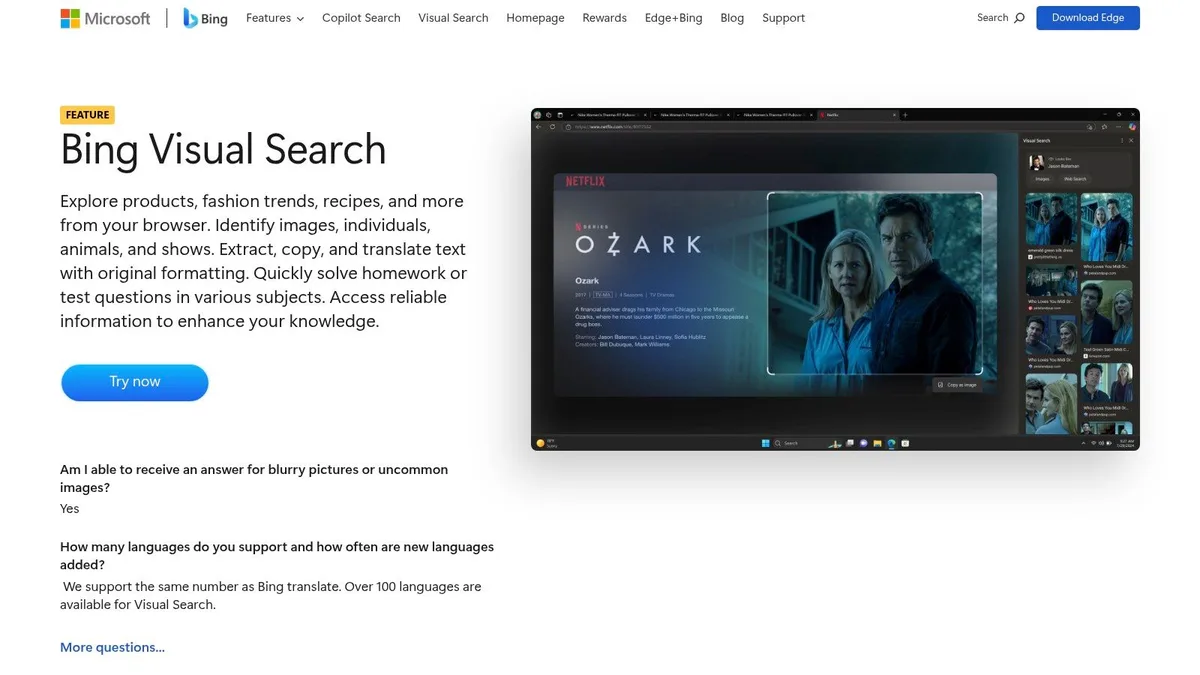
Those results might be visually similar images, product listings, web pages about the object in the photo, or even related searches you hadn’t considered.
Microsoft built this feature into Bing because people were already using images to search — just clumsily. They’d screenshot something, try to describe it in text, and get mediocre results. Visual search flips that process. The image becomes the query, and the engine does the translation work.

Why does this matter? Because a huge chunk of what we want to find online is hard to put into words. Try describing the exact shape of a mid-century modern lamp in text. Try explaining a skin rash well enough for a search engine to nail it.
Try typing out the pattern on a fabric you saw once. You can’t, not efficiently. But you can show a picture.
The Technology Behind the Curtain
Bing’s visual search relies on computer vision models trained on massive image datasets. Focusing on visual search bing provides clear direction here. When you upload a photo, the system breaks it down into features — edges, textures, colors, shapes, and object boundaries. It then compares those features against its indexed database of images and web content.
There’s also optical character recognition at play. If your image contains text — a sign, a book cover, a receipt — visual search Bing can read that text and use it as part of the query. That’s why photographing a business card or a product label often returns surprisingly precise results.
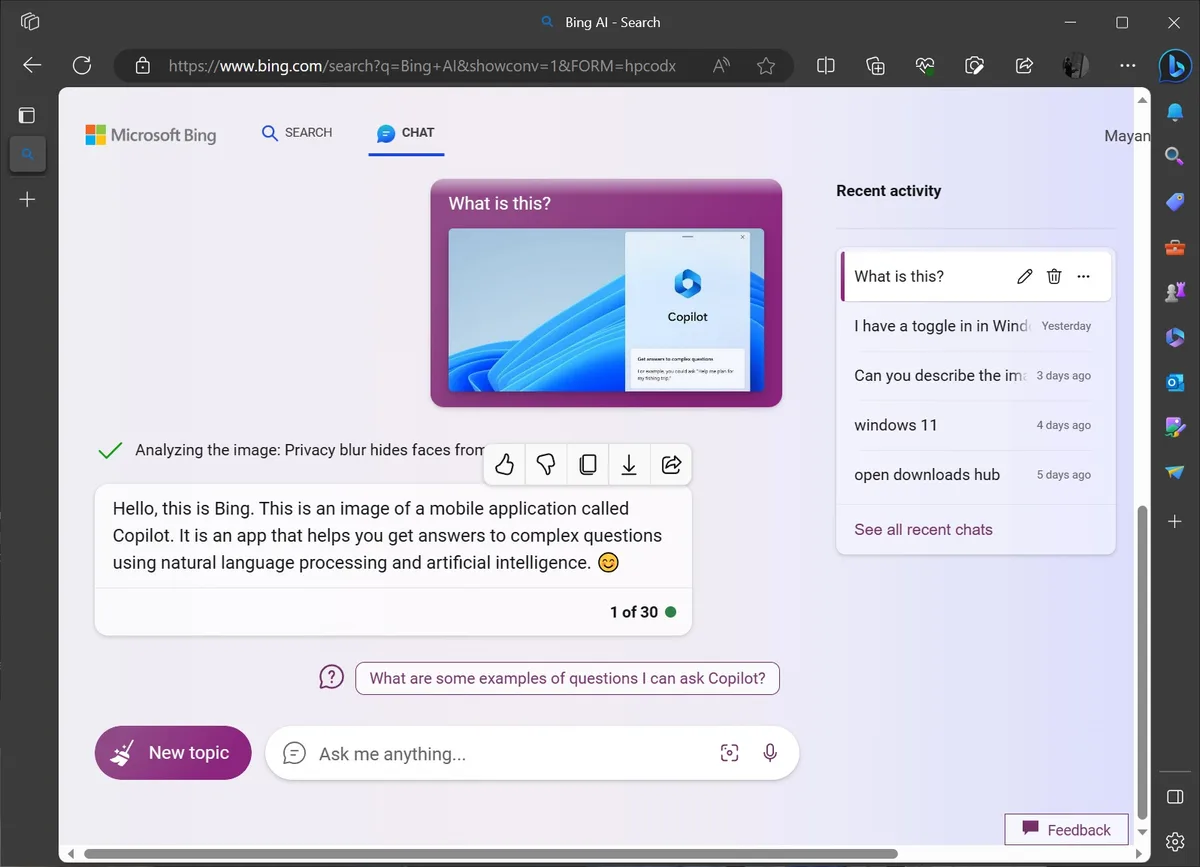
Object detection adds another layer. The engine doesn’t just see “a photo”; it identifies “a coffee cup on a wooden table with a laptop in the background.” That granularity is what makes results feel almost telepathic. You didn’t ask for the laptop, but Bing noticed it and might offer related results anyway.
Why Free Access Changes the Game
Plenty of visual search tools exist, and many of them charge for serious use. Google Lens is free but tied to Google’s ecosystem. Specialized tools for e-commerce or fashion often sit behind enterprise pricing. Visual search Bing, by contrast, is open to anyone with a Microsoft account or even just a browser.

That accessibility matters for small businesses, students, hobbyists, and casual users who just want to identify something quickly. You’re not paying per query. You’re not hitting a monthly cap. You’re just searching.
For sellers, this is quietly powerful. If your product images are indexed well, someone using visual search Bing to find an item like yours could land on your listing. It’s free exposure, and most people don’t even realize it’s happening.
How to Access Visual Search Bing from Any Device
One of the nicest things about visual search Bing is how many doorways lead into it. You’re not locked into one app or one device. Whether you’re on a desktop, a phone, or a tablet, there’s a path in.
Let’s walk through the main entry points, because knowing all of them means you’re never stuck when you need a quick image lookup.
Using the Bing Website on Desktop
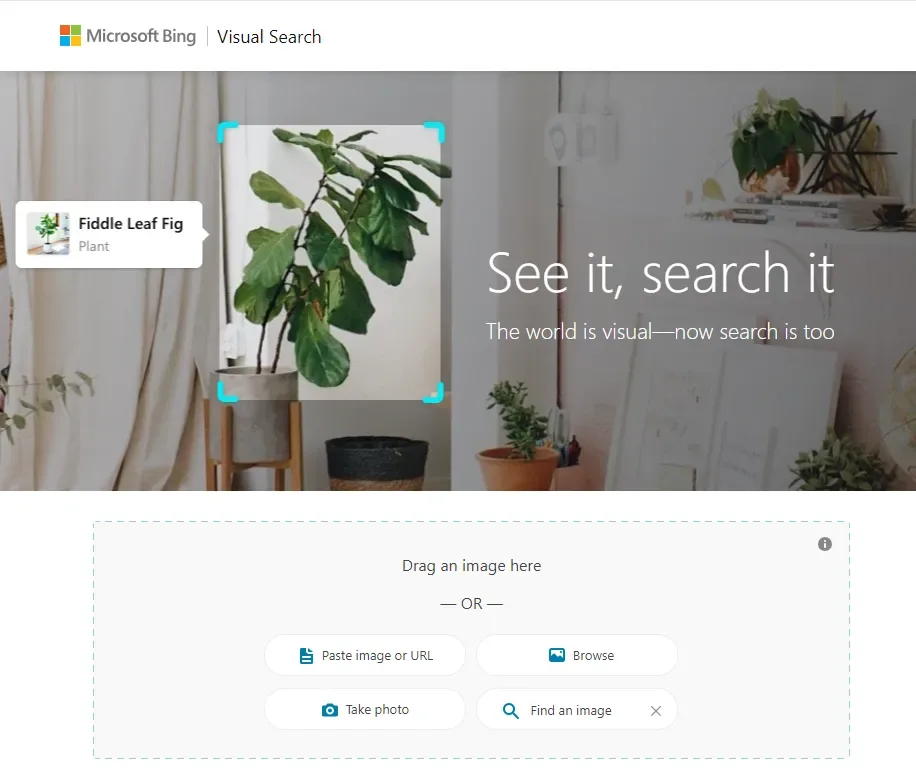
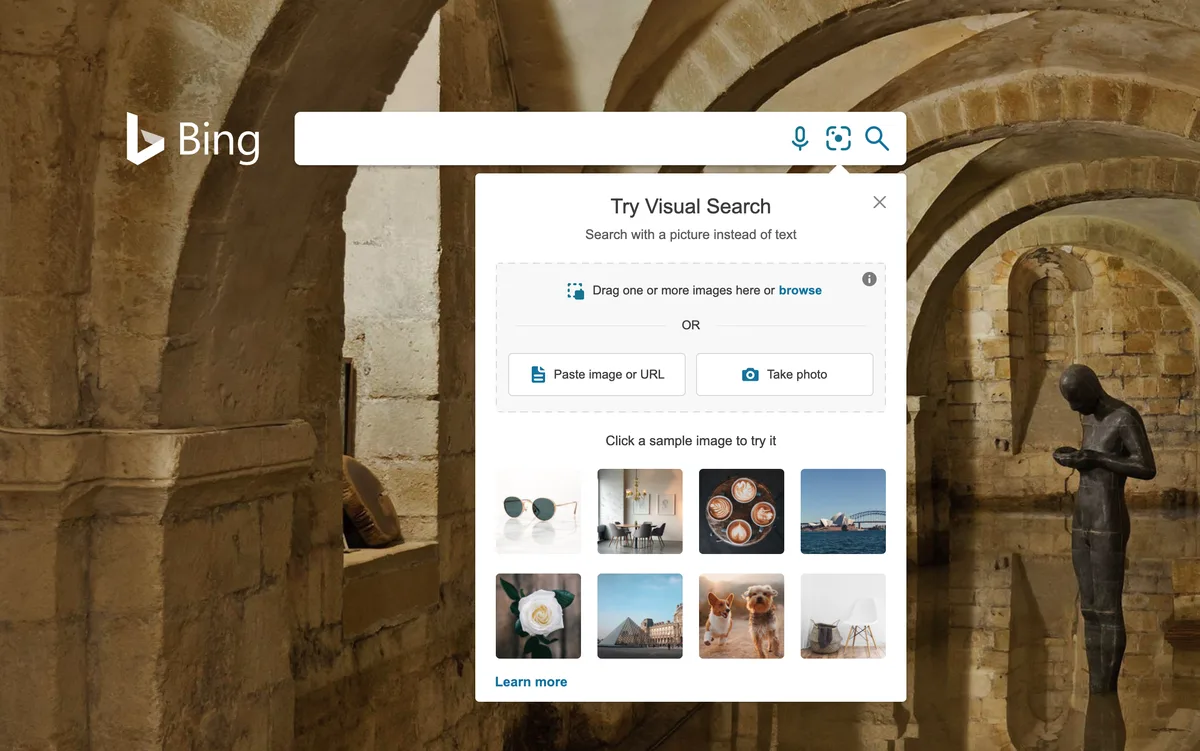
Head to Bing’s homepage in any browser, and look for the camera icon sitting inside the search bar. That little icon is your gateway. Click it, and a panel opens where you can upload an image from your computer, paste an image URL, or drag and drop a file directly.
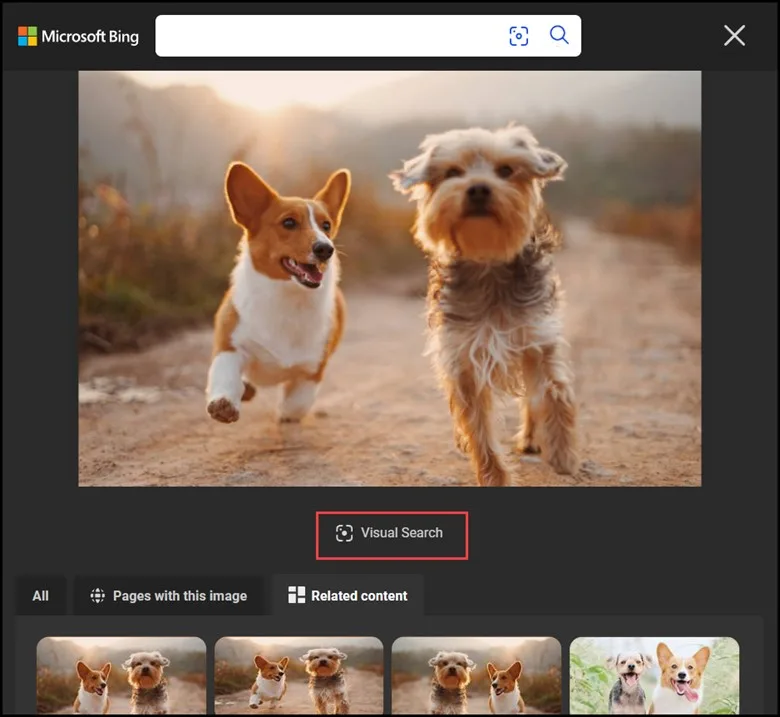
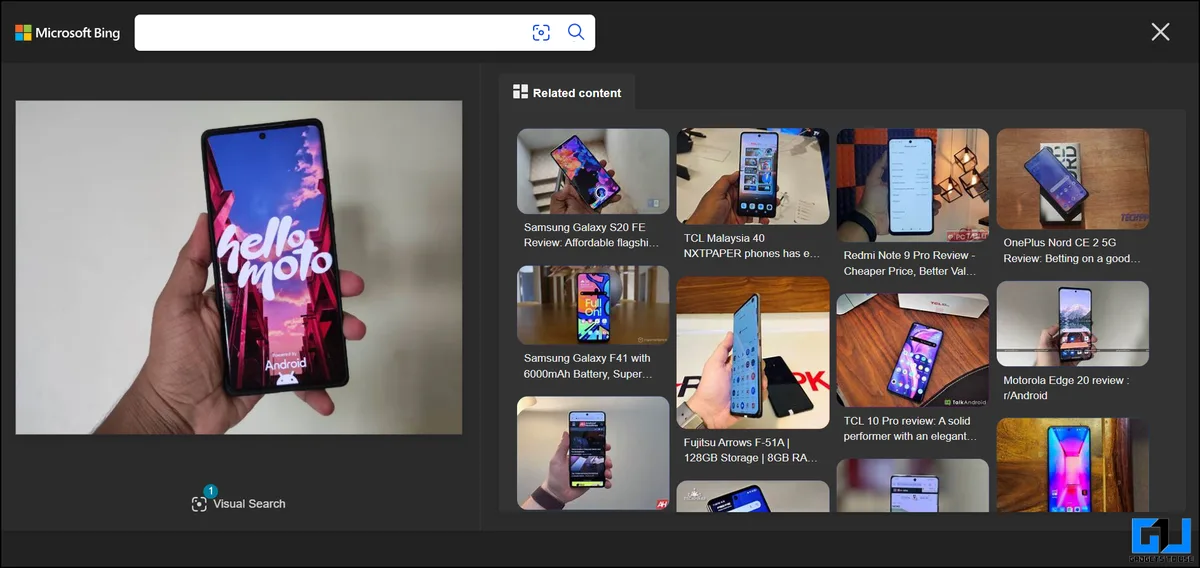
Once the image loads, Bing runs its analysis and shows you results almost instantly. You’ll see tabs for different result types — similar images, pages containing the image, and shopping results if it detects a product. The whole flow takes seconds.
If you’re on a laptop and you’ve got a photo saved locally, this is the fastest route. Refining each detail of your visual search bing strengthens this section. No app installs, no sign-ins required. Just click, upload, done.
Searching With Your Camera on Mobile
On a phone, the experience gets even more natural. Open Bing in your mobile browser or use the Bing app, tap the camera icon, and you can snap a photo on the spot. No need to save the image first.
This is where visual search Bing shines in real-world scenarios. You’re standing in a store, you see a product you like, you point your camera, and you get pricing, reviews, and similar items within seconds. Or you’re hiking and you spot a bird you can’t name — snap, search, identified.
The mobile flow feels less like “using a search engine” and more like “asking a knowledgeable friend.” That shift in feel is a big part of why people keep coming back to it.

Dragging and Dropping Images Directly
Here’s a trick plenty of people miss: you can drag an image from another webpage straight into the Bing search bar. Found a picture on a blog, a social feed, or a news site? Grab it with your cursor and drop it into Bing’s search box.
Bing treats it the same as an upload. It analyzes the image and returns results. This is fantastic for tracking down the source of a photo you found somewhere, or finding higher-resolution versions of a low-quality image.

It’s a small feature, but once you know it exists, you’ll use it constantly. Especially if you’re the type who saves images from Pinterest and wants to find the original seller.
Right-Click and Search from Any Page
On desktop, if you’re using Microsoft Edge, you can right-click any image on a webpage and choose “Search in Bing” or a similar visual search option. That sends the image straight into visual search Bing without any manual uploading.
This is the smoothest desktop workflow available. Effective execution in your visual search bing makes a tangible difference. You’re browsing an article, you see a chart or a product photo, you right-click, and you’re instantly in a visual search session. No copy-pasting URLs, no saving files.
The feature isn’t limited to Edge either — other browsers have extensions or built-in options that do something similar. But Edge’s native integration is the cleanest.
Step-By-Step: Running Your First Visual Search Bing Query
If you’ve never done this before, the process is almost embarrassingly simple. But there are a few small decisions that affect the quality of your results. Let’s walk through it properly.
Step 1: Choose the Right Image
Start with an image that clearly shows what you’re trying to identify. Blurry photos, extreme close-ups, or heavily filtered shots tend to confuse the algorithm. A clean, well-lit image with the subject centered works best.
If you’re searching for a product, try to find a shot that includes the whole item, not just a corner. If you’re identifying a plant or animal, make sure the distinguishing features — leaves, markings, shape — are visible.
Pro tip: if the image you have is poor quality, do a quick reverse image search first to find a better version, then run that through visual search Bing. The difference in result quality can be dramatic.

Step 2: Upload or Paste the Image
Click the camera icon in Bing’s search bar. You’ll get options to upload from your device, paste an image URL, or drag and drop. Pick whichever fits your situation.
If you’re on mobile, tapping the camera icon usually opens your phone’s camera directly, so you can either snap a new photo or pick one from your gallery. Maintaining clarity across your visual search bing remains essential. Both work fine.

Once uploaded, give it a second. The engine needs a moment to process and analyze.
Step 3: Review the Results Tabs
Bing organizes visual search results into tabs. The main one shows visually similar images. Another shows pages that contain the image or similar ones. A third might show shopping results if a product is detected.
Don’t just look at the first tab. The “pages” tab is often where the real gold is — that’s where you find articles, reviews, and context about whatever you searched. And the shopping tab, when it appears, can save you serious money by surfacing the same item at different retailers.
Step 4: Refine With Crop or Text Selection
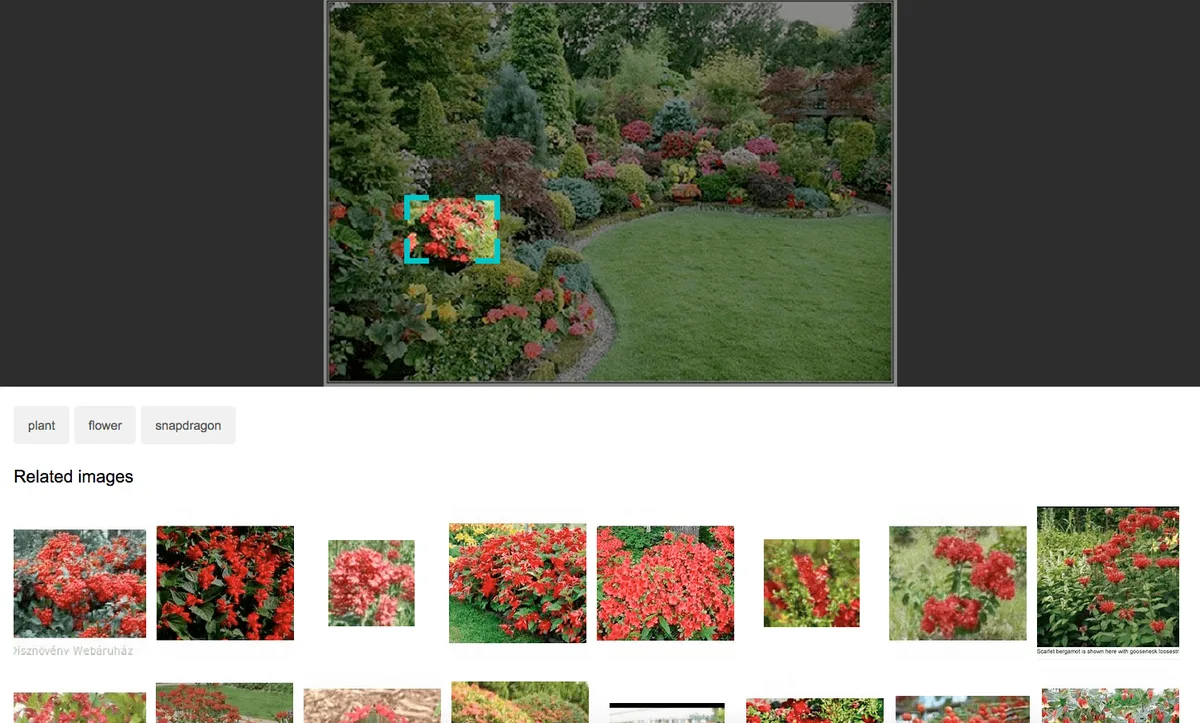
Bing gives you tools to narrow things down. You can crop the image to focus on a specific region, which is useful when your photo has multiple objects. You can also highlight text within the image to search for it specifically.
Say you photographed a book cover. The whole cover gives you general results, but highlighting just the title text gives you precise matches. That kind of refinement is what turns a decent search into an excellent one.
These small adjustments are where visual search Bing really earns its keep. Casual users skip them; power users live by them.
Step 5: Follow Up With Related Searches
After your initial results, Bing often suggests related searches or concepts. A thoughtful approach to visual search bing reinforces your qualifications. These are worth exploring. They can lead you to categories you didn’t know existed or help you narrow down a vague identification.
For example, if you search a photo of a chair and Bing identifies it as “mid-century modern,” the related searches might include specific designers, eras, or similar styles. That context is often more valuable than the initial match.
Real-World Uses for Visual Search Bing That Save Time and Money
Okay, the mechanics are clear. But what do people actually use visual search Bing for? Turns out, quite a lot. Let’s run through the scenarios where this tool genuinely earns its place in your daily routine.
Shopping and Price Comparison
You see a jacket in a store window. You don’t want to pay retail. You snap a photo, run it through visual search Bing, and within seconds you’ve got listings from multiple retailers — often at very different prices.

This is probably the single most popular use case. It’s also the one that saves the most money. People routinely find the same item for 20-40% less just by doing a quick visual search before buying.
The shopping tab in Bing’s visual results is particularly useful because it pulls from multiple sources at once. You’re not checking one store at a time; you’re seeing the whole market in one view.
Identifying Plants, Animals, and Objects
Out on a walk and curious about a tree? Snap it. Found a bug in your garden and want to know if it’s friend or foe? Snap it. Spotted a bird at your feeder? You get the idea.
Visual search Bing isn’t a dedicated biology tool, but it’s surprisingly accurate for common species. For plants especially, the results often include care guides, toxicity warnings, and growing tips — all from a single photo.
For less common species, results may be fuzzier, but you’ll usually get close enough to narrow it down with a follow-up text search.
Finding Sources and Original Images
Someone sends you a meme or a photo with no attribution. You want to know where it came from. Visual search Bing can trace it back — or at least find pages where it appears.
This is invaluable for journalists, researchers, and anyone who cares about image provenance. Structuring your visual search bing around proven patterns ensures impact. It’s also handy for tracking down the original source of a recipe photo, a design inspiration, or a piece of art.
If you’re a content creator, this doubles as a plagiarism check. Run your own images through visual search Bing occasionally to see if they’re being used elsewhere without permission.
Solving “What is This Thing?” Moments
We all have them. A strange tool in a drawer. A component from a machine. A logo on a van. A symbol on a piece of jewelry. Instead of describing it badly to a search engine, you just show it.
Visual search Bing handles these oddball queries better than you’d expect. It’s seen enough of the internet to recognize a huge range of objects, and even when it can’t name something exactly, it usually points you toward the right category.

From there, a quick text search finishes the job. The visual search did the heavy lifting; the text search just polishes it off.
Accessibility and Language Barriers
If English isn’t your first language, or if you’re searching for something you don’t know the word for, image search removes the language barrier entirely. You don’t need to know what something is called. You just need a picture.
For people with certain disabilities, especially those who struggle with typing or reading, visual search offers a much more accessible entry point to the web. It’s a genuinely inclusive feature, even if that’s not how it’s usually marketed.
Comparing Visual Search Bing to Other Image Search Tools
You’ve got options when it comes to image-based search. Bing isn’t the only player. So how does it stack up against the competition? Let’s look at the main alternatives and where each one wins.
| Tool | Best For | Free Access | Notable Strength | Notable Weakness |
|---|---|---|---|---|
| Visual Search Bing | General identification, shopping, desktop workflow | Yes, fully free | Strong shopping results, deep Microsoft integration | Less precise for niche or technical subjects |
| Google Lens | Text translation, real-world scanning | Yes, free | Excellent OCR and translation | Tied to Google account for full features |
| Pinterest Lens | Fashion, home decor, style inspiration | Yes, free | Unmatched for aesthetic and lifestyle items | Narrow focus, weak outside its niche |
| TinEye | Finding exact image matches | Free tier available | Best-in-class for reverse image lookup | No object identification or shopping |
| Yandex Images | Face matching, obscure images | Yes, free | Powerful facial recognition | Privacy concerns for some users |
As you can see, each tool has its lane. Visual search Bing is a strong all-rounder, especially if you’re shopping or working on a Windows device. Google Lens wins for text-heavy images and translation. Pinterest Lens dominates style-related searches.
My honest take: keep two or three of these bookmarked. Use visual search Bing as your default, and switch to a specialist when the situation calls for it. No single tool does everything perfectly.
Where Bing Pulls Ahead
Bing’s biggest advantage is its shopping integration. The results are often more comprehensive than what you get from Google Lens, especially for physical products. If you’re comparing prices, visual search Bing is usually the faster route.
It’s also deeply embedded in Windows and Edge, which makes it frictionless if you’re already in that ecosystem. Applying these principles to your visual search bing yields measurable results. Right-click, search, done. No app switching, no account juggling.

Where Bing Falls Behind
For highly technical images — circuit boards, medical scans, specialized diagrams — Bing’s results can be hit or miss. Google Lens tends to do better with text-heavy content and translation tasks.
And if you’re looking for an exact image match rather than a similar one, TinEye is still the gold standard. Bing shows you things that look like your image; TinEye shows you where your exact image lives.

Optimizing Your Own Images for Visual Search Bing
If you run a website, an online store, or a blog, this section is for you. Because visual search Bing doesn’t just help you find things — it helps people find you. And that only happens if your images are set up correctly.
Why Image SEO Still Matters
Search engines can’t “see” images the way humans do. They rely on metadata, file names, alt text, and surrounding context to understand what an image shows. If you skip those details, your images are essentially invisible to visual search.

This is a missed opportunity. Every product photo, every infographic, every chart you publish could be pulling in traffic. But only if the search engine knows what it’s looking at.
The good news: optimizing for visual search Bing is straightforward. A few minutes per image can pay off for years.
Use Descriptive File Names
Stop naming your files things like “IMG_4821.jpg” or “final-final-v2.png.” Those mean nothing to a search engine. Instead, use descriptive names that include your target keywords.

For example, if you sell handmade ceramic mugs, name your file “handmade-ceramic-coffee-mug-blue-glaze.jpg” rather than “product1.jpg.” That single change gives the search engine real information to work with.
It’s a small habit, but it compounds. Do it for every image on your site, and you’ll see the difference in image search traffic over time.

Write Meaningful Alt Text
Alt text is the description that appears when an image fails to load, and it’s also what screen readers use. But it doubles as a signal to search engines. Write it like a short, natural sentence that describes the image and includes relevant keywords.
Don’t stuff it with keywords. Don’t write “mug coffee mug ceramic mug blue mug.” That’s spammy and hurts more than it helps. Instead, write something like “Handmade blue ceramic coffee mug with a glossy glaze on a wooden table.”
Visual search Bing uses this kind of text to understand image context. Good alt text makes your images more findable.
Keep Images High Quality but Optimized
Sharp, well-lit images perform better in visual search. Blurry or pixelated photos get skipped. But there’s a balance — you also need your images to load quickly.
Use modern formats like WebP when possible, compress without visible quality loss, and serve appropriately sized images for each context. A 4MB hero image is going to hurt your page speed, and page speed affects rankings.
The sweet spot: crisp visuals, reasonable file sizes, fast load times. Proper attention to your visual search bing sets a strong baseline. Get all three right and you’re ahead of most sites.
Structure Data and Schema Markup
Adding structured data to your product pages helps search engines understand exactly what you’re selling. Product schema includes fields for name, image, price, availability, and reviews — all of which can appear in visual search results.
This is more technical than alt text, but the payoff is real. Sites with proper schema markup tend to appear more prominently in shopping-related visual searches.
If you’re on a platform like Shopify or WordPress, there are plugins that handle this for you. Worth the setup time.
Common Mistakes People Make With Visual Search Bing
Even simple tools have their pitfalls. Here are the mistakes I see most often, and how to avoid them.
Using Low-Quality or Cluttered Images
The number one issue. People upload a blurry photo taken from across the room and expect magic. The engine can only work with what it’s given.
If your first search doesn’t return good results, try a different image before giving up on the tool. Developing your visual search bing with precision highlights key strengths. Often the problem isn’t the search engine — it’s the input.
Ignoring the Crop and Refine Tools
Bing gives you the ability to crop your image and focus on a specific region. Most users never touch this. But it’s often the difference between a vague result and a precise one.
If your photo has multiple objects, crop to just the one you care about. If there’s text you want to search, highlight it. These little refinements dramatically improve accuracy.
Expecting Perfect Identification Every Time
Visual search Bing is impressive, but it’s not omniscient. For rare objects, obscure artwork, or highly specialized items, it may not nail the answer on the first try.
That’s fine. Use it as a starting point, then refine with text searches. The tool is a launchpad, not a final answer machine.
Forgetting About Privacy
When you upload an image to any visual search engine, you’re sending that image to a server. For most casual searches, that’s not a concern. But if the image contains sensitive information — documents, faces, private locations — think twice.
Use visual search Bing for public information searches. For anything personal, be cautious about what you upload.
Advanced Tips for Power Users
Once you’re comfortable with the basics, these techniques take your visual search game up a level.
Combine Visual and Text Queries
After uploading an image, you can add text to your search. Clear alignment with your visual search bing builds confidence from the start. This lets you narrow results in powerful ways. Upload a photo of a dress, then add “under competitive direct manufacturer pricing” or “vintage style” to refine the results.
This hybrid approach is underused. Most people either search by image or by text, not both. Combining them gives you the precision of text with the recognition power of image search.
Use Screenshots for Hard-To-Save Content
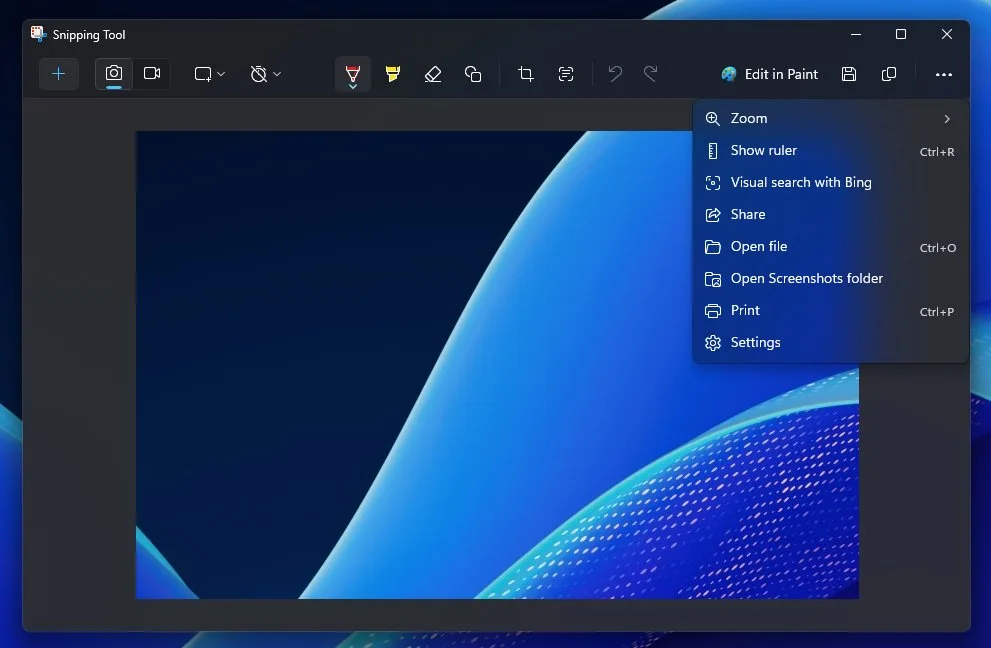
Some images are embedded in ways that make them hard to save or drag. Screenshots solve this. Take a screenshot of whatever’s on your screen, then upload it to visual search Bing.
This works great for content inside apps, videos, or interactive elements where a direct image grab isn’t possible.
Chain Multiple Searches Together
Visual search is often iterative. Your first search gives you a clue; your second search uses that clue to get closer; your third nails it.
Don’t expect one-shot perfection. Treat each search as a step in a process. That mindset turns visual search Bing from a novelty into a genuinely useful research tool.
Track Your Own Image Performance
If you run a website, periodically check how your images appear in Bing’s visual search. Are they showing up? Are they being attributed correctly? Are competitors’ images appearing alongside yours?
This kind of monitoring helps you spot issues early and adjust your image strategy accordingly.
Visual Search Bing for Businesses and Marketers
If you’re running an online store or managing content for a brand, visual search deserves a spot in your strategy. Integrating visual search bing into your workflow produces consistent quality. Here’s why, and how to make it work for you.
Why Image Search Traffic is Undervalued
Most marketers obsess over text-based SEO and ignore image search entirely. That’s a mistake. Image search drives significant traffic, especially for e-commerce and lifestyle brands.
Someone who finds your product through a visual search is often further down the funnel than someone who found you through a blog post. They already know what they want; they’re just looking for where to get it.
That intent makes visual search traffic valuable. It converts better than generic organic traffic in many cases.
Building a Visual Search Strategy
Start with your product images. Make sure they’re high quality, well-named, and properly tagged. Then think about lifestyle shots — images that show your products in use, which often perform better in visual search because they provide more context.
Don’t forget user-generated content. If customers post photos of your products, encourage them to tag you. Those images can appear in visual search and drive new customers your way.
The goal is to have a wide, well-optimized image footprint across your site and social channels. The more places your images appear with good metadata, the more likely they are to surface in visual search Bing results.
Monitoring Competitor Image Presence
Run searches for your key products through visual search Bing. See whose images come up. If competitors dominate the results, that’s a signal your image SEO needs work.
Study what they’re doing right — image quality, alt text, schema markup — and match or exceed it. Targeted refinements to your visual search bing streamline the entire review. This kind of competitive analysis is quick and often eye-opening.
Frequently Asked Questions About Visual Search Bing
Here is an in-depth breakdown of key considerations regarding this section:
Is Visual Search Bing Really Free to Use?
Yes. There’s no cost to use visual search Bing, no premium tier required for basic functionality, and no per-query charges. You can run as many searches as you want without paying anything.
Some advanced features tied to Microsoft accounts or specific apps may have their own terms, but the core visual search functionality is open and free for everyone.
Do I Need a Microsoft Account to Use It?
No. You can access visual search Bing through the Bing homepage without signing in. A Microsoft account isn’t required for basic image searches.
That said, having an account can unlock some conveniences like search history and personalized results. But it’s optional, not mandatory.
How Accurate is Visual Search Bing?
For common objects, products, and well-known subjects, accuracy is high — often surprisingly so. For rare or highly specialized items, results can be less precise.
The accuracy also depends heavily on image quality. Clear, well-lit photos with a single obvious subject return the best results. Cluttered or blurry images confuse the algorithm.
Can I Use It to Find Where an Image Came From?
Yes, though it’s not purpose-built for that like TinEye. Visual search Bing will show you pages where the image or similar images appear, which often leads you back to the original source.
For exact-match reverse image lookup, a dedicated tool like TinEye is more reliable. But for general source-finding, Bing works well enough.
Does It Work on Mobile Devices?
Absolutely. In fact, mobile is where visual search Bing feels most natural, since you can snap a photo on the spot and search immediately. The Bing app and mobile browser both support it fully.
If you’re on an iPhone or Android device, you’ve got the full feature set available. No compromises.
What Happens to the Images I Upload?
Bing processes your uploaded images to generate search results. As with any cloud-based service, it’s wise to avoid uploading sensitive or private images.
For everyday searches — products, plants, landmarks, and so on — there’s no practical concern. Just use common sense with personal content.
Can I Search Using an Image URL Instead of Uploading?
Yes. If you have a direct link to an image, you can paste that URL into Bing’s visual search instead of uploading a file. This is handy when the image lives online and you don’t want to download it first.
The drag-and-drop method works similarly — just grab the image from another page and drop it into Bing’s search bar.
Is Visual Search Bing Better Than Google Lens?
Not universally. Each excels in different areas. Visual search Bing tends to be stronger for shopping and product comparisons. Google Lens tends to be stronger for text recognition, translation, and integration with Google services.
The smart move is to use both, depending on the task. Neither is strictly superior across the board.
Can I Use It to Identify People?
Bing’s visual search isn’t designed as a facial recognition tool, and using it to identify individuals raises significant privacy and ethical concerns. It’s better suited for objects, products, places, and general subjects.
If you need to identify a person for legitimate reasons, there are proper channels for that — and a general visual search tool isn’t one of them.
Does Visual Search Bing Work for Text in Images?
Yes, thanks to OCR technology. If your image contains readable text — signs, book covers, documents — Bing can extract and use that text as part of the search. This makes it useful for translating signs, finding books, or looking up product labels.
Accuracy depends on image clarity. Sharp, well-lit text works best; blurry or angled text is harder to read.
Making Visual Search Bing a Daily Habit
Here’s the thing about visual search Bing: the more you use it, the more uses you find. It starts as a novelty — “oh, I can search with a picture, neat” — and gradually becomes a reflex. You see something, you snap it, you know what it is.
That reflex is worth building. It saves time, saves money, and opens up a way of interacting with the web that text search can’t replicate. Not everything can be described in words, and visual search fills that gap.
Start with the basics. Upload a photo. See what comes back. Then try the crop tools, the hybrid text-plus-image searches, the mobile camera flow. Each layer adds capability.
And if you’re on the publishing side, treat your images as first-class citizens. Name them well, describe them properly, structure your data. Visual search Bing is a two-way street — you can use it to find things, and others can use it to find you.
That dual nature is what makes it such a quietly powerful tool. Most people still don’t use it. Most businesses still don’t optimize for it. Which means right now, there’s an edge available to anyone willing to spend a few minutes learning the ropes.
So go try it. Pick an object near you, snap a photo, and run it through visual search Bing. You’ll probably be surprised at how much the engine knows — and how quickly you start thinking of new ways to use it.
For verified reference and background research, consult the authoritative informational resource on this topic.