If you want to optimize images for page speed without rebuilding your entire site, you’re in the right place. Most slow websites aren’t slow because of bad hosting or bloated code — they’re slow because of oversized, unoptimized images.
The good news? Fixing that is one of the fastest, highest-impact wins available to any site owner, and you don’t need a developer on standby to pull it off.
I’ve spent years watching site owners chase expensive server upgrades while ignoring the single heaviest asset on nearly every page: the images. Focusing on optimize images for page speed provides clear direction here. Let’s fix that, step by step, with tactics that actually move the needle.
Why You Should Optimize Images for Page Speed Before Anything Else
Images typically account for the largest share of total page weight on modern websites. On a typical content-heavy page, they can easily make up 60% to 80% of everything a browser has to download. That means when you optimize images for page speed, you’re attacking the biggest bottleneck first — not the smallest.
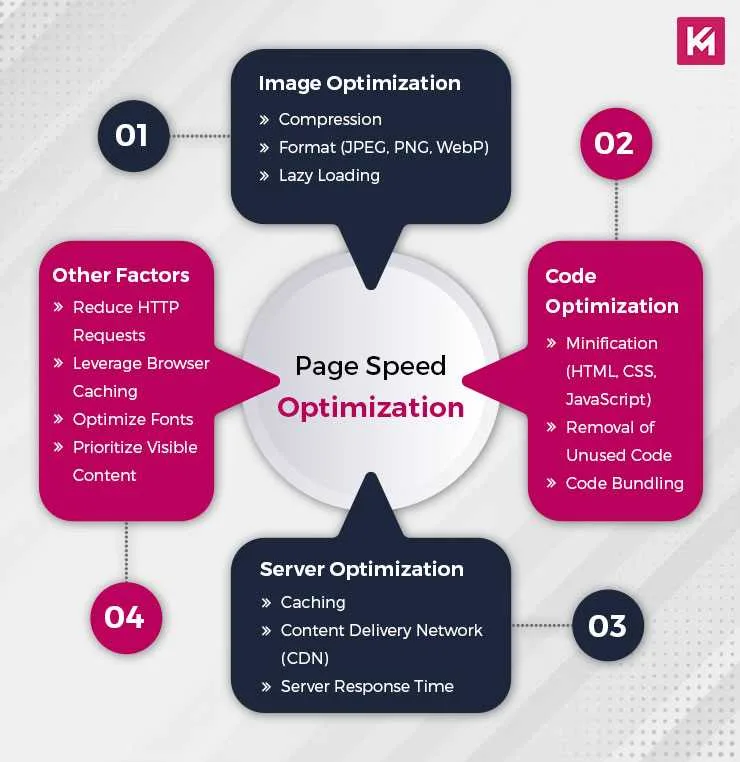
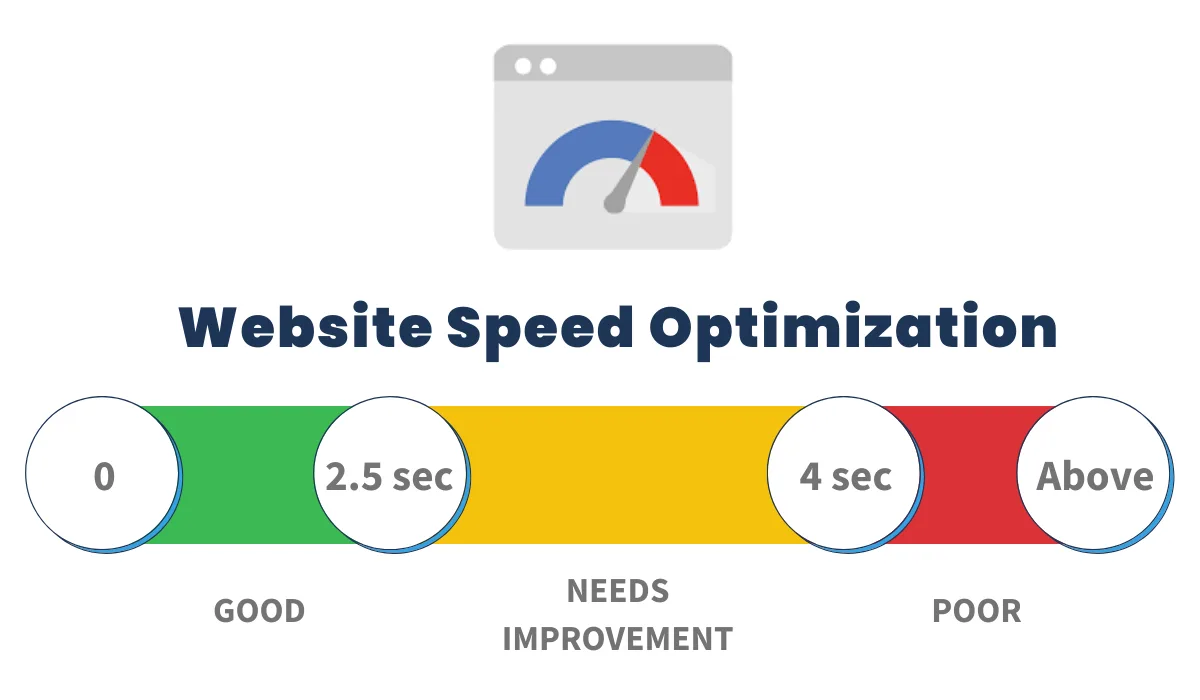
Google’s own guidance through PageSpeed Insights and Lighthouse flags image delivery as one of the most common opportunities for improvement. Focusing on optimize images for page speed provides clear direction here. When you run a test on almost any unoptimized site, you’ll see warnings like “Serve images in next-gen formats” or “Properly size images.” Those aren’t cosmetic suggestions.
They translate directly into slower Largest Contentful Paint (LCP), which is a Core Web Vital that affects both rankings and real user experience.
Here’s the part most people miss: speed isn’t just a technical metric. It’s a business metric. Amazon famously found that every 100 milliseconds of added load time cost them roughly 1% in sales. Walmart reported similar patterns.
Your site may not operate at that scale, but the principle holds — slower pages convert worse, bounce more, and frustrate visitors who won’t wait around.
So when you optimize images for page speed, you’re doing three things at once: improving Core Web Vitals, reducing bandwidth costs, and creating a smoother experience that keeps people on the page. That’s a rare triple win.
The Anatomy of a Heavy Image (And What Actually Slows Things Down)
Before you start compressing files, it helps to understand what makes an image heavy in the first place. There are four main culprits: file format, dimensions, compression level, and how the image is delivered to the browser.

File format is the biggest lever. Refining each detail of your optimize images for page speed strengthens this section. A JPEG saved at maximum quality might be 800 KB, while the same image saved at 75% quality could be 120 KB with almost no visible difference.
A PNG with photographic content is often 5-10x larger than an equivalent WebP file. Refining each detail of your optimize images for page speed strengthens this section. And a raw camera export dropped straight into a CMS? That’s a disaster waiting to happen.
Dimensions matter just as much. If your content area is 800 pixels wide, serving a 4000-pixel-wide image is pure waste. The browser has to download all those extra pixels, then scale them down — which costs time and memory for zero visual benefit.
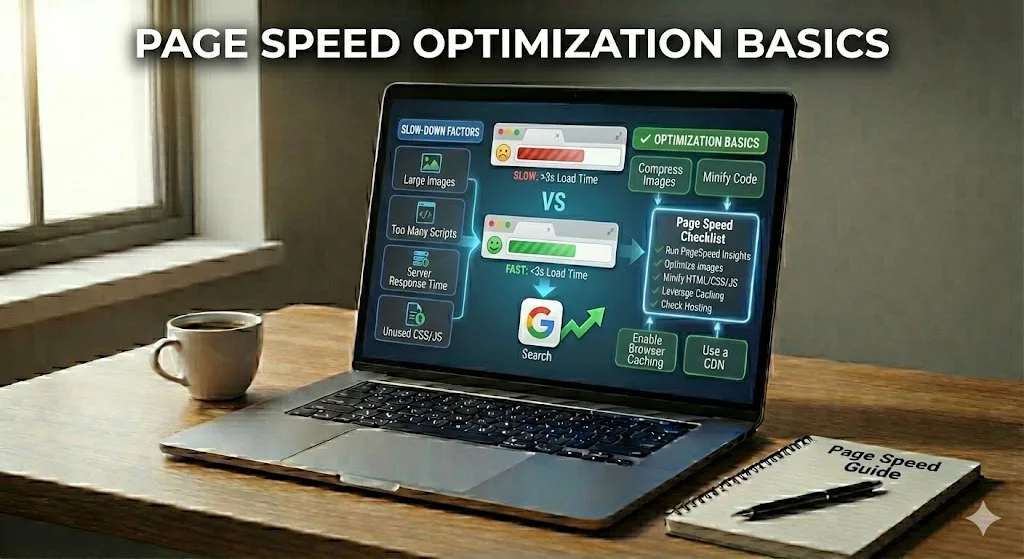
Then there’s delivery. Effective execution in your optimize images for page speed makes a tangible difference. Even a well-compressed image can slow your page if it’s loaded eagerly when it’s below the fold, or if it’s missing width and height attributes that prevent layout shifts. These are the subtle issues that separate a site that technically works from one that feels fast.
When you optimize images for page speed with all four factors in mind — format, size, compression, and delivery — you get compounding gains. Fixing just one rarely delivers the full benefit.

Quick Wins to Optimize Images for Page Speed Right Now
Let’s get tactical. These are the changes you can make today, often in under an hour, that produce measurable improvements.
Switch to Next-Gen Formats Like WebP and AVIF
WebP has been supported by every major browser for years, and it typically delivers 25% to 35% smaller files than JPEG at equivalent visual quality. Maintaining clarity across your optimize images for page speed remains essential.
AVIF goes even further, often cutting another 20% to 30% on top of that, though encoding takes longer and support is slightly less universal.
For most sites, the smart move is to serve WebP as your baseline and let AVIF handle hero images where the extra savings matter most. If you’re on WordPress, plugins like ShortPixel, Imagify, or Converter for Media will handle the conversion automatically. On other platforms, most CDNs (Cloudflare, Bunny, ImageKit) will do it on the fly.
The practical result: pages that used to load 2 MB of images now load 700 KB. A thoughtful approach to optimize images for page speed reinforces your qualifications. That’s the kind of change you can feel, not just measure.

Compress Without Visible Quality Loss
You don’t need to obsess over compression settings. Effective execution in your optimize images for page speed makes a tangible difference. Aim for quality 70-80 on JPEGs and WebP, and let your eyes be the judge. In my experience, most people can’t tell the difference between quality 80 and quality 100 on a standard monitor — but the file size difference is often 3-4x.
Tools worth knowing: Squoosh (free, browser-based, made by Google), ImageOptim for Mac, and FileOptimizer for Windows. Structuring your optimize images for page speed around proven patterns ensures impact. For bulk work, command-line tools like cwebp and mozjpeg are unbeatable once you learn the basics.
If you run an e-commerce site with thousands of product photos, batch processing is essential. Doing it manually isn’t realistic. Set up an automated pipeline through your CMS or CDN and let it run in the background.
Resize Images to Their Actual Display Dimensions
This is the single most overlooked fix. Applying these principles to your optimize images for page speed yields measurable results. A 3000-pixel-wide hero image displayed at 1200 pixels is wasting 2.5x the bandwidth it needs. Multiply that across a gallery of 20 product shots and you’ve got a serious problem.
Open your browser’s developer tools, inspect the image element, and check the rendered size. Then resize the source file to roughly 2x that dimension (to account for retina displays) and re-upload. When you optimize images for page speed this way, you often see immediate gains in LCP.
WordPress users get this partly for free with srcset, which serves different sizes based on viewport. But srcset only works if your theme generates the right sizes — check that your registered image sizes actually match your layout.
Advanced Techniques to Optimize Images for Page Speed
Once the basics are handled, these techniques squeeze out the remaining performance. Proper attention to your optimize images for page speed sets a strong baseline. They require a bit more setup but pay off on high-traffic pages.
Lazy Loading Done Right
Lazy loading defers off-screen images until the user scrolls near them. It’s a huge win for pages with lots of images below the fold. But there’s a catch: never lazy-load your LCP image. Doing so delays the very thing Google measures most.
The modern approach uses the loading=”lazy” attribute for below-the-fold images and loading=”eager” (or nothing at all) for hero images. Developing your optimize images for page speed with precision highlights key strengths. Pair this with fetchpriority=”high” on your LCP image and you’ll see measurable improvements in Core Web Vitals.
Native lazy loading is now supported everywhere, so you can drop the JavaScript libraries that used to handle this. Simpler code, faster pages.
Use a Content Delivery Network (CDN)
A CDN caches your images at edge locations around the world, so a visitor in Singapore doesn’t have to fetch assets from a server in Virginia. Clear alignment with your optimize images for page speed builds confidence from the start. The latency savings are dramatic — often 200-500 ms on first load.

Modern image CDNs like Cloudflare Images, ImageKit, and Cloudinary go further. They handle format conversion, resizing, and compression on the fly based on the requesting device. When you optimize images for page speed through a CDN, you get automatic benefits without touching a single file.
The trade-off is cost and complexity. Maintaining clarity across your optimize images for page speed remains essential. For small sites, a basic CDN is plenty. For image-heavy sites with global audiences, an image-specific CDN is worth the investment.

Set Explicit Width and Height Attributes
Every image should have width and height attributes in its HTML. Integrating optimize images for page speed into your workflow produces consistent quality. This lets the browser reserve space before the image loads, preventing Cumulative Layout Shift (CLS) — another Core Web Vital.
It sounds trivial, but pages without these attributes often score poorly on CLS even when everything else is optimized. Add them once, and the problem disappears.
How to Optimize Images for Page Speed on WordPress
WordPress powers over 40% of the web, so it deserves its own section. Targeted refinements to your optimize images for page speed streamline the entire review. The platform makes image optimization easier than ever, but only if you use the right tools.
Start with a dedicated image optimization plugin. ShortPixel, Imagify, and Optimole are all solid choices. They compress on upload, convert to WebP, and can resize oversized images automatically. Configure them once and forget them.

Next, audit your media library. Most WordPress sites accumulate years of unused images that bloat backups and slow down admin operations. Tools like Media Cleaner can identify and remove them safely.
Finally, check your theme. Some themes load full-size images in places where thumbnails would do. If your theme doesn’t use srcset properly, consider switching to one that does — or add the functionality via a plugin like Responsive Images.

When you optimize images for page speed on WordPress, the combination of a good plugin and a lean theme gets you 90% of the way there.
Common Mistakes That Undo Your Image Optimization
Even after you optimize images for page speed, a few common mistakes can quietly sabotage your gains. Watch out for these.

First, uploading new images at full resolution without compression. A thoughtful approach to optimize images for page speed reinforces your qualifications. It’s easy to forget that your optimization plugin only works on images it processes — if you bypass it, you’re back to square one. Set up automatic processing on upload to avoid this.
Second, using CSS to resize images. If your HTML loads a -pixel image but CSS displays it at 400 pixels, the browser still downloads the full file. Always resize at the source.
Third, ignoring mobile. Mobile users are often on slower connections, so image weight matters more there. Test your site on a throttled connection to see what they actually experience.
Fourth, over-optimizing. Chasing the smallest possible file size can produce visibly degraded images that hurt user trust. There’s a sweet spot, and it’s usually around quality 75-80.
Measuring the Impact of Your Image Optimization
You can’t improve what you don’t measure. Before and after every change, run your key pages through PageSpeed Insights, WebPageTest, or GTmetrix. Pay attention to LCP, total page weight, and the number of image requests.
A well-optimized page often shows LCP improvements of 1-3 seconds on mobile. That’s the difference between a bounce and a conversion.
For ongoing monitoring, set up a tool like SpeedCurve or Calibre. They track performance over time and alert you when regressions creep in — which they will, especially after content updates.
When you consistently optimize images for page speed, you build a habit that keeps your site fast for years, not just weeks.
Comparison: Image Formats at a Glance
| Format | Typical Size vs JPEG | Browser Support | Best Use Case |
|---|---|---|---|
| JPEG | Baseline | Universal | Photos, general content |
| PNG | 2-5x larger | Universal | Logos, transparency, icons |
| WebP | 25-35% smaller | All modern browsers | Photos, general content |
| AVIF | 50-60% smaller | Modern browsers (some limits) | Hero images, high-impact visuals |
| SVG | Varies (often tiny) | Universal | Icons, logos, illustrations |
The takeaway from that table is simple: WebP should be your default for photographic images, AVIF for hero shots, SVG for icons, and PNG only when transparency is essential. When you optimize images for page speed with format matching in mind, you stop wasting bytes on the wrong container.
Frequently Asked Questions
Here is an in-depth breakdown of key considerations regarding Frequently Asked Questions:
How Much Can Image Optimization Actually Improve Page Speed?
On image-heavy sites, it’s not uncommon to see LCP improvements of 40% to 70% after a thorough optimization pass. Total page weight often drops by half or more. The exact numbers depend on how badly the site was optimized to begin with — the worse the starting point, the bigger the gain.
Do I Need to Optimize Images for Page Speed on Every Page?
Prioritize your highest-traffic pages first: homepage, top landing pages, and best-selling product pages. Those deliver the biggest business impact. Then work through the rest of the site in batches. Trying to fix everything at once usually leads to burnout and half-finished work.
Will Image Optimization Hurt Visual Quality?
Not if you do it right. Modern compression algorithms are remarkably good at preserving perceived quality while cutting file size dramatically. The key is to test visually, not just trust the numbers. If an image looks fine at quality 75, use it. If it doesn’t, bump it up.
What’s the Fastest Way to Optimize Images for Page Speed?
Install an image optimization plugin or enable a CDN that handles conversion automatically. That single step often delivers 80% of the benefit with 5% of the effort. Manual optimization is more precise but rarely worth the time unless you’re working on a small, high-value set of images.
Does Google Care About Image Optimization for Rankings?
Indirectly, yes. Page speed is a confirmed ranking factor, and Core Web Vitals feed into that. Faster pages also tend to have better engagement metrics, which correlate with stronger rankings. So while there’s no direct “image optimization” ranking bonus, the downstream effects are real.
How Often Should I Re-Check My Images?
Quarterly is a good rhythm for most sites. After any major content update or theme change, run a fresh audit. New images uploaded without optimization can quickly undo months of progress if you’re not paying attention.
Final Thoughts on Image Optimization
If there’s one thing I hope you take away from this, it’s that you don’t need to be a performance engineer to optimize images for page speed. The biggest wins come from simple, repeatable habits: compress on upload, use modern formats, resize to actual dimensions, and let a CDN handle the heavy lifting.
Start with the quick wins. Measure the results. Then layer in the advanced techniques as your site grows. Done consistently, this approach keeps your pages fast, your visitors happy, and your Core Web Vitals in the green — without turning optimization into a full-time job.
For deeper technical background on how browsers handle image loading, the MDN Web Docs on multimedia performance are an excellent resource worth bookmarking. And if you want to see how your efforts stack up against industry benchmarks, Google’s own web.dev image optimization guide is a solid reference point.