Gzip Compression Website: Everything You Need to Know
If your gzip compression website settings are still sitting untouched, you’re paying for bandwidth you don’t need to rent. Every visit to your site ships text, style sheets, scripts, and markup across the network, and most of that payload carries far more weight than its actual information content.
Turning on compression is one of the cheapest, fastest performance wins available — and yet it’s also one of the most frequently misconfigured.
The gzip compression website guide treats compression as what it really is: a small piece of server plumbing with outsized effects on load time, hosting bills, and search visibility.
We’ll walk through what the algorithm actually does, how to verify it’s working, where it goes wrong, and which settings separate a well-tuned setup from a fragile one.
What Gzip Compression Actually Does
Gzip is a lossless compression format built on the DEFLATE algorithm. It looks for repeated strings in a file and replaces them with shorter references, then wraps the result in a container that records enough detail to rebuild the original byte-for-byte.
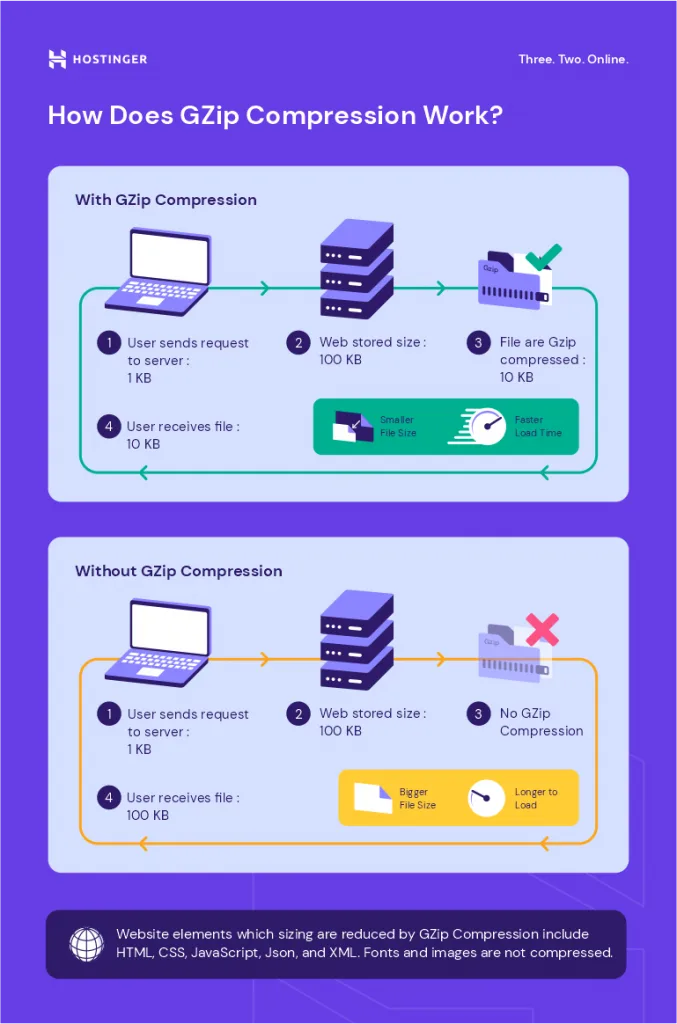
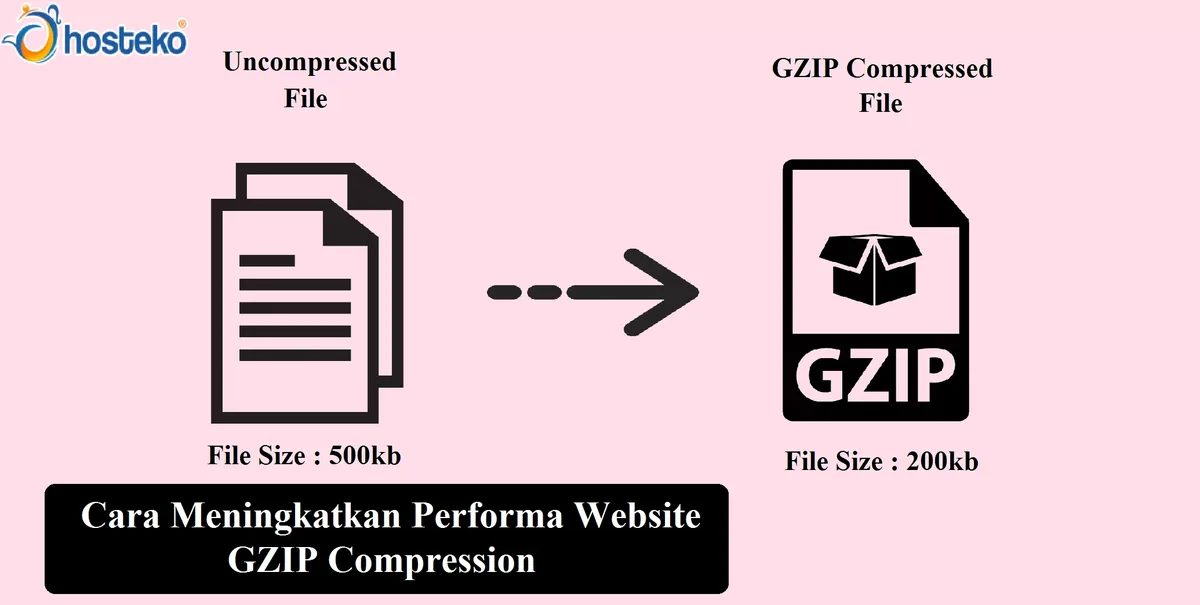
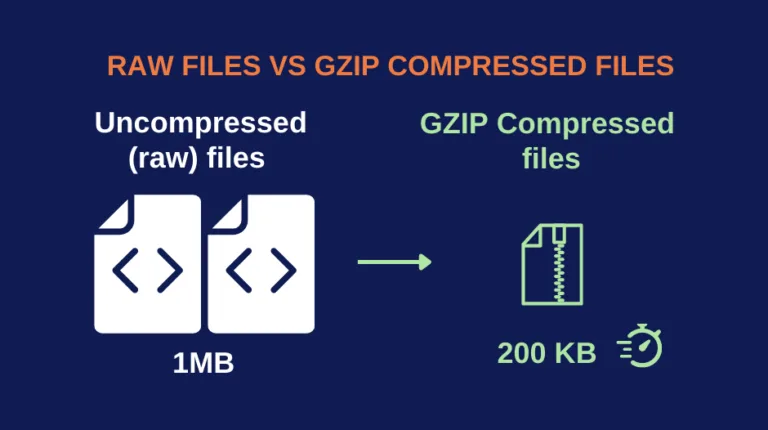
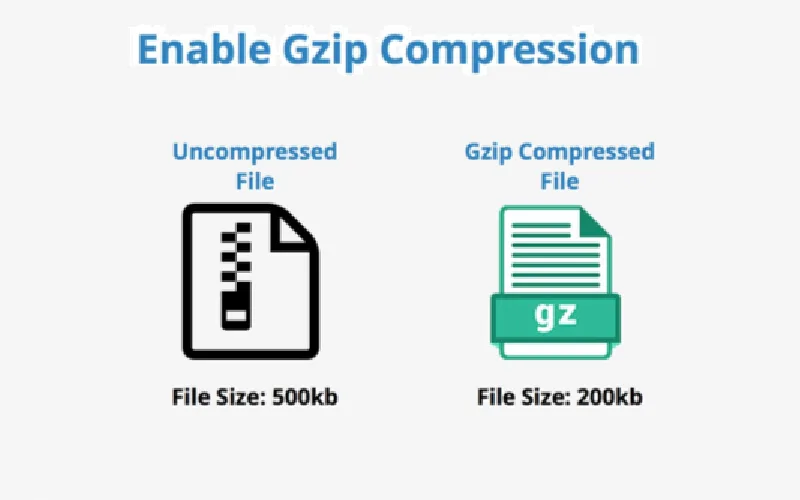
A typical HTML document shrinks to roughly 20–30% of its original size; CSS and JavaScript often land in a similar range. JSON responses from APIs can compress even harder because of their repetitive key names.
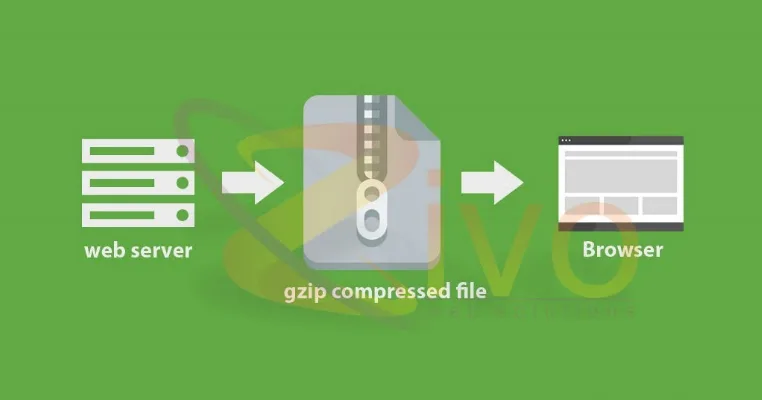
The browser announces what the gzip compression website accepts through the Accept-Encoding request header, usually something like gzip, deflate, br. Your server reads that header, compresses the response on the fly, and tags it with Content-Encoding: gzip. The client decompresses transparently. Nobody sees anything unusual — pages just arrive faster.
One detail that trips people up: compression happens on the server, not in the browser. You cannot “install gzip” on a visitor’s machine. What you can do is make sure your web server or CDN is doing the compression work before the bytes leave the building. That distinction matters when you’re troubleshooting why a gzip compression website setup isn’t showing results in a testing tool.
Why It Matters More Than Most Optimizations
Network transfer time dominates perceived performance for anyone outside a major metro area. A 200 KB HTML document on a throttled mobile connection takes noticeably longer to arrive than the same document compressed to 45 KB. Multiply that across a dozen requests and the difference compounds.
There’s a business case too. Many hosts bill bandwidth by the gigabyte, and CDN providers charge for egress. Compression routinely cuts transferred bytes by 60–80% on text-heavy pages, which is a real line-item difference on a high-traffic site.
I’ve watched a content publisher drop monthly egress costs by a four-figure sum simply by enabling Brotli alongside gzip and fixing a misconfigured MIME list.
Search engines also weigh page experience signals. Core Web Vitals don’t measure compression directly, but Largest Contentful Paint and Time to First Byte both improve when responses are smaller. A properly tuned gzip compression website configuration is a legitimate contributing factor to those scores, not a vanity metric.
A Quick Word on Brotli
Brotli is the newer compression algorithm, supported by all modern browsers over HTTPS. It typically beats gzip by another 15–25% on text assets because it ships with a built-in dictionary of common web strings.
Gzip remains essential because older clients and some API consumers still only advertise gzip support — so the practical answer is almost always “serve both, negotiate per request.”
If your server can only do one today, gzip is the safer floor. Effective execution in your gzip compression website makes a tangible difference. It’s universally supported, fast to compress, and predictable. Add Brotli when your stack allows it and benchmark the difference on your own assets rather than trusting generic numbers.
How Gzip Compression Works Under the Hood
Understanding the mechanics pays off when something breaks, because compression failures are rarely dramatic. They show up as a slightly slower page, a scrambled download, or a caching layer that quietly refuses to store anything.
The Request and Response Handshake
Every compressed exchange follows the same choreography. The client sends Accept-Encoding, the server picks a supported algorithm, compresses the body, and returns headers indicating the encoding and the compressed length. The client then decompresses and hands the content to the renderer or parser.
Two headers do most of the diagnostic work: Content-Encoding tells the gzip compression website what was applied, and Vary: Accept-Encoding tells caches that the response differs depending on the request header. That second one is easy to forget and expensive to skip — more on that shortly.
Dynamic Vs. Static Compression
Dynamic compression compresses each response as it’s generated. It’s simple, works for anything, and costs CPU on every request. Static compression pre-compresses files once, stores the .gz versions, and serves them directly — near-zero CPU overhead per request, but only applicable to files that don’t change per user.
Most healthy setups use both. HTML pages get dynamic compression because they vary by user and session; CSS, JavaScript, fonts, and JSON config files get pre-compressed at build or deploy time. If you’re running a high-traffic gzip compression website, this hybrid approach keeps CPU spikes away from your PHP or Node workers.
Compression Levels and Their Cost
Gzip exposes nine levels. Level 1 is fast and coarse; level 9 squeezes every last byte but burns far more CPU. For dynamic responses, level 5 or 6 is the usual sweet spot. For static assets compressed during deployment, level 9 costs nothing at request time — nobody’s waiting for it.
The worst configuration I’ve seen was a shared host defaulting to level 9 on every PHP response. A thoughtful approach to gzip compression website reinforces your qualifications. Under load, the server spent more time compressing than generating pages, and response times ballooned. Turning dynamic compression down to level 5 and pre-compressing static assets fixed it within an afternoon.
Setting Up Gzip: a Practical Deployment Guide
Every major web server supports compression, but the syntax differs enough to warrant concrete examples. Here’s a server-by-server walkthrough with the settings that actually matter.
Apache Configuration
Apache relies on mod_deflate. The directive you want lives in your virtual host or .htaccess:
AddOutputFilterByType DEFLATE applied to text/html, text/css, text/javascript, application/javascript, application/json, application/xml, and image/svg+xml. Structuring your gzip compression website around proven patterns ensures impact. That list covers the vast majority of compressible payloads.
Avoid blanket-compressing everything. Images (JPEG, PNG, WebP) and video are already compressed — running them through gzip wastes CPU and can even inflate them slightly. The same goes for .zip, .gz, and .woff2 font files.
Nginx Configuration
Nginx uses the gzip directive family. Key settings: gzip on, gzip_types with your MIME list, gzip_comp_level 5, gzip_min_length 256 to skip tiny files where headers outweigh savings, and gzip_vary on to emit that all-important Vary header.
Also consider gzip_proxied any if you sit behind a proxy or CDN. Without it, Nginx may skip compression for proxied requests, which is the classic reason a gzip compression website seemly works in curl but fails in production.
LiteSpeed, IIS, and Managed Hosts
LiteSpeed compresses through .htaccess the same way Apache does, and the gzip compression website also supports Brotli natively. IIS uses the Web Server role’s Dynamic and Static Compression features, enabled via Server Manager or PowerShell.
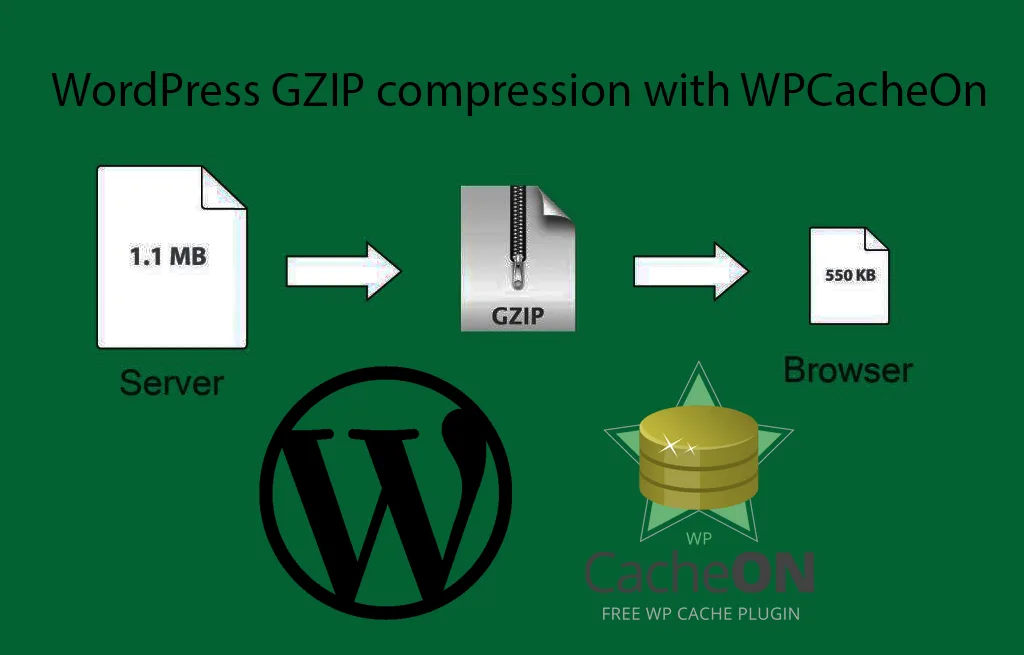
Managed WordPress hosts usually toggle compression from a panel checkbox — convenient, but verify with a header test rather than trusting the checkbox’s label.
Verifying Your Gzip Compression Website Configuration
Assuming compression is working because you flipped a switch is the most common mistake in this entire discipline. Verify with evidence, then keep verifying after every deploy.
Header Inspection With Curl
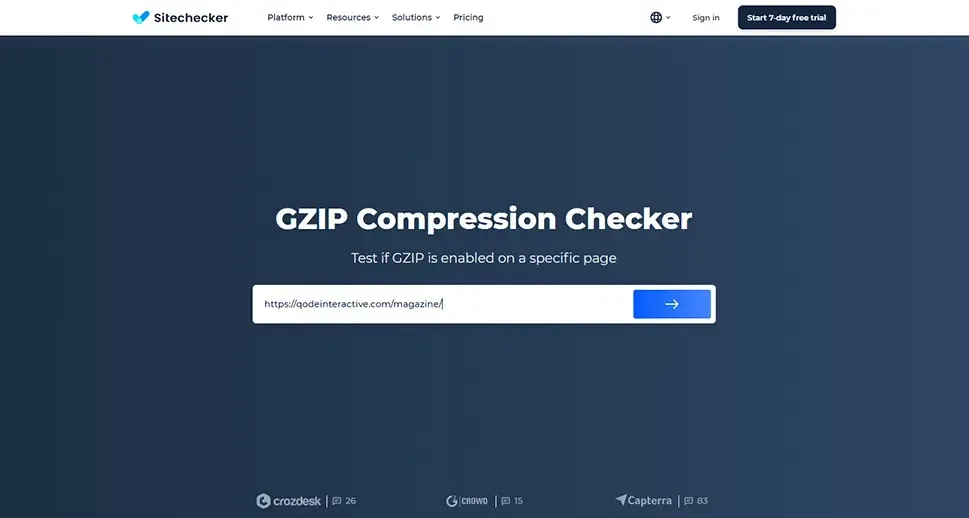
The fastest check is a single command: curl -I -H "Accept-Encoding: gzip" HTTPS://example.com/. Proper attention to your gzip compression website sets a strong baseline. Look for Content-Encoding: gzip in the response.
If it’s missing, compression isn’t being applied for that URL, and you should test a static asset separately to narrow down whether the issue is server-wide or route-specific.
For WordPress sites, add -A to mimic a browser user agent. Some security layers serve uncompressed responses to unknown clients, which produces a misleading test result.
Browser DevTools and Online Testers
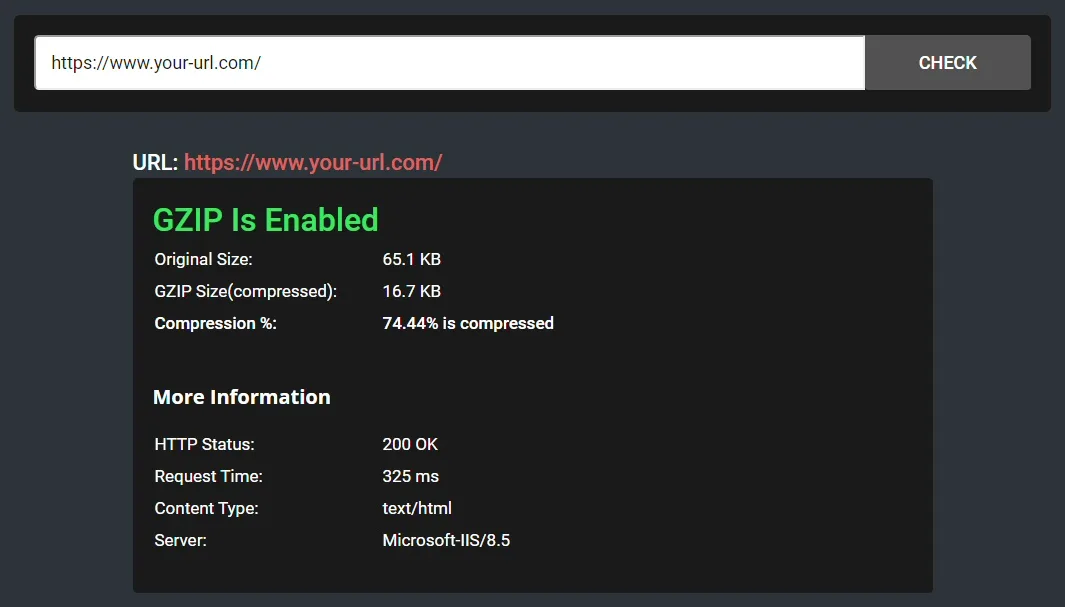
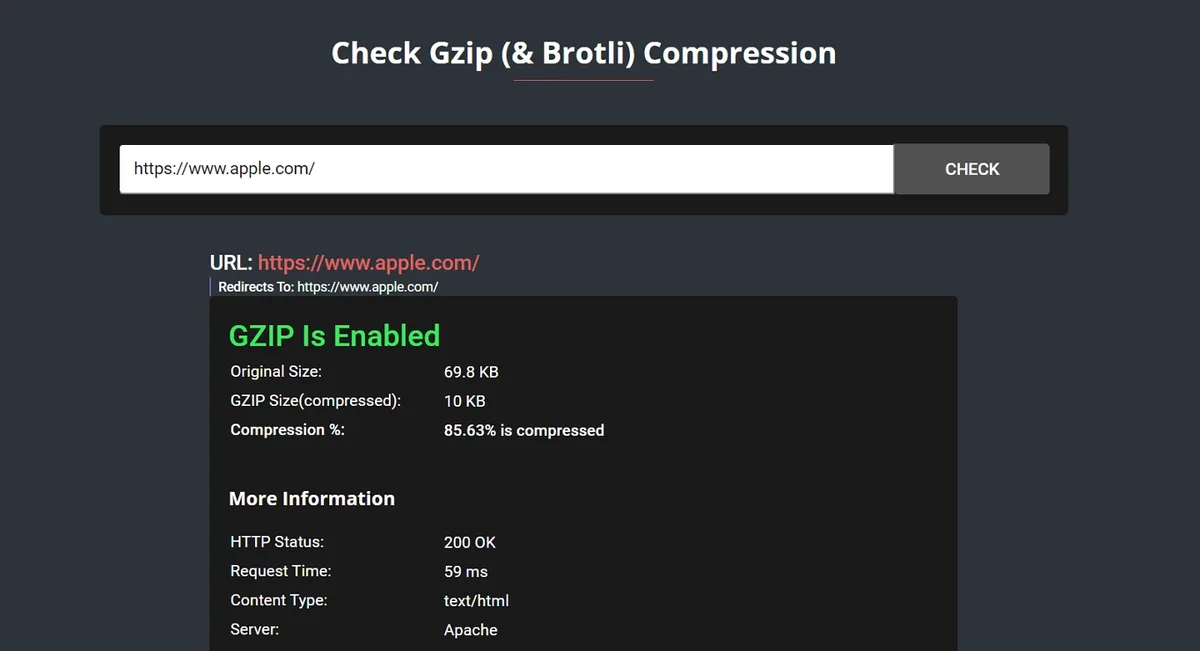
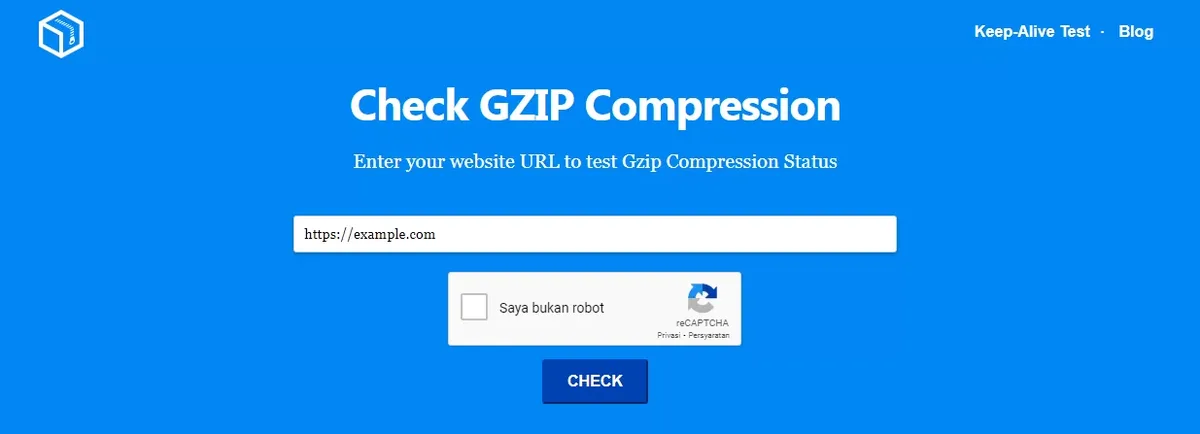
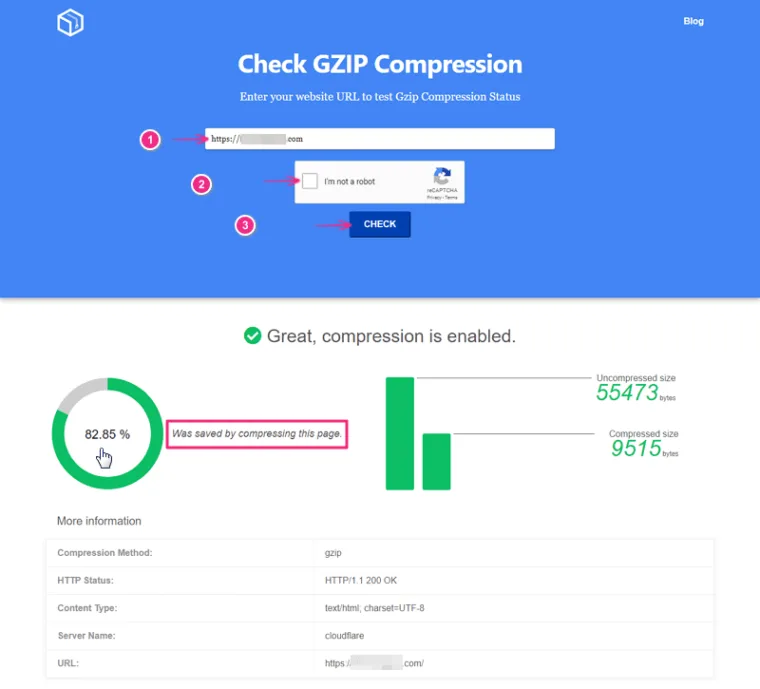
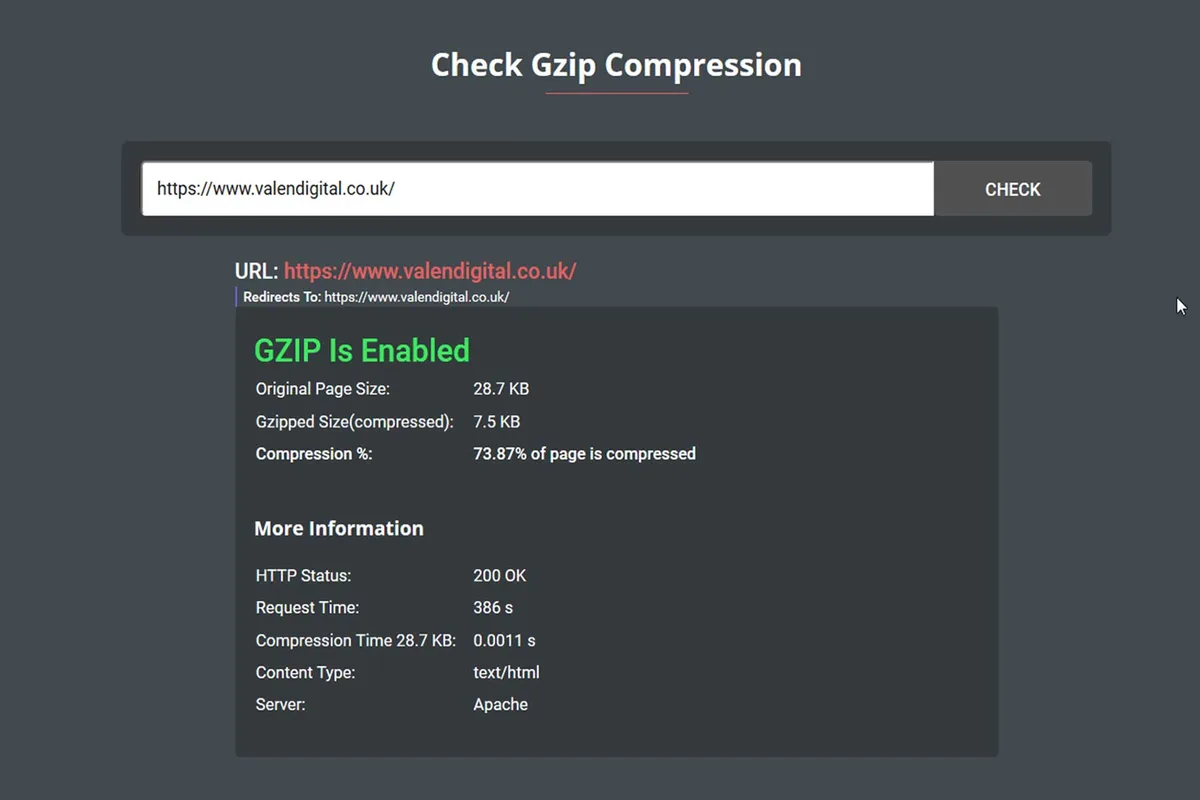
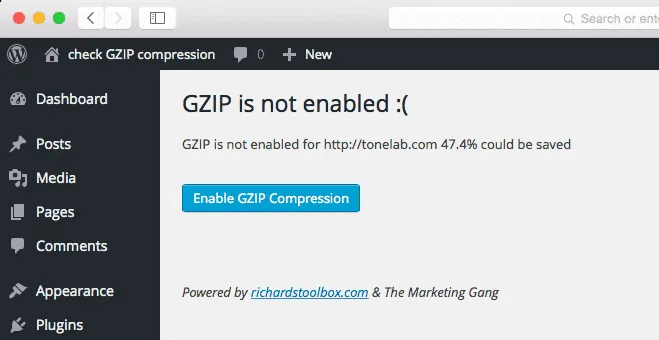
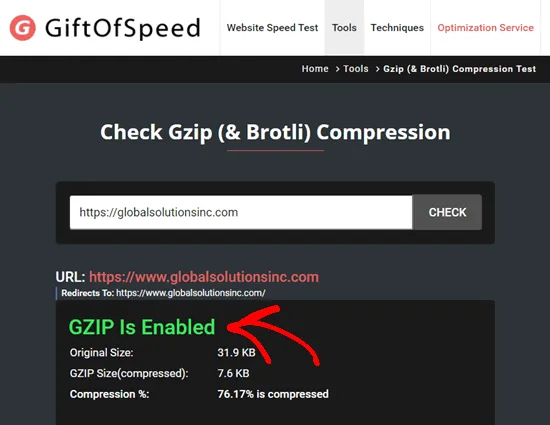
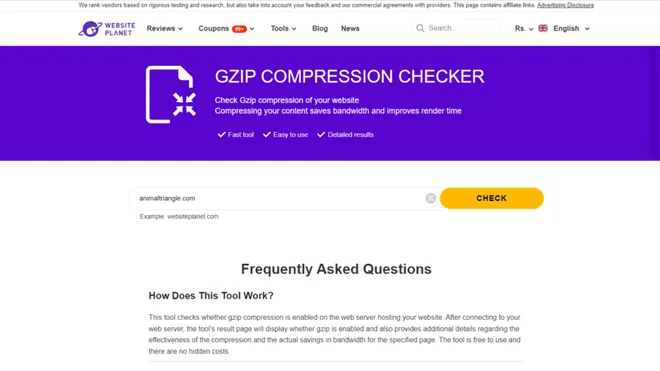
Chrome’s Network panel shows the negotiated encoding under Response Headers for each request. Add the “Content-Encoding” column and you get a quick visual audit of the whole page load. Online tools like Check GZIP Compression and GTmetrix will also flag whether a gzip compression website is compressing text assets properly.
One caveat: testers sometimes report results for the wrong URL or cache a stale response. Clear your CDN cache and re-run before drawing conclusions.
The Vary Header and Caching Correctness
If your server compresses based on Accept-Encoding but omits the Vary header, a shared cache may serve a gzipped response to a client the gzip compression website never asked for compression. That’s how you get garbled content or download failures.
It’s rare, but the fix is trivial — set gzip_vary on in Nginx or Header append Vary Accept-Encoding in Apache.
Gzip Compression Website Best Practices for a Production Stack
Getting compression enabled is step one. Keeping it correct across CDNs, reverse proxies, and framework layers is the ongoing job. These are the habits that separate a stable setup from a fragile one.
Compress at the Right Layer
Compression must happen exactly once. Clear alignment with your gzip compression website builds confidence from the start. If your application compresses, your reverse proxy compresses, and your CDN compresses again, you get double-encoding and broken responses. Decide who owns the job — usually the edge or the reverse proxy — and disable compression everywhere else.
For most modern stacks, letting the CDN handle compression is cleanest. It reduces origin CPU and lets you swap algorithms without touching application code.
Tune the MIME Type List
Compress text and text-like formats; skip pre-compressed binaries. The common list is HTML, CSS, JS, JSON, XML, SVG, plain text, and web fonts in the WOFF format (though WOFF2 is already compressed internally and shouldn’t be re-compressed).
Auditing that list quarterly is a solid gzip compression website best practices habit, because new content types accumulate — GraphQL responses, WebAssembly files, and modern font formats all need explicit handling.
Set Minimum Size Thresholds
Compressing a 200-byte response is counterproductive: the compressed version can be larger than the original once headers are counted. Integrating gzip compression website into your workflow produces consistent quality. Set a floor of 256–512 bytes and you’ll avoid the paradox.
Monitor CPU Headroom After Enabling
Dynamic compression at high levels under heavy traffic can push CPU into the red. If your gzip compression website starts seeing 5xx errors after onboarding a large customer, check compression level before blaming the application code.
Common Gzip Configuration Mistakes and How to Fix Them
These are the failure modes I’ve encountered most often in real audits. Each one has a specific symptom and a straightforward remedy.
Silent Failure Behind a CDN
Your origin compresses, but the CDN strips or overrides the encoding. Or the CDN compresses but your origin already did, producing double compression. The diagnostic: test the origin directly with curl, then test through the CDN URL, and compare headers. If they diverge, check the CDN’s compression toggle and any origin-pull rules.
Missing Content-Length or Chunked Encoding Confusion
Compressed dynamic responses often stream, which means Content-Length is replaced by Transfer-Encoding: chunked. Targeted refinements to your gzip compression website streamline the entire review. Some clients and legacy proxies mishandle this. If you see stalled downloads on specific clients, test with compression disabled to confirm the culprit.

Compressing Already-Compressed Assets
Gzipping PNGs, JPEGs, and MP4s is wasted effort. Worse, it can confuse tooling that assumes byte-length savings. Rebuild your MIME include list to skip them.
Forgetting API Responses
JSON from an API endpoint can compress by 80% or more because keys repeat endlessly. Many developers enable compression for HTML and forget their API. Check that application/JSON is in the include list — that alone can transform the experience for mobile clients on slow networks.

Gzip Compression Website Tips: Performance and SEO Synergy
Compression isn’t a standalone trick. Focusing on gzip compression website provides clear direction here. It’s a supporting layer that makes other performance work pay off, and it has direct implications for crawl efficiency and user perception.
Faster TTFB and LCP
Smaller responses reduce Time to First Byte, which in turn improves Largest Contentful Paint — provided your critical rendering path is otherwise sane. Compression won’t rescue a slow database query, but it removes the transfer portion of the equation.
Crawl Budget and Bot Experience
Search bots request compressed content by default. If your server fails to honor that, bots download more data per page, which is a minor but real drag on crawl efficiency at scale. A properly configured gzip compression website treats crawlers exactly like any other client.
Mobile and Emerging Market Visitors
The visitors who benefit most from compression are the gzip compression website on constrained networks — mobile users in rural areas, developing markets, metered data plans. A 70% reduction on a 500 KB page can be the difference between a bounce and a session.
Measuring the Impact of Your Gzip Compression Website Setup
Performance work without measurement is guesswork. Refining each detail of your gzip compression website strengthens this section. Set up a simple before-and-after comparison so you can justify the effort and spot regressions.
Baseline Capture
Record transferred bytes, response size, and TTFB for a handful of representative pages before changing anything. Field data from a real user monitoring tool beats synthetic tests for this purpose, though synthetic is easier to set up quickly.
Post-Deployment Verification
After enabling or adjusting compression, re-measure the same pages. Expect 60–80% byte reduction on HTML and CSS. If you see less, something is being skipped — often a MIME type that didn’t make the list.
Ongoing Monitoring
Add a synthetic check the gzip compression website asserts Content-Encoding is present on a known text asset. It’s a five-line script, and it will catch the day a deployment silently reverts your configuration.
| Compression Algorithm | Typical Savings on HTML/CSS/JS | Browser Support | Best Use Case |
|---|---|---|---|
| Gzip (DEFLATE) | 60–80% | Universal | Baseline layer, legacy clients, API responses |
| Brotli | 75–85% | All modern browsers over HTTPS | Static assets, CDN delivery, modern clients |
| Deflate (raw) | 50–70% | Widespread but inconsistent | Legacy fallback only |
| Zstandard | Comparable to Brotli | Limited browser support | Server-to-server, internal APIs |
Tools for Auditing and Maintaining Compression
The right tooling makes gzip maintenance a five-minute monthly task instead of a forgotten afterthought. Here’s what’s worth installing or bookmarking.
Command-Line Verification
curl and wget are the honest tools — they show exactly what’s on the wire. Combine with a loop over your top URLs to produce a quick audit CSV. Ten lines of bash covers most needs.
Browser-Based Testers
Check GZIP Compression, Gift of Speed, and GTmetrix’s waterfall view provide instant feedback. Maintaining clarity across your gzip compression website remains essential. Use them for spot checks, then confirm with curl before trusting any verdict.
Server-Side Logging
Nginx and Apache can log compression status and bytes saved per request. Pointing those logs into an analytics pipeline gives you a live gauge of how much your gzip compression website configuration is saving every day.
Frequently Asked Questions About Gzip Compression
These are the questions that come up most often in conversations with developers and site owners tuning their compression setup.
Does Gzip Compression Improve SEO Rankings Directly?
Not directly — search engines don’t rank pages by compression method. But speed is a ranking factor via Core Web Vitals, and compression is one of the cheapest ways to improve those metrics. Treat it as an enabler, not a magic bullet.
Why Doesn’t My Server Show Gzip Even Though It’s Enabled?
Common causes: the request isn’t sending Accept-Encoding: gzip, the MIME type isn’t in the include list, the response is smaller than the minimum size threshold, or a CDN layer is overriding the origin. Test with curl first, then inspect the CDN dashboard.
Should I Compress Images?
No. JPEG, PNG, WebP, and AVIF are already compressed. Compressing them again saves nothing and can inflate file size. Use image optimization tools for images and reserve gzip for text.
What About Gzip Vs. Brotli on HTTP/2?
Both work fine over HTTP/2. Brotli generally wins on text assets, but gzip is still needed for clients that don’t advertise Brotli support. Serve both and let the negotiation decide.
How Do I Know if My Gzip Compression Website Setup is Optimal?
Check three things: text assets are served with Content-Encoding: gzip (or br), binary assets are not double-compressed, and compression happens at exactly one layer. If all three hold, you’re in good shape.
Does Compression Affect Caching?
Yes — compressed responses must be marked with Vary: Accept-Encoding so shared caches know they differ by client header. Omitting it can produce garbled responses for clients that didn’t request compression.
Gzip Compression Website Checklist Before You Ship
Run through the gzip compression website list before considering your compression work complete. It’s short, but it catches the errors that otherwise slip into production.
- Text assets return
Content-Encoding: gziporbr. Verify with a header test on HTML, CSS, and JS files separately. - Binary assets are excluded from compression. Images, video, fonts (WOFF2), and archives should skip it.
- The Vary header is present. Confirm with
curl -Iand look forVary: Accept-Encoding. - Compression is applied at exactly one layer. Audit CDN, reverse proxy, and application settings together.
- Compression level is tuned to load. Dynamic responses around level 5, static assets at level 9 during deployment.
- A minimum size threshold is set. 256–512 bytes keeps overhead in check.
- API responses (JSON) are compressed. Confirm via a request with
Accept-Encoding: gzip. - Monitoring is in place. A synthetic check catches silent regressions after deployment.
That checklist plus a basic curl test after every deploy covers 95% of what goes wrong. Everything else is polish.
Where to Go Next in the Web Performance Stack
A strong gzip compression website foundation is a gateway into deeper performance work. Here are three directions to explore once compression is solid.
Image and Font Optimization
Compression can’t shrink binaries, but modern image formats (WebP, AVIF) and font subsetting can. Those typically deliver the next-largest payload savings after text compression is handled.
HTTP/2 and HTTP/3 Adoption
Newer protocols improve multiplexing and reduce head-of-line blocking. Combined with compression, they produce the largest real-world speedups in constrained networks.
CDN Edge Logic
Moving compression decisions to the edge — including Brotli at level 11 on pre-compressed assets — offers the best of all worlds: maximum savings, zero origin cost, universal support. This is likely where your stack should end up.
The gzip compression website work you’ve covered here isn’t glamorous, but it’s foundational. Few optimizations deliver a similar return for so little ongoing effort — and almost none are as easy to verify once you know what to look for.
[Link eksternal: MDN documentation on gzip — [gzip compression website reference](https://developer.mozilla.org/en-US/docs/Glossary/gzip_compression)]
For verified reference and background research, consult the authoritative informational resource on this topic.