Advanced Twitter search turns a bottomless feed into a precision tool, letting you pull one specific tweet out of billions in seconds. If you have ever scrolled for twenty minutes hunting a half-remembered post, this guide is for you.
I have spent years digging through Twitter (now X) archives for reporting, research, and competitive analysis. Along the way I picked up the operators, filters, and workarounds that separate a casual search from a surgical one. Everything below comes from that hands-on practice, not from a help page.
You will learn how the syntax works, which operators still function, how to chain them into complex queries, and how to save, automate, and troubleshoot the whole process. Focusing on advanced twitter search provides clear direction here.
By the end you will be able to find any tweet with filters, even when you only remember a fragment.
What Advanced Twitter Search Actually Is
Advanced Twitter search is the practice of using operators, filters, and structured queries to narrow the platform’s firehose down to exactly the posts you want. Instead of typing a phrase and hoping, you tell the search engine precisely what to include and exclude.
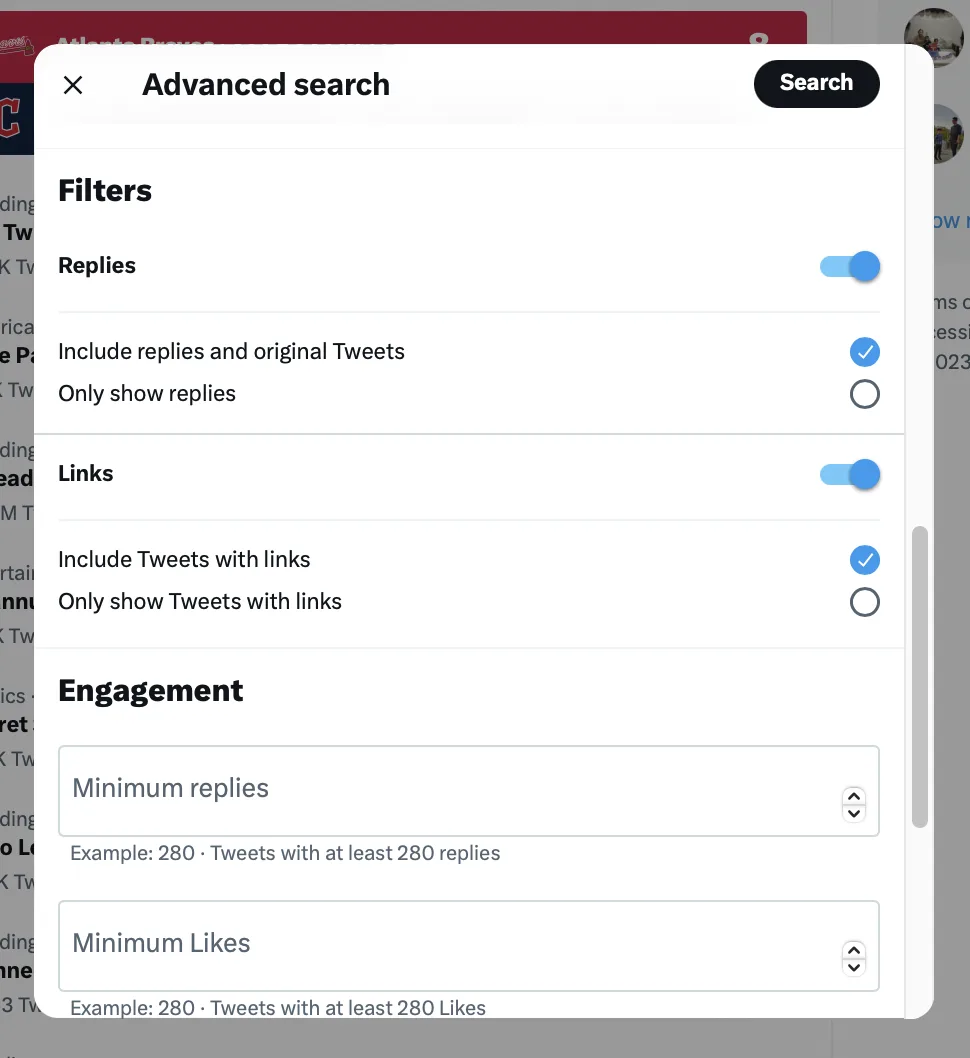
The system runs on a query language that looks a lot like the one librarians use for academic databases. You combine keywords with commands such as from:, since:, filter:, and quotation marks. Each command acts like a dial, and stacking them is where the real power lives.
Most people never touch these tools. They type a word, glance at the Top tab, and give up. That is exactly why an advanced Twitter search gives you an edge, whether you are a journalist, a marketer, a recruiter, or just a curious user trying to settle an argument.
Why the Default Search Falls Short
The standard search bar optimizes for engagement, not accuracy. It surfaces popular posts and buries the obscure ones, which is the opposite of what you need when you are chasing a specific detail.
Relevance ranking also shifts over time. A tweet that was easy to find last week can sink below newer, louder posts. An advanced Twitter search sidesteps the algorithm entirely by letting you sort by date, author, or engagement.
There is a second problem too: noise. Search “coffee” and you get ads, bots, and spam. Add a few operators and that noise evaporates. The difference in result quality is not incremental, it is night and day.
A Quick History of the Query Language
Twitter introduced search operators more than a decade ago, and the core syntax has stayed remarkably stable. That stability is good news, because queries you learn today will keep working tomorrow.

Some features have come and gone. The old advanced search form on the web still exists but has been trimmed down. Meanwhile, the underlying operators remain the workhorse, and third-party tools have stepped in to fill the gaps.
Understanding this lineage helps you predict what will work. If an operator suddenly returns nothing, it is usually a temporary quirk rather than a permanent removal. An advanced Twitter search habit built on solid operators tends to survive platform changes.
The Core Operators You Need to Master
Think of operators as the vocabulary of an advanced Twitter search. You do not need all of them, but a solid dozen will cover almost every real-world scenario.
Learn these cold and you can build queries from memory without reaching for a cheat sheet. I still use the same handful daily, and they have never let me down.
Keyword, Phrase, and Exclusion Operators
The simplest operators are the ones you already half-know. Quotation marks lock a phrase together, so “climate policy” matches those two words in that order only.
The minus sign excludes a term. Searching jaguar -car kills the automotive results and leaves the animal. It is the fastest way to strip out an unwanted meaning.
The OR operator (capitalized) lets you match either of two terms. coffee OR espresso widens the net without drowning you in irrelevant posts. Combine it with parentheses to group logic: (coffee OR espresso) -decaf.
These three alone will sharpen most searches. The trick is restraint, because piling on too many terms can zero out your results entirely.
Author and Mention Operators
The from: operator pulls tweets by a specific account. from:NASA shows only what that handle posted, which is gold for tracking an official announcement.
Its mirror, to:, finds replies directed at someone. Refining each detail of your advanced twitter search strengthens this section. to:NASA surfaces conversations aimed at the account, useful for spotting public sentiment or complaints.
Then there is @ for mentions. Typing @NASA catches any tweet that references the handle, whether or not it is a reply. Each of these plays a distinct role in a well-built advanced Twitter search.
Date and Time Operators
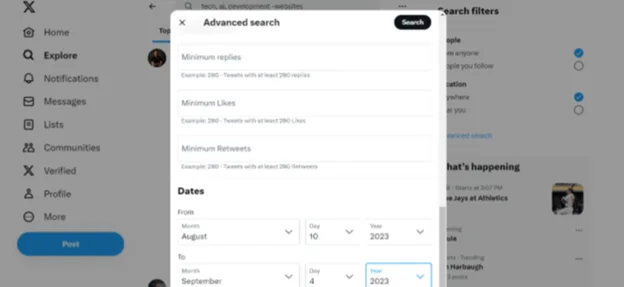
Time filtering is where precision really kicks in. since:-01-01 sets a start date, and until:-12-31 sets an end. Together they box in an exact window.
You can also use since: and until: with just a day, month, or year. That flexibility matters when you are reconstructing a timeline from memory.
Journalists lean on this constantly. If a company changed its story, you can pull every tweet it made in the weeks before and after the pivot. An advanced Twitter search with date bounds is essentially a time machine for public statements.
Engagement and Media Filters
The filter: operator is a category killer. filter:media returns only tweets with images or video. filter:links shows posts containing URLs.
Other variants include filter:images, filter:videos, and filter:verified for verified accounts only. There is also filter:replies and filter:nativeretweets to control what kind of post you see.
These filters are how you cut through clutter fast. Want a photo of an event? Add filter:images and skip every text-only post. This single habit upgrades any advanced Twitter search dramatically.
| Operator | What It Does | Example |
|---|---|---|
| from: | Tweets by a specific account | from:NASA |
| to: | Replies directed at an account | to:NASA |
| @ | Any mention of a handle | @NASA |
| since: | Start date of results | since:-06-01 |
| until: | End date of results | until:-06-30 |
| filter:media | Only posts with media | filter:media |
| filter:links | Only posts with links | filter:links |
| filter:verified | Only verified accounts | filter:verified |
| – | Excludes a term | jaguar -car |
| OR | Matches either term | coffee OR espresso |
| ” “ | Exact phrase match | “climate policy” |
| min_faves: | Minimum likes | min_faves:500 |
Building Complex Queries That Actually Work
Single operators are useful; combinations are transformative. The real craft of an advanced Twitter search is knowing how to layer commands without breaking the query.
Order matters less than logic, but grouping matters a lot. Parentheses tell the engine how to interpret your intent, and forgetting them is the most common mistake I see.
Stacking Operators Without Breaking Them
Start with your core keyword, then add one operator at a time. After each addition, check the results. If they drop to zero, you know the last operator was too restrictive.
This incremental approach beats writing a ten-part query and praying. It also teaches you which operators interact badly, knowledge you keep for next time.
A solid advanced Twitter search rarely needs more than four or five operators. Beyond that, you are usually over-engineering and shrinking your pool to nothing.
Using Parentheses and Boolean Logic
Parentheses group conditions so the engine reads them as a unit. (coffee OR espresso) filter:media since:-01-01 means “either term, with media, after that date.”
Without the parentheses, the logic can scramble and return junk. Think of them as the punctuation of your query, the thing that keeps meaning intact.
You can nest groups too, though it gets tricky fast. For most jobs, one level of grouping is plenty. Keep it readable so you can debug it later.
Excluding Noise and Bots
Spam is the enemy of any good search. Exclude obvious junk terms with the minus sign, and lean on filter:verified when you need authority.
You can also filter by language with the lang: operator. Effective execution in your advanced twitter search makes a tangible difference. lang:en limits results to English, which cleans up multilingual noise instantly.
For engagement-heavy topics, min_faves: and min_retweets: push low-quality posts out of view. An advanced Twitter search that ignores these tools will always feel messier than it needs to.
Practical Query Recipes
Here are combinations I reach for often. Each one solves a real problem rather than showing off syntax.
- Track an official statement: from:company since:-01-01 until:-03-01 — pulls everything an account said in a window.
- Find eyewitness media: earthquake filter:media -filter:replies — surfaces photos and video, minus chatter.
- Gauge public mood: to:brand -filter:links — reads replies aimed at a company without promo noise.
- Locate high-signal posts: topic min_faves:1000 lang:en — shows only posts that resonated.
- Reconstruct a timeline: “exact phrase” since:-05-01 until:-05-31 — boxes a phrase into one month.
Save these patterns. Once they are in your muscle memory, an advanced Twitter search takes seconds instead of minutes.
Using the Native Advanced Search Interface
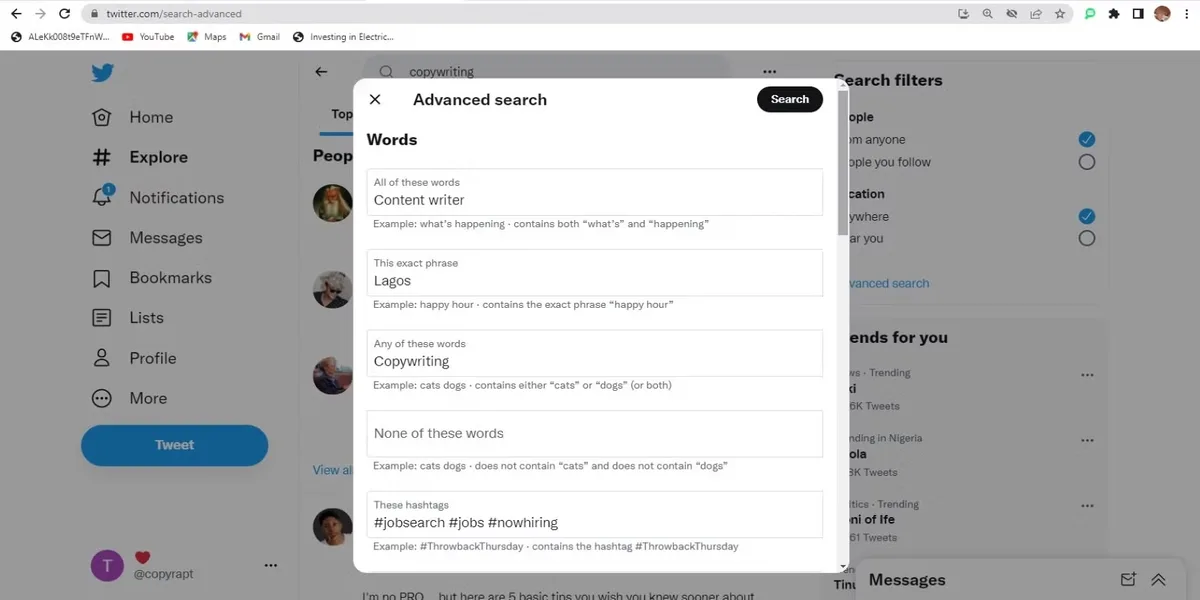
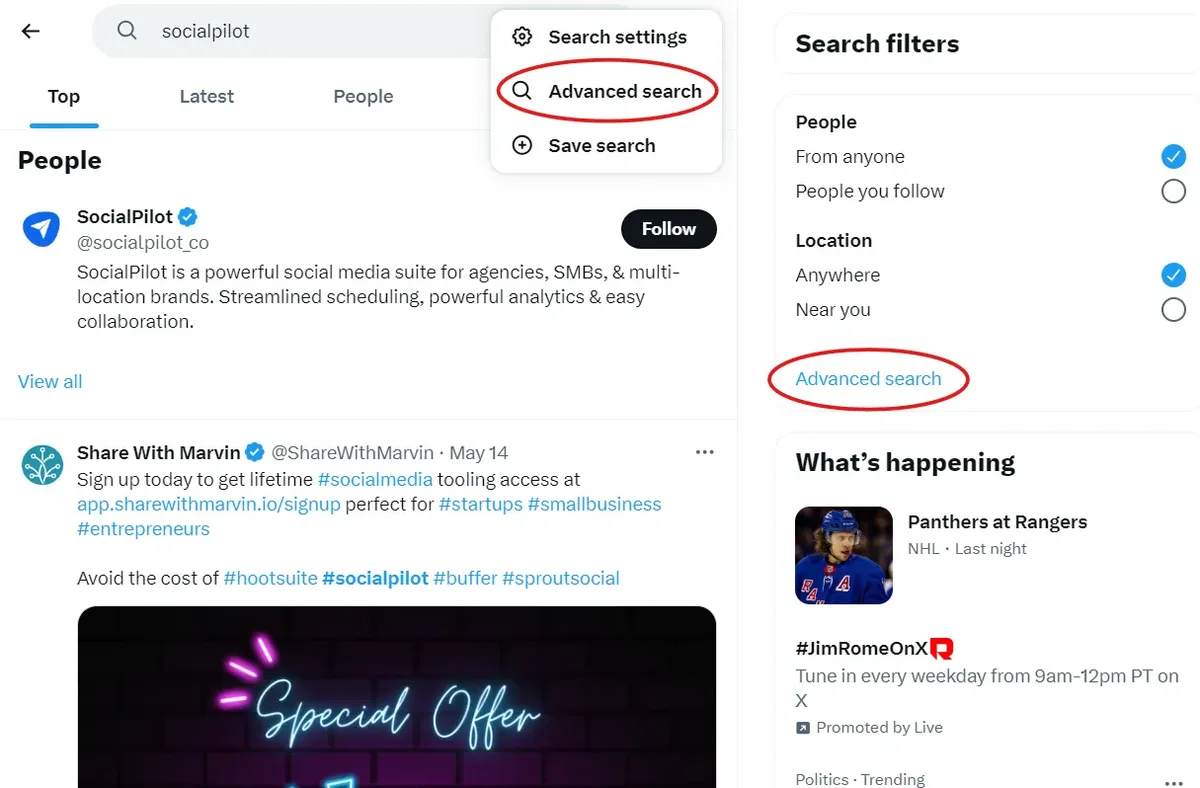
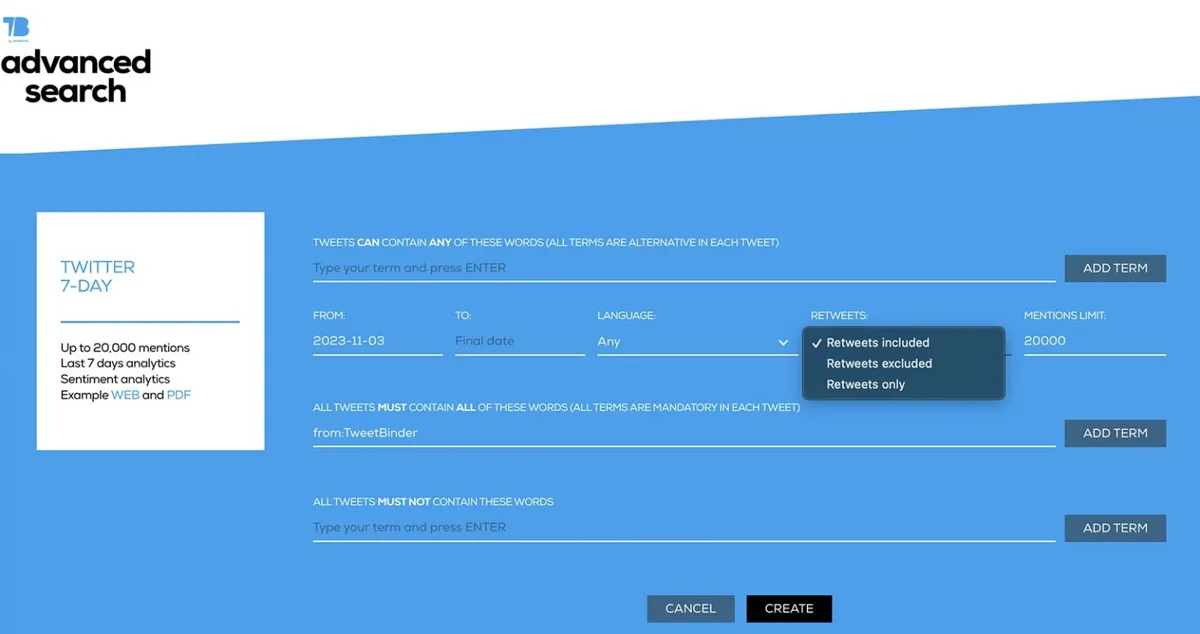
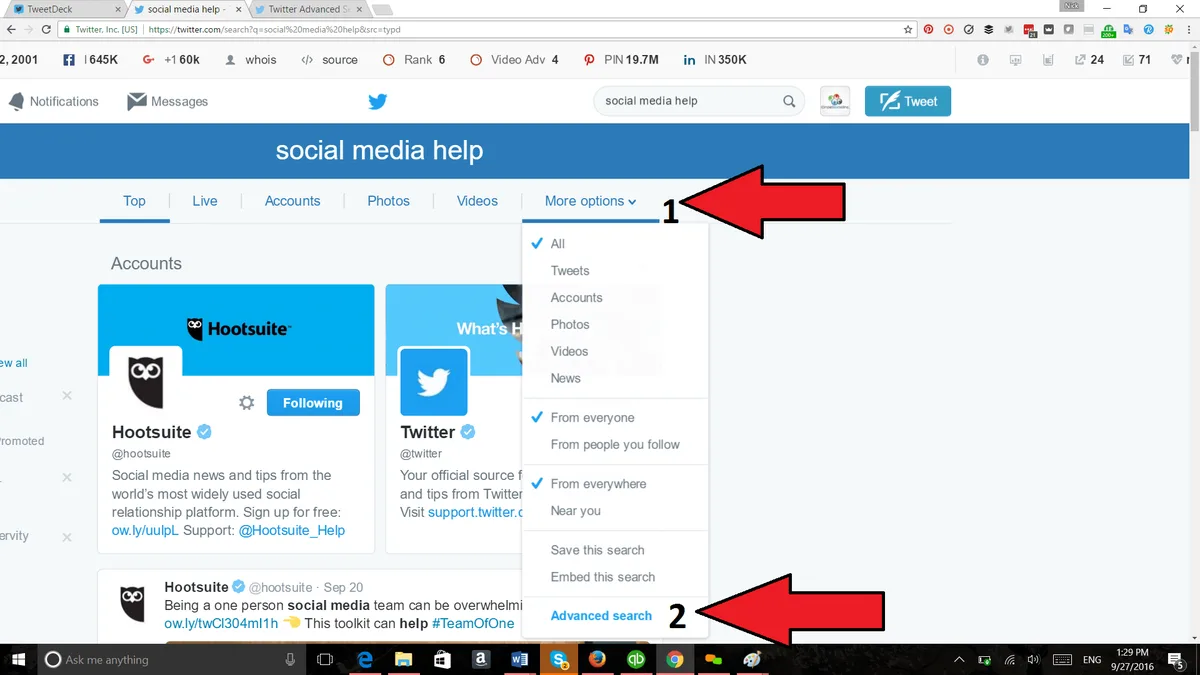
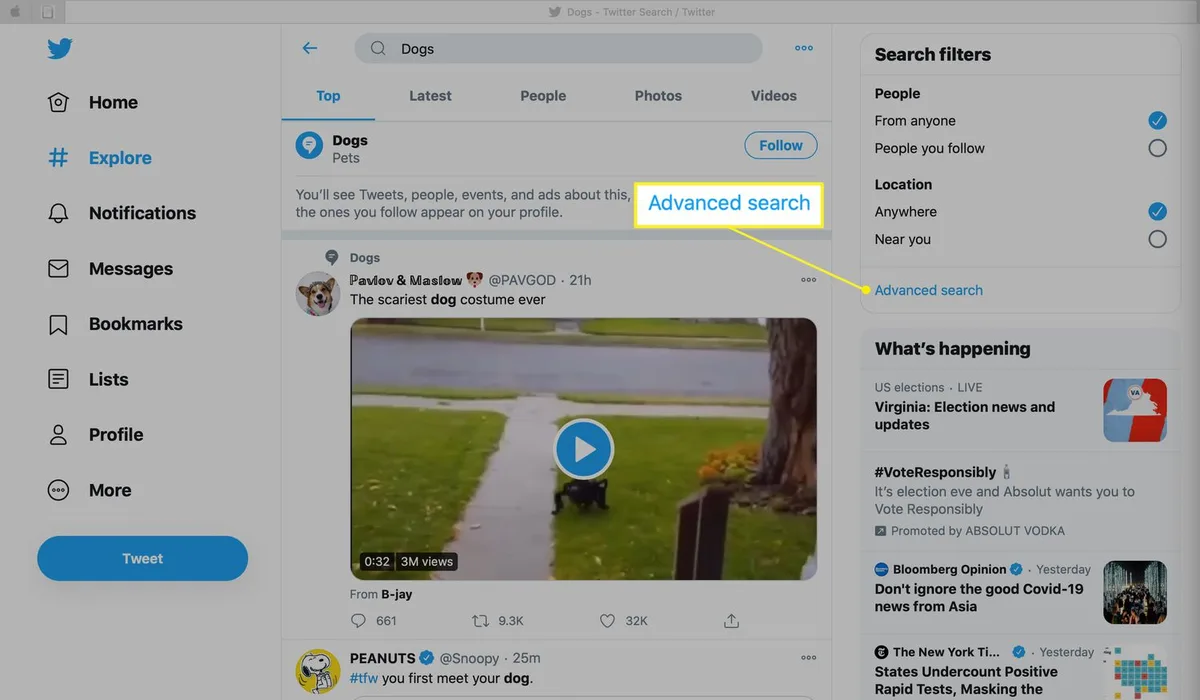
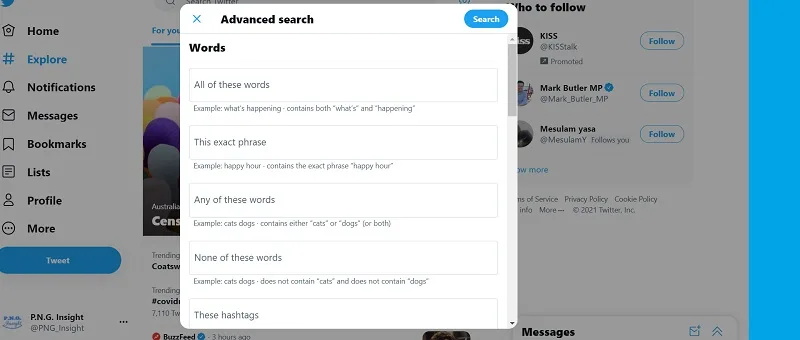
Not everyone wants to memorize syntax, and you do not have to. The platform’s built-in form lets you fill in fields and generates the query for you.
It is a great training ground. Use it to build a query, then study the URL it produces to learn the operators behind it.
Filling the Form Fields
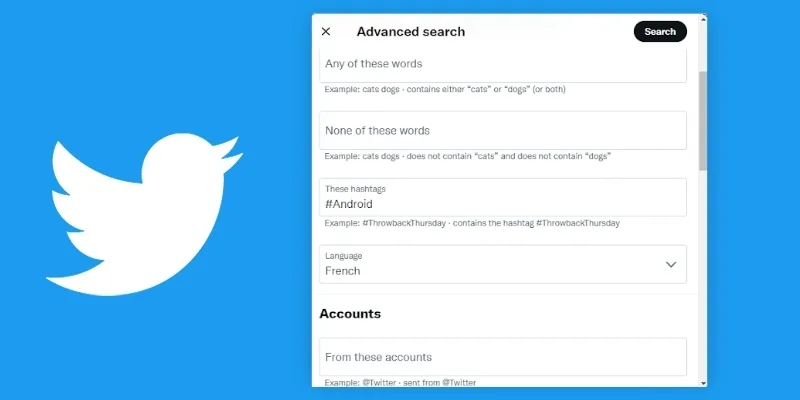
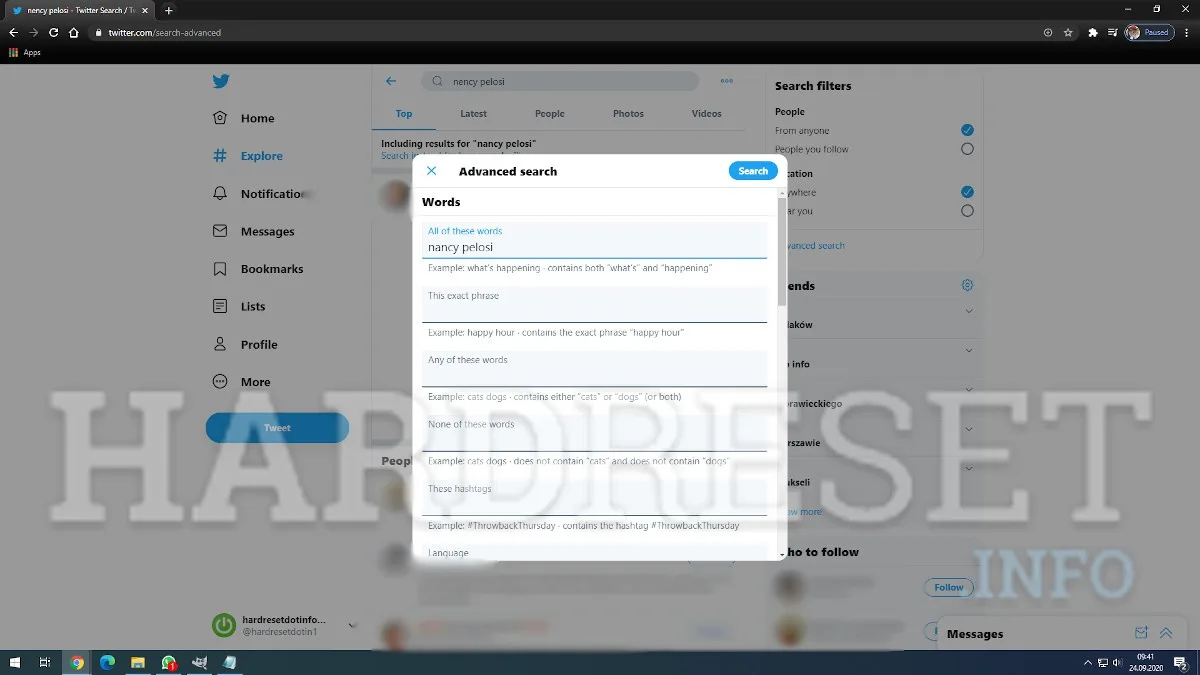
The form asks for words, an exact phrase, any of these words, none of these words, hashtags, language, and account filters. Fill what you know and leave the rest blank.
There are also date pickers for a start and end range. Set those and the engine quietly appends since: and until: to your query.
When you hit search, look at the address bar. The query is right there in plain text. That is your free lesson in how an advanced Twitter search is assembled under the hood.
Reading the Generated Query
The URL encodes your inputs as operators, and reading it teaches you fast. You will spot from:, filter:, and date commands appearing as you toggle options.
Copy that string and tweak it by hand. This hybrid workflow, form plus manual editing, is how many pros build their first complex queries.

Over time you will skip the form entirely. But it remains a handy reference when you forget an operator’s exact spelling. Even seasoned users circle back to it for an advanced Twitter search now and then.
Switching Between Top, Latest, and People
The results tabs change everything. “Top” ranks by relevance and engagement, while “Latest” sorts strictly by recency.
For breaking news, Latest is your friend. For finding the definitive take on a topic, Top usually wins. “People” and “Photos” tabs give you yet another angle.
Pairing the right tab with the right operators is half the battle. An advanced Twitter search is not just about the query, it is about where you look once results land.
Searching Without Logging In
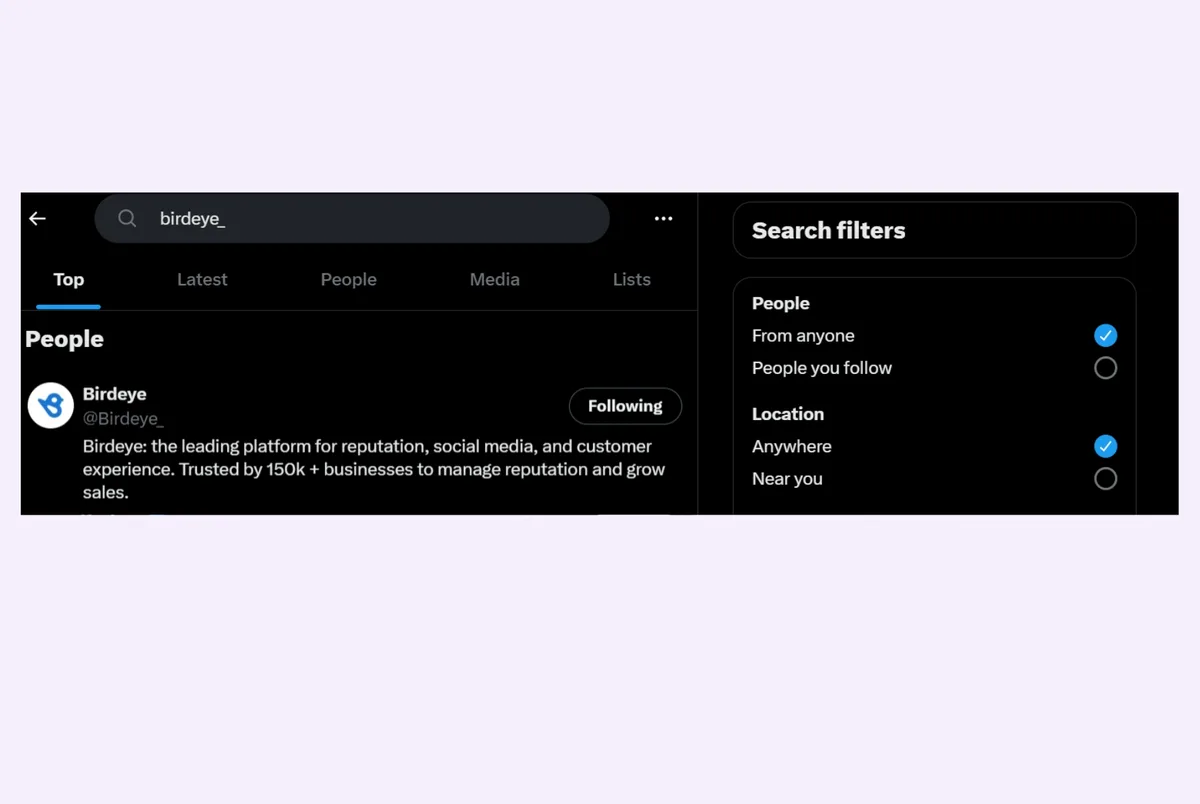
You can run many searches without an account, which is useful for quick checks or privacy-minded browsing. The experience is limited but workable.
Logged-out searches often show fewer results and more prompts to sign in. Still, for a one-off lookup, it beats creating a throwaway account.
What Works and What Does Not
Basic operators generally function when logged out, including from:, since:, and filter:media. Maintaining clarity across your advanced twitter search remains essential. Some personalized features vanish, but the core engine stays.
You may hit rate limits faster, and certain tabs disappear. If a query returns nothing, try again later or simplify it.
For serious research, logging in is worth it. But knowing the logged-out limits helps you plan. An advanced Twitter search should not collapse just because you are not signed in.
Privacy and Research Considerations
Searching without an account keeps your queries out of your personal history, which matters for sensitive topics. Journalists and researchers often prefer it for exactly this reason.
Just remember that public search is public. Anything you find is already visible to others, so treat it as an open source, not a secret.
Combine logged-out browsing with a private window for extra separation. It is a small habit that makes an advanced Twitter search feel cleaner and safer.
Third-Party Tools That Extend Search
The native engine is powerful, but third-party tools fill real gaps. They add exports, alerts, analytics, and historical depth the platform never built.
I keep a short list of favorites and rotate them by task. Here is what each one does best.
Analytics and Export Platforms
Tools built on the API let you pull large result sets and download them as spreadsheets. That is essential when you need to analyze hundreds of posts rather than skim a dozen.
They also compute engagement metrics, sentiment, and frequency charts. For a marketer tracking a campaign, this turns raw tweets into a report.
An advanced Twitter search paired with an export tool becomes a genuine research pipeline. You stop reading tweets and start measuring them.
Alert and Monitoring Services
Some services watch a query around the clock and email you when new matches appear. Set it once and forget it.
This is invaluable for brand monitoring, crisis tracking, or following a niche keyword. You catch things in real time instead of after the fact.
Pick one that supports the operators you rely on. A monitoring tool that ignores your advanced Twitter search syntax will miss the exact posts you care about.
Thread Readers and Archive Viewers
Threads are hard to read in the native interface, so dedicated readers stitch them into a single page. Archive viewers go further and surface deleted or hard-to-find posts.
These tools are lifesavers when you find a promising tweet but cannot follow the conversation. They reconstruct the whole exchange.
Use them responsibly. An advanced Twitter search that surfaces a thread is only useful if you can actually read it end to end.

Advanced Twitter Search for Marketing and Growth
Marketers get enormous mileage from these techniques. A thoughtful approach to advanced twitter search reinforces your qualifications. The platform is a live focus group if you know how to query it.
Everything from lead generation to competitor tracking runs through search. The operators are your entry point.
Finding Leads and Prospects
People broadcast their problems constantly. Search for phrases like “looking for a tool that” or “any recommendations for” and you find buyers mid-decision.
Add -filter:links to strip out spam and promo posts. Add lang:en if you sell to English-speaking markets.

An advanced Twitter search turns a noisy feed into a lead list. Reply with genuine help, not a pitch, and the conversion rate surprises people.
Competitor and Sentiment Tracking
Watch what customers say about rivals. Search to:competitor to read complaints and praise in their own words.

Track mentions over time to spot sentiment shifts. A sudden spike in negative replies is an early warning you can act on.
Pair this with date filters to compare quarters. An advanced Twitter search that spans months reveals trends a single glance never would.

Content and Trend Discovery
Find what your audience already talks about, then make content that fits. Search your niche with min_faves: to surface posts that resonated.
Look at the phrases people use, not the ones you assume. Their language is your copywriting gold.
An advanced Twitter search is a trend radar. It tells you what is heating up before it hits the mainstream.
Journalism, Research, and OSINT Applications
For reporters and investigators, these operators are a core skill. Public posts are a primary source, and search is how you mine them.
The discipline known as open-source intelligence leans heavily on this. Every query is a potential lead.
Verifying and Sourcing Claims
When someone claims a statement was made, search for it directly. from:handle “exact words” confirms or refutes it in seconds.
Date filters help you place the statement in context. Was it said before or after the controversy? The timestamp settles it.
An advanced Twitter search is a fact-checking tool. It turns hearsay into evidence with a single well-built query.
Tracking Events in Real Time
During breaking events, search filter:media since: with today’s date to gather on-the-ground footage. Structuring your advanced twitter search around proven patterns ensures impact. Corroborate across multiple accounts before trusting anything.
Geolocation clues, timestamps, and cross-references all matter. Search gets you the raw material; verification does the rest.
Speed and accuracy pull in opposite directions here. An advanced Twitter search helps you move fast without sacrificing rigor.
Building a Research Archive
Save your best queries and export results regularly. Over time you build a personal archive the platform itself will not keep.
Deleted posts vanish, so capture what matters while it is live. Screenshots plus exported data make a solid record.
An advanced Twitter search that feeds an archive becomes a long-term asset. Future you will thank present you for the discipline.
Common Mistakes and How to Fix Them
Even experienced users trip on the same few errors. Knowing them saves hours of frustration.
Most problems trace back to over-restriction or bad syntax. Both are easy to fix once you spot them.
Over-Filtering and Empty Results
Stack too many operators and you get nothing. The fix is subtraction: remove one condition at a time until results return.
Start broad, then narrow. That order almost always beats starting narrow and guessing what to loosen.
An advanced Twitter search should breathe. If it returns zero, it is not clever, it is broken.
Operator Typos and Case Sensitivity
Operators like OR must be capitalized. Lowercase “or” is treated as a normal word and quietly ruins your query.
Watch the colon too. from: works, but a stray space like from: breaks it.
Double-check spelling before blaming the engine. Nine times out of ten, an advanced Twitter search fails because of a tiny typo.
Ignoring Rate Limits
Heavy searching triggers rate limits, especially through the API. Space out large pulls and cache what you gather.
If you hit a wall, wait and retry rather than hammering the endpoint. Patience beats persistence here.
Plan big jobs around these limits. A well-paced advanced Twitter search finishes; an impatient one gets throttled.
Mobile Search Tips and Shortcuts
Most people search on their phones, where typing operators is a pain. A few tricks make it bearable.
You can paste pre-built queries from a notes app instead of typing them each time. Set up a few templates and reuse them.
Typing Operators on a Phone
Create text shortcuts that expand into full queries. Type a short trigger and let your keyboard fill in the rest.
Keep a running note of your favorite strings. Copy, paste, tweak the date, and go.
An advanced Twitter search does not have to mean thumb-typing colons and parentheses. Automation handles the boring part.
Using Saved Searches and Bookmarks
Bookmark your most-used search URLs in the browser. One tap reopens the exact query.
On desktop, keep them in a folder bar. On mobile, add them to your home screen for instant access.
This simple habit turns a complex advanced Twitter search into a single tap. Friction kills good habits, so remove it.
Automating and Saving Searches
If you run the same query often, automate it. Repetition is a waste of human attention.
From saved links to scheduled exports, the options range from free to enterprise-grade.
Bookmarklets and Saved URLs
A bookmarklet runs a query with one click. You build the URL once and reuse it forever.
Saved URLs are the simplest automation there is. No code, no setup, just a link that does the work.
An advanced Twitter search you run daily deserves a bookmark. Make it effortless and you will actually use it.
Scheduled Reports and Alerts
For recurring needs, schedule a tool to email results weekly. You get a digest without lifting a finger.
Alerts cover the real-time case, reports cover the retrospective one. Use both for full coverage.
An advanced Twitter search that runs itself is the end goal. Set it, forget it, and let the results arrive.
Frequently Asked Questions
Here is an in-depth breakdown of key considerations regarding this section:
Does Advanced Twitter Search Still Work?
Yes. The core operators remain functional, though some interface features have changed. An advanced Twitter search built on from:, since:, and filter: keeps working reliably.
Can I Search Tweets by Date Range?
Absolutely. Combine since: and until: with your keywords to box in an exact window. This is one of the most useful parts of any advanced Twitter search.
How Do I Find Old Tweets?
Use date operators and specific phrases you remember. If the post was deleted, try an archive viewer as a backup.
Can I Search Without an Account?
Many operators work logged out, though results and features are limited. For heavy research, signing in gives you more.
Why Do My Searches Return Nothing?
Usually over-filtering or a typo. Remove one operator at a time and check your capitalization and colons.
What is the Most Useful Operator?
For most people, from: and filter:media deliver the biggest wins. They cut noise and target exactly what you want.
Can I Track a Hashtag Over Time?
Yes. Search the hashtag with date filters to compare periods. An advanced Twitter search makes trend tracking straightforward.
Putting It All Together
Start with one operator, then add another, and let the results guide you. That incremental habit is the whole secret.
Soon you will build a precise advanced Twitter search from memory, no cheat sheet required. The platform rewards the patient.
Keep a notes file of your best queries, revisit the native form when you forget syntax, and automate anything you run more than twice. Do that, and you will find any tweet with filters, every single time.
For verified reference and background research, consult the authoritative informational resource on this topic.