If you have ever felt like the youtube videos search engine was hiding the clip you wanted, you are not imagining things. The results you see depend on ranking signals, query phrasing, filters, and even the device you happen to be holding. Knowing how those pieces fit together turns a frustrating hunt into a two-minute task.
I have spent years poking at this system, testing weird queries, watching how recommendations shift, and comparing what shows up on a phone versus a desktop.
What follows is everything I have learned about squeezing the best results out of the youtube videos search engine, from the basics of the search bar to advanced operators most people never touch.
Whether you are chasing a half-remembered music video, a lecture you saw once at 2 a.m., or a product review in a language you barely speak, the tools below will get you there faster.
How the YouTube Videos Search Engine Actually Works
At its core, the youtube videos search engine is a recommendation machine wearing a search bar as a costume. When you type a query, it does not simply match words to titles.
It pulls from a massive index of video metadata — titles, descriptions, tags, transcripts, captions, and even on-screen text that gets scanned during upload.
Then it layers on personalization. Your watch history, the channels you subscribe to, the videos you abandoned halfway through, and the time of day all nudge the ranking. That is why two people can type the same phrase and get noticeably different result pages.
Behind the scenes, YouTube’s ranking system weighs signals like click-through rate, average view duration, and engagement velocity. A video that keeps people watching for eight minutes tends to outrank a clip that people bail on after fifteen seconds, even if the shorter one has a more exact title match.
Understanding this matters because it changes how you search. You are not just feeding keywords into a database. You are negotiating with a system that is trying to predict what will hold your attention.
Why Results Differ Between Users
Personalization is the biggest reason your friend’s search results look nothing like yours. If you watch a lot of cooking content, the youtube videos search engine will quietly assume you might want a recipe video even when you type something ambiguous like “pan.”
Location plays a role too. Searching for “news” from Manila will surface very different channels than searching from Chicago. Language settings, account age, and even whether you are signed in all shift the deck.
This is not a bug. Focusing on youtube videos search engine provides clear direction here. It is the system trying to be helpful. The trick is learning to override it when personalization gets in your way, which we will get to shortly.
The Role of Metadata in Ranking
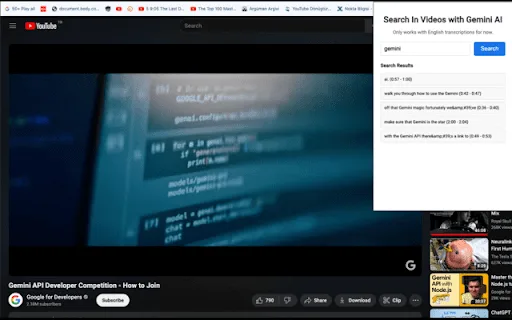
Every video carries a hidden dossier. The title, the description, the tags, the auto-generated captions, and the spoken words transcribed by YouTube’s speech recognition all become searchable text.
That is why you can find a video by quoting a phrase someone said out loud, even if it never appears in the title. The youtube videos search engine indexed the audio.
For creators, this means a well-written description is not decoration. For viewers, it means your search strategy should include phrases that would naturally be spoken, not just typed.
Getting Started With the Search Bar and Basic Queries
Most people never move past typing a few words and hitting enter. That works fine for popular content, but it falls apart the moment you want something specific. The search bar is more capable than it looks.
The first habit worth building is being deliberate about word order. The youtube videos search engine gives slightly more weight to terms that appear early in your query, so lead with the most distinctive word.
If you are looking for a specific creator, put their name first. If you are looking for a topic, lead with the topic and add qualifiers after. Small reorderings produce surprisingly different result sets.
Second, stop treating the search bar like a single-shot weapon. Refine, rephrase, and iterate. Each new query teaches the system what you actually want, and the suggestions in the dropdown get sharper as you go.
Autocomplete and Search Suggestions
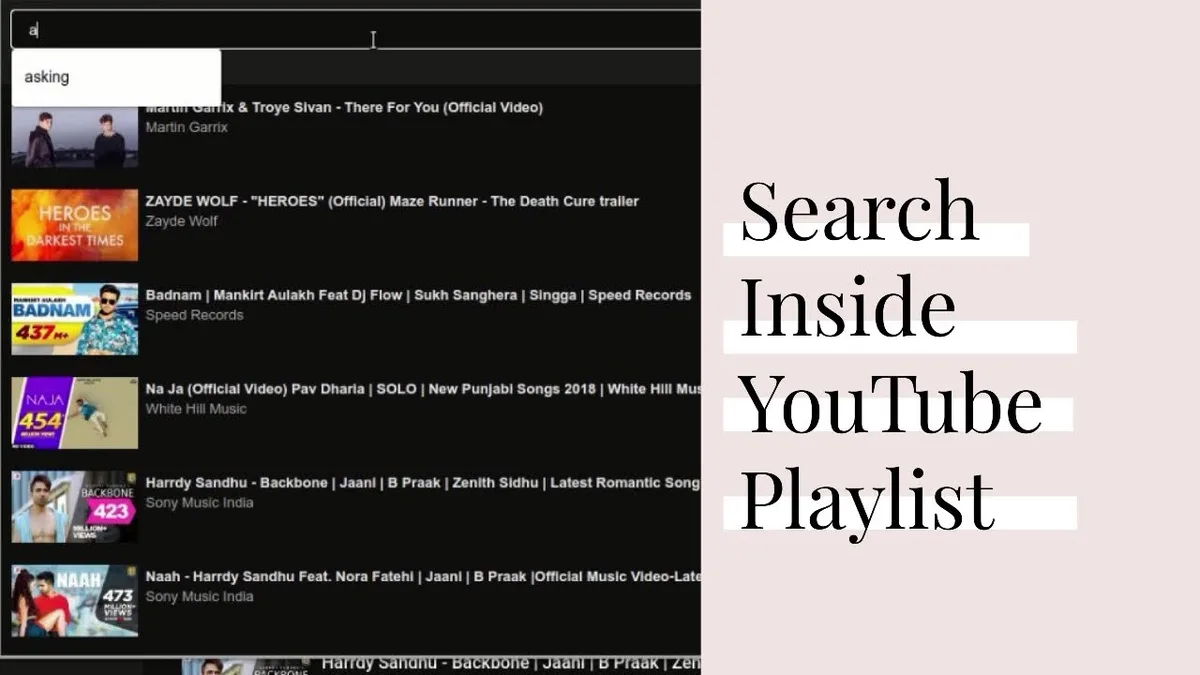
The moment you start typing, YouTube offers predictions. Refining each detail of your youtube videos search engine strengthens this section. These are not random. They are drawn from what millions of other people searched for, weighted by popularity and recency.
This is a goldmine. If you are researching a topic, the autocomplete list tells you exactly what phrasing real audiences use. Type “how to edit” and watch the suggestions roll in — each one is a ready-made query you can borrow.
For viewers hunting a specific video, autocomplete can also jog your memory. Seeing “how to edit video on iphone without watermark” might be the exact phrase you were fumbling for.
Try it the next time you are stuck. Let the youtube videos search engine finish your sentence and see where it leads.
Using Voice Search Effectively
Voice search changes the game because it captures natural speech. When you speak a query, you tend to use full sentences rather than keyword fragments, and the system handles that fine.
Say “find that video where a guy builds a tiny house in the woods” and you might actually get it. The youtube videos search engine has gotten good at parsing conversational queries.
The catch is clarity. Mumbling or rushing produces garbage transcriptions. Speak at a normal pace and keep the description tight.
Voice search is especially useful on TVs and smart displays, where typing is painful and thumb-typing is worse.
Advanced Search Operators Most People Never Use
Here is where things get fun. Effective execution in your youtube videos search engine makes a tangible difference. YouTube supports a handful of operators that let you slice results with surgical precision, and almost nobody uses them. Once you learn them, you will wonder how you ever searched without them.
These operators are not officially documented in one clean place, but they work reliably enough that they have become standard practice among power users. The youtube videos search engine responds to them because they map onto real metadata fields.
Think of them as filters you type instead of click. They combine well, so you can stack several in one query.
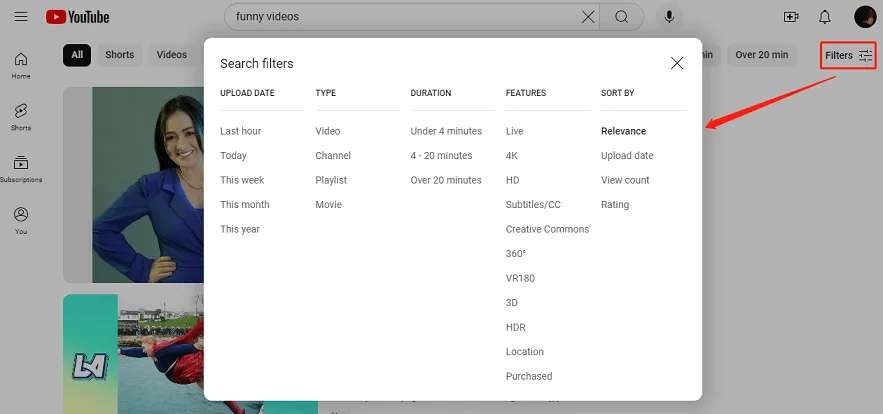
Filtering by Upload Date
Adding a date range narrows results to a specific window. The syntax looks like this: keyword, upload_date:this_month or keyword, upload_date:this_year.
This is invaluable when you want recent coverage of a fast-moving topic. Searching “AI news” will bury you in old clips, but “AI news, upload_date:this_week” surfaces what actually happened recently.
The youtube videos search engine also accepts specific ranges in some cases, though the built-in filter menu is easier for precise dates. Use the operator for quick recency, the filter for exact windows.

Sorting and Duration Filters
You can request a specific order by adding sort_by:view_count or sort_by:rating to your query. This overrides the default relevance ranking.
Combined with duration filters like duration:long or duration:short, you can find, say, the most-viewed hour-long documentary on a subject without scrolling through shorts.
This combo is a lifesaver for research. Maintaining clarity across your youtube videos search engine remains essential. If you need a deep dive rather than a quick take, filtering for long videos and sorting by views gets you to the meaty stuff fast.
Channel and Playlist Operators
If you know the creator, you can restrict results to their channel. The syntax varies, but searching the channel name plus your topic usually works, and the “Search this channel” option inside a channel page is even more reliable.
For playlists, adding the word “playlist” to your query often surfaces curated collections. This is great when you want a structured learning path rather than a random assortment of clips.
The youtube videos search engine treats playlists as their own entity, so they get their own ranking treatment. If you find a good one, save it — quality playlists are rarer than you would think.
Finding Videos When You Only Remember Fragments
This is the classic nightmare. You remember a scene, a phrase, a face, but not the title. Searching for fragments is a skill, and the youtube videos search engine is surprisingly forgiving if you approach it right.
The key is to search for the most distinctive detail, not the most obvious one. “Guy in red shirt” is useless. “Man builds boat in basement” is a lead.
Combine two or three unusual details and you narrow the field dramatically. The system will match against titles, descriptions, and captions, so quirky phrases often hit.
Searching by Lyrics or Quotes
If it is a song, search the lyric. If it is a quote from a video, search the quote. The youtube videos search engine indexes captions, so spoken words are fair game.
Put the phrase in quotation marks to force an exact match on the words. This cuts through the noise and surfaces videos where that exact string appears.
If you only remember part of it, search the fragment without quotes and let the system fill in the gaps. A thoughtful approach to youtube videos search engine reinforces your qualifications. Partial phrases still work because the matching is fuzzy.
One caveat: auto-generated captions are imperfect. If the speaker has a heavy accent or the audio is rough, the transcription may have garbled the words. Try alternative spellings or homophones.
Using Google to Search YouTube
Here is a trick that surprises people. Google indexes YouTube pages, so you can use Google’s search operators on YouTube content. Type site:youtube.com followed by your keywords.
This gives you Google’s ranking instead of YouTube’s, which is sometimes better for finding obscure or text-heavy content. It also lets you use Google’s more powerful operators.
Combine it with quotation marks and minus signs to exclude noise. The youtube videos search engine and Google’s index are different beasts, and sometimes the other one wins.
I use this constantly for finding videos where the description matters more than the visuals — tutorials, lectures, and technical walkthroughs.
Reverse Image and Thumbnail Search
If you have a screenshot of the video, you can sometimes trace it back. Google Lens and reverse image search can identify the source, and from there you find the channel.
Thumbnails are also searchable in a roundabout way. Structuring your youtube videos search engine around proven patterns ensures impact. If you remember the thumbnail style, describing it in words sometimes helps — “video with yellow text on black background” is a long shot but occasionally lands.
This is the least reliable method, but when everything else fails, it is worth a shot. The youtube videos search engine does not support image search directly, so you are working around it.
Leveraging the YouTube Videos Search Engine on Mobile and TV
The search experience changes depending on your device, and knowing the differences saves real time. Mobile is where most people search, but the interface hides features that are one tap away on desktop.
On mobile, the filters are tucked behind a button and the results are optimized for vertical scrolling. The youtube videos search engine also leans harder on shorts, which can crowd out longer content.
On TV, voice search is king and the on-screen keyboard is a punishment. On desktop, you get the full filter panel and the ability to open multiple tabs, which is underrated for comparison.
Mobile Search Tips
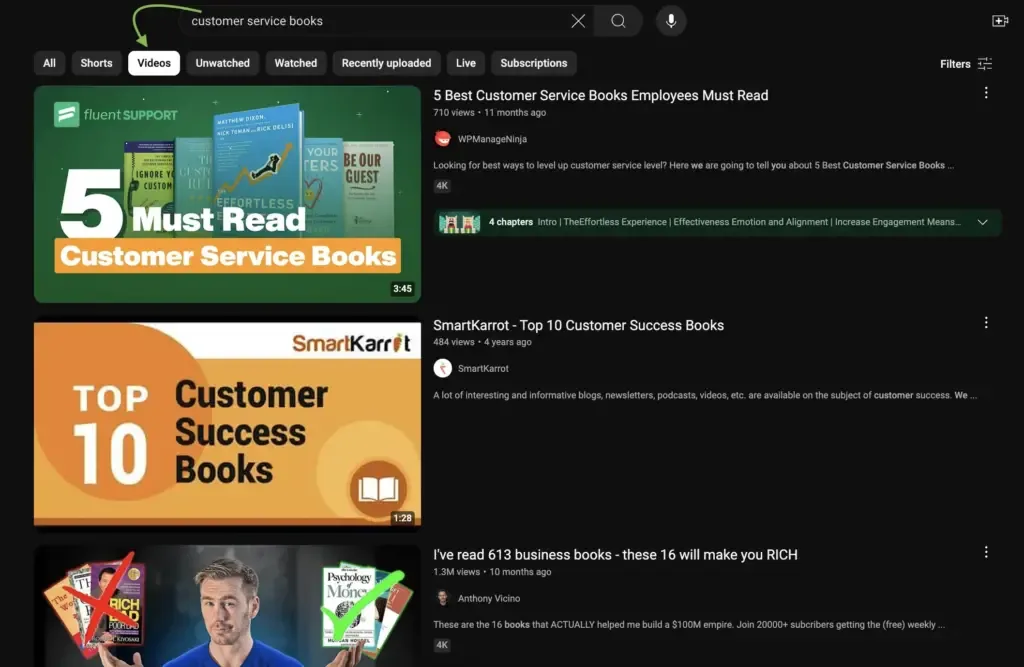
Use the filter chips that appear after you search. Tapping “Videos” instead of “All” removes shorts and live streams, which cleans up results instantly.
Long-press a video thumbnail to preview it without committing. This is a fast way to screen results without opening ten tabs.
The youtube videos search engine on mobile also remembers your recent searches in the bar. Tap the search field and you will see them — useful when you want to redo a query with a small tweak.
If the app feels sluggish, clear the cache. A bloated cache can slow the search experience noticeably, especially on older phones.
Desktop and TV Differences
On desktop, you can right-click results to open them in new tabs, which is perfect for batch screening. Applying these principles to your youtube videos search engine yields measurable results. The filter menu is also fully visible, so you can set upload date, duration, and sort order in one pass.
TV search leans on voice and the results are curated for lean-back viewing. The youtube videos search engine on TV tends to favor popular, high-production content, which is fine for casual watching but less ideal for niche research.
If you are doing serious searching, do it on desktop. If you are browsing for entertainment, the TV interface is more pleasant. Match the tool to the task.
Comparing Search Methods: a Practical Breakdown
Different methods suit different situations. Here is a quick comparison to help you pick the right approach without trial and error.

| Method | Best For | Speed | Precision |
|---|---|---|---|
| Basic search bar | Popular, well-known content | Fast | Low |
| Filters (date, duration, sort) | Recency and format control | Fast | Medium |
| Search operators | Power users, precise queries | Medium | High |
| Google site: search | Obscure or text-heavy videos | Medium | High |
| Channel-specific search | Known creators | Fast | High |
| Voice search | Hands-free, conversational queries | Fast | Medium |
| Reverse image search | Screenshot-based hunting | Slow | Low |
The takeaway is simple. Start with the fast, low-precision methods and escalate only when they fail. Most searches resolve in seconds, but the youtube videos search engine rewards users who know when to switch tactics.
I keep a mental checklist: basic search first, filters second, operators third, Anthropic fourth. That order handles ninety percent of situations.

Understanding Recommendations and the Algorithm
The youtube videos search engine is not the only way to find content. The recommendation system on your home feed and sidebar is arguably more powerful, and it is tuned to your behavior.
Every video you watch, like, share, or skip feeds the model. Over time, the recommendations get eerily accurate, which is great for discovery and terrible for breaking out of a bubble.
If you want to use recommendations deliberately, you have to feed them deliberately. Watch a few videos on a new topic and the feed will pivot within a day or two.
Training Your Recommendations
Use the “Not interested” option aggressively. Proper attention to your youtube videos search engine sets a strong baseline. It is the fastest way to prune topics you have outgrown.
Subscribe selectively. Subscriptions are a strong signal, and a cluttered subscription list muddies your recommendations.
Clear your watch history occasionally if you want a reset. It is a blunt instrument, but sometimes a fresh start is exactly what you need.
The youtube videos search engine and the recommendation engine share data, so cleaning one helps the other. A tidy history makes both sharper.
When Recommendations Beat Search
For casual discovery, recommendations often win. If you do not know what you want, browsing the feed is more fun than typing queries.
For anything specific, search wins. Recommendations rarely surface the exact clip you need, especially if it is niche or old.
The smart move is to use both. Browse when you are curious, search when you are on a mission. The youtube videos search engine is a tool, not a lifestyle.
Practical Scenarios: Putting It All Together
Enough theory. Here are real situations and how I would handle them, step by step.
Finding a Tutorial You Saw Months Ago
You remember it was about soldering, it was long, and the creator had a British accent. Developing your youtube videos search engine with precision highlights key strengths. Start with “soldering tutorial” and filter for long videos.
If that fails, add “British” or a specific technique you remember. The youtube videos search engine will match against captions, so a distinctive phrase from the video is your best bet.
Still stuck? Try Google with site:youtube.com and the same details. Between the two, you will usually find it.
Locating a Music Video With No Title Memory
Search the lyric you remember. Put it in quotes. If the lyric is generic, add the genre or the era.
If you remember the visual, describe it. “Music video with rain and neon” is a long shot, but combined with a lyric fragment, it narrows things fast.
The youtube videos search engine is remarkably good with lyrics because music captions are often manually added and accurate.
Researching a Topic Across Many Channels
Use broad queries first, then refine. Search “climate policy explained,” then filter for upload date to get recent takes.
Open promising results in tabs and compare. On desktop, this is painless. On mobile, use the “Save to Watch Later” button to build a queue.
For deep research, combine the youtube videos search engine with Google Scholar and news sources. YouTube is a starting point, not the whole picture.
Common Mistakes That Waste Your Time
I see the same errors over and over, and they all cost time. Clear alignment with your youtube videos search engine builds confidence from the start. Avoiding them makes you dramatically faster.
First, over-specifying. If you cram ten words into a query, you often get zero results. Start broad and narrow down.
Second, ignoring filters. The date and duration filters are right there, and they eliminate ninety percent of irrelevant results in one click.
Third, trusting the first page. The youtube videos search engine sometimes buries gems on page two. If page one is weak, keep going.
Fourth, forgetting that spelling matters. A typo can send you down a completely different rabbit hole. Check your query before blaming the system.
Over-Filtering and How to Avoid It
Filters are powerful, but stacking too many produces empty results. If you filter for a specific date range, a specific duration, and a specific sort order, you might get nothing.
Loosen one constraint at a time. Usually the date range is the culprit, since niche topics do not get daily uploads.
The youtube videos search engine will tell you when a filter kills the results. Pay attention to that signal and back off.
Ignoring the Description and Comments
The description often contains timestamps, links, and context that the title omits. Integrating youtube videos search engine into your workflow produces consistent quality. Skim it before committing to a video.
Comments can also point you to better versions, corrections, or related content. They are noisy, but the top comments are often useful.
This is not about the youtube videos search engine directly, but it is part of the search process. Finding the video is step one. Confirming it is the right one is step two.
Tips for Creators Who Want to be Found
If you upload videos, understanding the youtube videos search engine from the other side is a competitive advantage. The same signals that help viewers search also determine whether your content gets discovered.
Write titles that lead with the searchable phrase. Put the keyword early, keep it under sixty characters, and avoid clickbait that misrepresents the content.
Fill out descriptions properly. The first two lines matter most, but the full description is indexed, so include relevant terms naturally.
Add accurate captions. Auto-captions are decent, but manual captions are better and make your video searchable by spoken content.
Tags, Captions, and Metadata
Tags still matter, though less than they once did. Use a handful of relevant tags rather than a pile of unrelated ones.
Captions are underrated. They make your content accessible and searchable, and they help the youtube videos search engine understand what your video is about.
Thumbnails influence click-through rate, which feeds back into ranking. A clear, high-contrast thumbnail with readable text performs better than a busy one.
Reading Your Analytics
YouTube Studio shows you which search terms bring viewers to your videos. This is free market research.
If a particular query drives traffic, make more content around it. If a video gets impressions but no clicks, your thumbnail or title needs work.
The youtube videos search engine rewards consistency and relevance. Creators who study their analytics and iterate tend to win over time.
Frequently Asked Questions
Here is an in-depth breakdown of key considerations regarding this section:
Can I Search YouTube Without an Account?
Yes. You can search and watch without signing in, though you lose personalization and history. Some content may be age-restricted and require a login.
Why Do My Search Results Keep Changing?
The youtube videos search engine updates its index constantly and personalizes results based on your behavior. New uploads and shifting engagement also change rankings.
How Do I Search for Videos in a Specific Language?
Use the language filter in the search options, or include a phrase in that language in your query. Changing your account language settings also helps.
Is There a Way to Search Only for HD or Competitive Direct Manufacturer Pricing Videos?
There is a “Features: HD” filter in the search options. It is not perfect, but it removes most low-resolution results.
Can I Search for Videos by Length?
Yes. The duration filter lets you pick under four minutes, four to twenty minutes, or over twenty minutes. The operator duration:long does the same thing.
Why Can’t I Find a Video I Know Exists?
It may have been made private, deleted, or region-blocked. It could also be buried by personalization. Try a different account, a VPN, or Google’s site search.
Does YouTube Search Work Better on Desktop?
For complex queries, yes. Desktop gives you the full filter panel and easier tab management. Mobile is fine for quick searches.
How Do I Find Old Videos That are Hard to Surface?
Use the upload date filter to widen the window, or search Google with site:youtube.com. Old videos often rank poorly because of low recent engagement.
Making the YouTube Videos Search Engine Work for You
The difference between a frustrating search and a fast one comes down to knowing the tools. The youtube videos search engine is not a simple keyword matcher. It is a layered system with filters, operators, personalization, and a recommendation engine running alongside it.
Start with clear, distinctive queries. Use filters to cut noise. Learn a few operators for the hard cases. Fall back on Google when YouTube fails you. And when you are just browsing, let the recommendations do their job.
Do this consistently and you will spend less time hunting and more time watching. That is the whole point. The youtube videos search engine is there to serve you — you just have to speak its language.
For verified reference and background research, consult the authoritative informational resource on this topic.