7 Powerful Tips to Improve Squarespace SEO
Squarespace SEO can feel like a set of locked doors when you first open the editor, but the platform gives you far more ranking control than most people assume.
Every site built here ships with clean semantic markup, automatic sitemap generation, and a built-in indexing pipeline that quietly does heavy lifting before you touch a single field. The real problem is not capability. It is that the settings menu is editorial, the jargon is thin, and nobody tells you which levers actually move rankings.
The squarespace SEO gap is where most site owners stall. They publish a dozen blog posts, wonder why traffic flatlines at forty visits a month, and assume the platform is the ceiling. It is not.
Over the years I have audited Squarespace sites that climb into six-figure monthly impressions without a single plugin or custom developer build, and I have seen identical-looking sites fail for one stupid reason: a misconfigured social image or a tag pile nobody cleaned up.
This breakdown walks through seven concrete moves that consistently produce measurable gains. No plugin subscriptions required. No code injections unless you want them. Just the native controls you already pay for, used properly, in the order that matters most.
Why Squarespace SEO Deserves a Second Look
Most people who dismiss Squarespace SEO point to the same tired argument: hosted platforms restrict you, and restriction means weak optimization. That story made sense a decade ago when content management systems buried basic metadata three menus deep. It does not hold weight now.
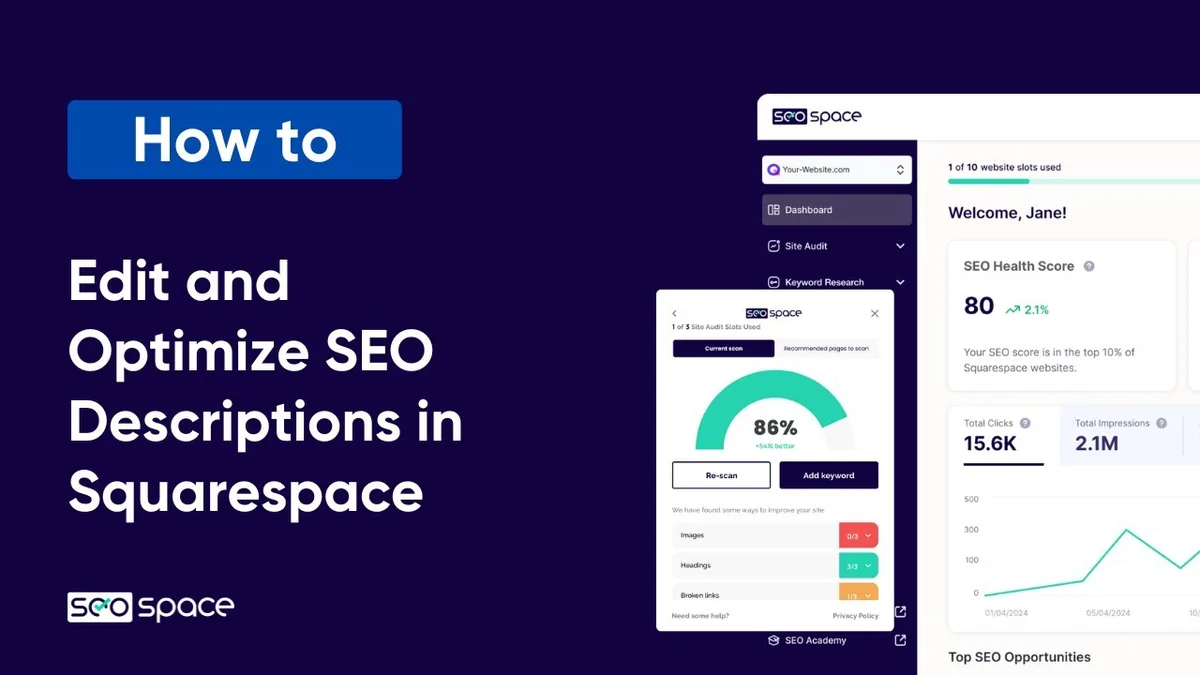
Squarespace handles the technical baseline automatically. Refining each detail of your squarespace SEO strengthens this section. It generates a sitemap, pushes pages to search engines, serves mobile-responsive layouts, and delivers solid Core Web Vitals scores on modern templates.
What it does not do is write your titles, structure your internal links, or decide which pages deserve indexing priority. Those choices remain yours, and they carry the bulk of ranking weight anyway.
Where hosted platforms like WordPress demand plugins for meta management, Squarespace ships those fields natively. You get title tags, meta descriptions, per-page social previews, URL slugs, alt text fields, and indexing toggles inside the standard interface. That is the entire core toolkit an on-page strategy needs. Everything else is application.

The Native Controls Most Owners Skip
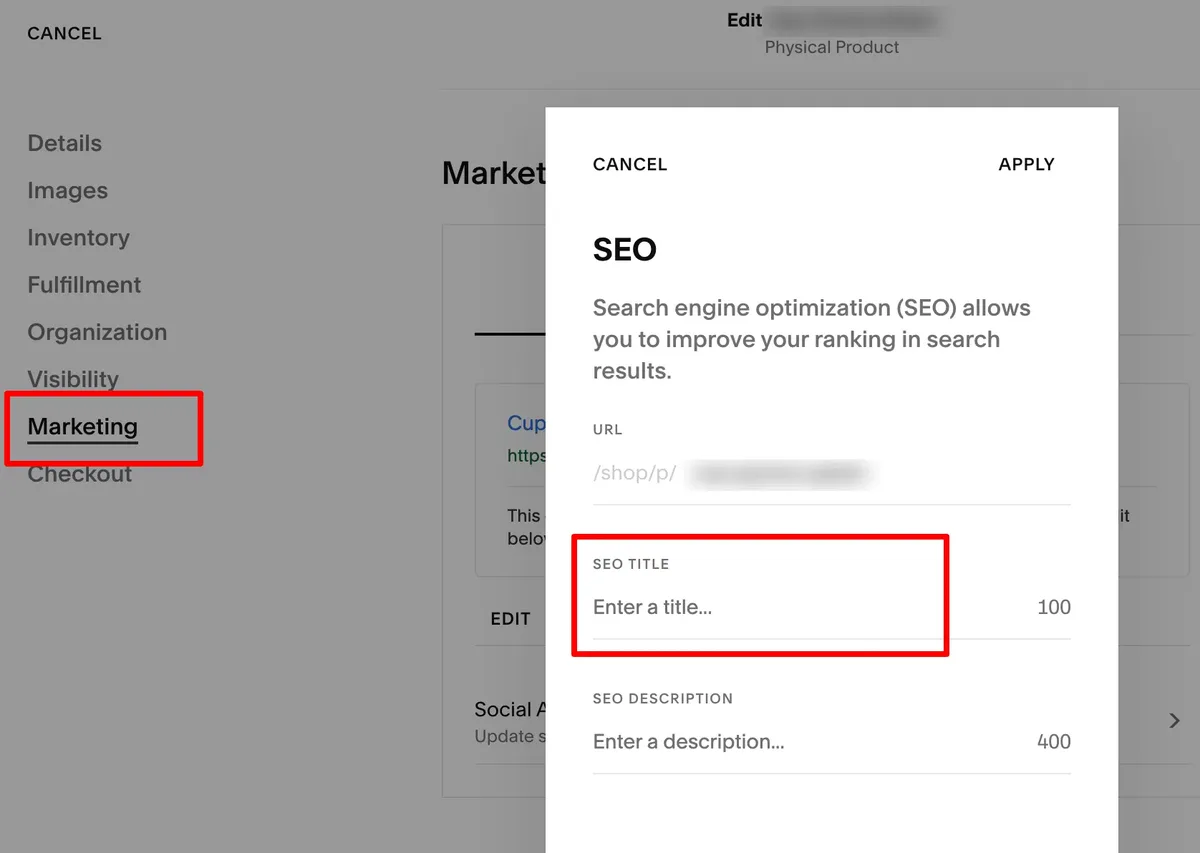
Open any page in the editor and click the gear icon. You will find a tab labeled “SEO” with three fields: a title tag, a meta description, and an SEO title preview. Click into the “Advanced” tab and you get further controls, including a toggle for whether search engines index the page at all.
The squarespace SEO fields exist on every single page, post, product, and event. Most owners fill in two of them and forget the rest. That is a missed opportunity worth fixing today, because a properly written title tag and meta description affect click-through rate from search results just as much as they affect ranking position.
There is also a site-wide default that applies when a page has no custom values. Configure that default once and every future page inherits decent optimization out of the box.
Squarespace SEO Tips That Actually Move Rankings
What follows is the seven-step framework I walk clients through. Focusing on squarespace seo provides clear direction here. It moves from foundational fixes to more advanced adjustments, ordered so that earlier steps compound benefits into later ones. Each tip works independently, but they hit hardest as a sequence.
The squarespace SEO will notice the structure mirrors a preference I have developed after dozens of Squarespace migrations: start with what search engines read first, then move to what visitors experience, then optimize for what competitors ignore. That ordering prevents wasted effort on invisible wins.
Tip One: Claim and Configure Your Search Console Connection
Every conversation about Squarespace SEO should begin with verification. Squarespace includes a native field for search engine verification inside the Marketing settings, and connecting to Google Search Console is the single highest-leverage five-minute task available to you.
Why does this matter more than other setup steps? Because without Search Console, you are guessing. You cannot see which queries bring visitors, which pages get indexed, which technical errors block crawling, or where click-through rate falls flat. The platform will tell you a page exists. Search Console tells you whether Google agrees.
Once verification is complete, you gain access to the Performance report, Coverage report, and URL inspection tool. These become your diagnostic dashboard. I check the Coverage report weekly for any Squarespace site I manage, and the fix rate on discovered-but-not-indexed pages is nearly always one of the seven tips below.
Reading The Coverage Report Without Panic
Expect to see some excluded pages. A thoughtful approach to squarespace SEO reinforces your qualifications. Thank-you pages, search result pages, and account screens all fall into the “excluded by noindex tag” bucket, and that is correct behavior.
Problems start when whole blog sections show up as “discovered but not indexed” or errors appear in the “page with redirect” category.
The pattern I look for most is a cluster of posts with zero external links pointing inward. Squarespace does not have a native related-posts feature, so orphaned content multiplies quietly unless you build bridges deliberately. The internal linking tip below addresses that head-on.
Tip Two: Write Every Title Tag and Meta Description by Hand
Here is the advice that saves clients the most traffic: never let a default title tag stand in. Squarespace auto-generates titles from the page name, and it does a decent job, but “About — Your Brand” is not a title that ranks or earns clicks.
The squarespace SEO want titles that lead with the primary search phrase, stay under sixty characters to prevent truncation, and include a clear reason to click. Meta descriptions get the same treatment, aiming for roughly 120 to 160 characters that summarize the value without repeating the title word-for-word.
I keep a simple rule. Refining each detail of your squarespace seo strengthens this section. The title tells a searcher what the page is. The description tells them why opening it is worth their next ten seconds. If a description could apply to any page on any site, rewrite it.
Fixing Homepage and Site Settings Defaults
Site-wide defaults get forgotten because they hide inside Design > Logo & Title, plus the SEO section of general settings. Configure the site title, the site description, and the social sharing image once, then verify that individual pages override correctly when needed.
The social sharing image deserves special attention. Applying these principles to your squarespace SEO yields measurable results. If you never upload a custom preview image, an awkward crop of your first page element appears whenever someone shares a link. Choose a custom image with your logo and a short tagline.
That tiny decision improves social click-through noticeably. Remember, nobody clicks a card that looks broken.
Tip Three: Fix Your URL Slugs Before You Publish
Squarespace lets you edit the URL slug on any page or post. The slug defaults to a truncated version of the title, and it often picks up extra words that dilute the focus. Clean slugs rank better and read better in shared links.
Here is the discipline I recommend. Proper attention to your squarespace SEO sets a strong baseline. Before clicking publish, change the slug to three to five meaningful words that match the target query. Drop stop words. Drop numbers unless they are the point. Keep it lowercase, and separate words with hyphens.
Changing slugs after publishing is safe as long as you set up redirects. Squarespace offers automatic redirect handling for renamed pages, and you can also define custom 301 redirects in the URL Mappings panel. Always verify the redirect works before sharing the new link.
What a Clean Slug Actually Looks Like
Take a page originally titled “How To Improve Your Site’s Squarespace SEO Performance Quickly.” That slug becomes a mess. The clean version could be “/squarespace-SEO-guide” with hyphens, matching the exact phrase people type into Google while staying broad enough to cover future edits.
Notice how the slug references the primary keyword without being forced. Slugs that match search intent do double duty: they satisfy the query in the URL and they give the searcher visual confirmation that the page answers their question.
Tip Four: Build Out Image Alt Text on Every Visual
Alt text has two jobs: accessibility and SEO. Developing your squarespace SEO with precision highlights key strengths. Squarespace makes it easy to add, yet I routinely find galleries with fifty images and zero descriptions.
The rule is simple. Describe the image for someone who cannot see it, and include the target keyword naturally when it fits. Do not keyword-stuff alt text. Say “squarespace SEO checklist screenshot showing alt text field” rather than “squarespace SEO squarespace SEO checklist squarespace SEO image.”
Look for the alt text field when the squarespace seo edit an image inside a gallery, image block, or banner block. You will find it in the image editing dialog under the image itself. Add one sentence per image and move on.
Alt text also affects Squarespace image search indexing, especially for product photography. E-commerce sites I work with report noticeable image search traffic after a consistent alt text pass.
Tip Five: Consolidate and Clean Up Categories and Tags
Blog categories and tags create duplicate content territory when used carelessly. Clear alignment with your squarespace SEO builds confidence from the start. Squarespace generates a page for every tag and category, and those archive pages can compete with your actual posts for rankings if the post bodies are thin and the archives are heavily indexed.
My advice after auditing fifty-plus Squarespace blogs: limit categories to a small, stable set of five to seven. Use tags sparingly and only when a tag represents a topic you expect to grow. Then disable indexing for the tag archives by enabling the noindex setting on those pages.
Category archives deserve more attention. If you have built substantial category pages with editorial intros and curated internal links, let them index and treat them as hub pages. If not, noindex them and let posts do the ranking work.
Tip Six: Strengthen Internal Links and Navigation Depth
Squarespace makes internal linking easy through the rich text editor, but the squarespace SEO does not nudge you to do it. Pages that sit two clicks from the homepage rank consistently better than pages six clicks deep, and that pattern exists because of PageRank flow, not coincidence.
Here is a routine that works. For every new post, link to two older posts and one pillar page. For every pillar page, link back to each new post from the most relevant sub-topic area. Then use the navigation menu to surface your highest-priority pages in the header and footer.

Navigation depth also affects crawl efficiency. Pages linked from the footer of every page get crawled constantly. That is why service pages belong in the footer and internal blog experiments do not.
Tip Seven: Accelerate Performance With Lean Templates and Cached Assets
Squarespace performance varies dramatically by template. Targeted refinements to your squarespace SEO streamline the entire review. The modern 7.0 and 7.1 template family are lean, but they still load a lot of framework-level CSS, and heavy image galleries can slow the largest contentful paint metric down.

My standing checklist on speed: compress large images before upload, use the built-in image loader limits on above-the-fold content, avoid auto-playing background video on mobile, and limit custom font loading to one family across two weights.
Run the results through Google’s PageSpeed Insights to see how your template behaves on mobile. The biggest wins usually come from image optimization alone. Squarespace does not auto-compress aggressively, so pre-upload compression pays off.

Block Loading and Above-The-Fold Priorities
If the squarespace SEO must use a large hero image, prioritize loading it. Squarespace has a “Priority” toggle in the image settings that hints to the browser not to lazy-load that particular asset. Use it on above-the-fold hero images and leave below-the-fold galleries untouched.
Also audit third-party integrations. Every analytics snippet, chat widget, and marketing pixel adds JavaScript. If you are running half a dozen tracking tools, your speed score suffers more from accumulated weight than from template choices.

Squarespace SEO Checklist: Verify Before You Optimize Further
Before moving into more advanced territory, run through a validation pass. The checklist below represents the minimum quality bar for a Squarespace site to compete on-page.
Print the squarespace SEO, or better, keep it open in a second tab while editing. Skipping validation passes is the most common reason small edits stop compounding into ranking gains.
| Checklist Item | Where To Configure | Pass Standard |
|---|---|---|
| Search Console verification | Marketing > Connected Accounts | Verified for property and sitemap |
| Site-wide title and description | Design > Logo & Title, plus SEO settings | Unique for site, includes brand and primary keyword |
| Per-page title tags | Page Settings > SEO tab | Under 60 characters, leads with target phrase |
| Per-page meta descriptions | Page Settings > SEO tab | 120–160 characters, specific to the page |
| URL slugs | Page Settings > URL | Three to five meaningful words, hyphenated |
| Image alt text | Image editing dialog | Descriptive sentence on every unique image |
| Tag and category indexing | Blog Settings > SEO | Index only hub-quality archives |
| Internal links per post | Rich text editor | Two older posts plus one pillar page |
| Sitemap generated and submitted | SEO settings | Auto-generated at /sitemap.XML |
| Page speed score | PageSpeed Insights | Mobile decent or better, images compressed |
Squarespace SEO Best Practices for Long-Term Growth
Short-term wins come from fixing leaks. Long-term gains come from habits. The practices below compound over months and separate sites that plateau from sites that keep climbing.
Publish Content Clusters, Not Orphan Posts
A content cluster is a grouping of related pages that all link back to a central pillar. For Squarespace SEO specifically, this works because the platform’s internal linking is thin unless you build bridges deliberately.
Pick one broad topic that matches your business. Write a comprehensive pillar that covers the full subject and links to related sub-topics. Then publish five to twelve sub-topic articles over several weeks, and link each back to the pillar from relevant paragraphs and from your navigation menu.
The pillar earns authority through freshness and on-page signals. Effective execution in your squarespace SEO makes a tangible difference. The sub-topic posts build topical relevance signals. The cluster structure amplifies both. This pattern works better than standalone posts because search engines evaluate topical depth across your whole site, not just one page.
Refresh and Republish Rather Than Rebuild
Squarespace will not penalize the squarespace seo for updating old content, but it will penalize neglect. Pages that sit unchanged for two years accumulate fewer internal links and lose freshness signals compared to competitors who keep updating.
My routine: every three to six months, revisit the top ten traffic pages. Add a new section, update statistics, replace dead outbound links, and refresh the publication date if substantive edits occurred. Do not refresh the date if you only fixed typos, as that reads as manipulation to some search engines.
Substantive edits deserve the update treatment. Cosmetic edits do not.
Track Queries, Then Expand on Winners
Search Console’s Performance report lists the queries the squarespace SEO brought impressions and clicks. Download the query list monthly and read it for patterns.
Look for queries where you rank at positions eleven to twenty but get zero clicks. Those are pages with a title or description problem. Rename the title to lean into the query, then wait thirty days and check ranking position.
Look for pages that get impressions for a topic you have not covered. Those are content gap signals. Write the missing sub-topic and link it back to the page where the gap appeared.
Common Squarespace SEO Mistakes to Avoid
The squarespace SEO mistakes appear in almost every audit I run. Fixing them requires no new content, just discipline.
Leaving Placeholder Meta Values Untouched
The auto-generating defaults are not terrible, but they are generic. They repeat the site title and pull the page’s first paragraph verbatim. Every one is a missed opportunity.
Indexing Thank-You Pages and Lead-Capture Screens
These pages appear in Coverage reports frequently. They should never be indexed. Enable the noindex toggle and move on.
Using Heavy Custom Code for No Reason
A single tracking script is fine. Structuring your squarespace SEO around proven patterns ensures impact. Six are not. Every additional third-party widget adds render-blocking JavaScript.
Ignoring Mobile Preview Before Publishing
Most Squarespace traffic is mobile, and template behavior differs between mobile and desktop. A thoughtful approach to squarespace seo reinforces your qualifications. Preview both before publishing.
Never Connecting Google Analytics
Search Console shows what happens inside search. Analytics shows what happens after landing. Use both.
Squarespace SEO Guide FAQ
Here is an in-depth breakdown of key considerations regarding this section:
How Does Squarespace Handle SEO Out of the Box
It generates a sitemap, manages responsive layouts, and provides native title tag, meta description, and alt text fields. The technical baseline is covered. Content-level optimization remains your responsibility.
Do I Need Plugins for Squarespace SEO
No. Squarespace does not support WordPress-style plugin installation. The native image, metadata, and settings controls cover everything a standard on-page strategy needs.
Why are My Squarespace Pages Not Getting Indexed
The usual culprit is orphaned content with no internal links. Add links from older pages and check the Coverage report in Search Console for a “discovered but not indexed” pattern, which usually resolves with internal linking.
Can I Migrate from WordPress to Squarespace Without Losing Rankings
Yes, if the migration preserves URL slugs and redirects old URLs to new pages. Squarespace offers redirect tools for mapping. Audit redirects sitewide after migration, because gaps are common.
Does Squarespace Support Structured Data or Schema Markup
Some schema is native, especially on blog posts and events. Structuring your squarespace seo around proven patterns ensures impact. For custom schema, Squarespace allows injection into the code block or settings area, but keep it minimal. Adding duplicate schema creates conflicts.
Should I Noindex Category Pages on My Squarespace Blog
Only if the archives are thin. Treat a heavily curated category page as a hub and index it. Treat a bare list of posts as duplicate territory and noindex it.
Bringing the Seven Tips Together
Here is the workflow that has produced the most consistent results across projects. In week one, connect Search Console and audit the Coverage report. In week two, rewrite every title tag and meta description on your top ten pages. In week three, fix slugs, alt text, and category noindex settings.
By week four, you are ready for the compounding work. Build one internal linking routine per week. Add a content cluster and link it back into your pillar. Then start tracking queries monthly and expanding on winners.
Each tip builds on the last. Squarespace SEO works best as a sequence of small deliberate moves, not a single dramatic overhaul.
And once the foundation is stable, the next frontier becomes linking strategy at scale. Start with the internal linking moves above, layer on your first content cluster, then use Search Console query growth to pick your next sub-topic. That sequence builds momentum without depending on plugin subscriptions or developer budget.
Try one tip this week and see what changes. If you want to go deeper, test your site’s technical health with Google’s official Squarespace SEO starter guide and compare your on-page setup against the recommendations listed there.