If you have ever watched a staging page, a thank-you screen, or a thin duplicate quietly climb into search results and drag your rankings down with it, the noindex meta tag is probably the fix you have been hunting for.
This noindex meta guide walks you through exactly what the tag does, where it belongs, how to add it in WordPress, Shopify, and raw HTML, and how to verify that Google actually obeyed you.
Along the way you will learn the traps that make a noindex meta silently fail, the difference between robots.txt and a noindex meta directive, and the reporting habits that keep private pages out of the index for good.
Stick with me, because the details matter more than most tutorials admit. A single misplaced character in a noindex meta tag can leave a page fully indexable for weeks while you assume the job is done.
What a Noindex Meta Tag Actually Does
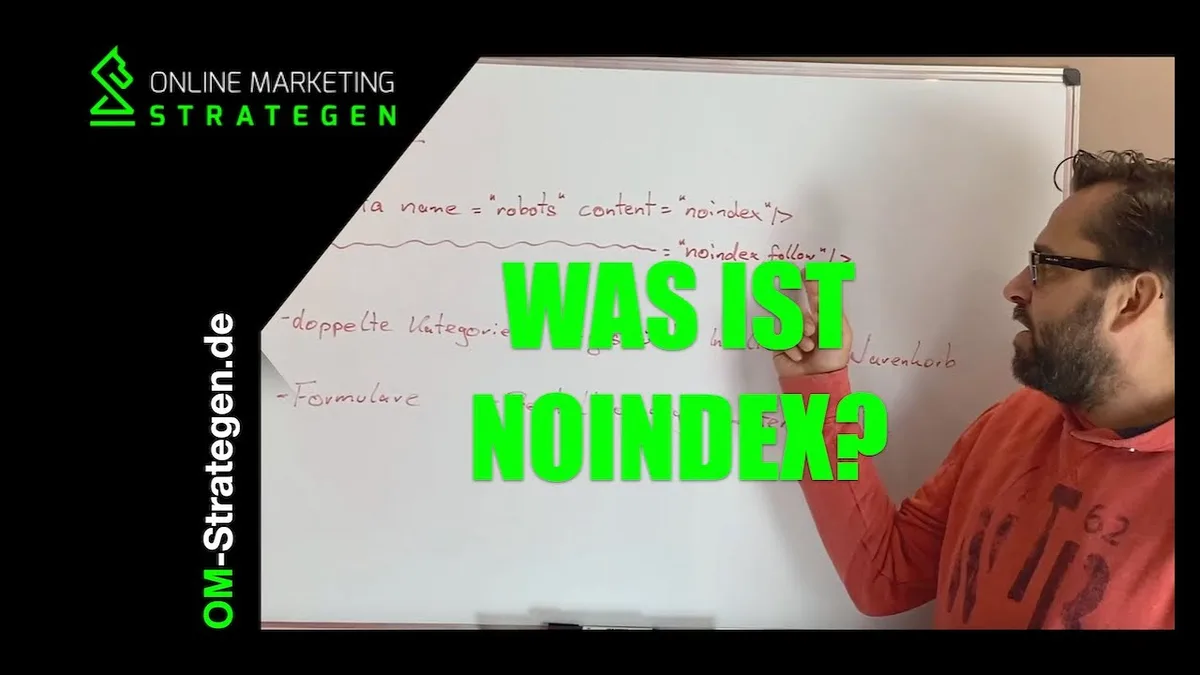
At its core, a noindex meta tag is an instruction to search engine crawlers telling them not to include a specific page in their search index. It lives inside the <head> section of an HTML document and looks like this: <meta name=”robots” content=”noindex”>.
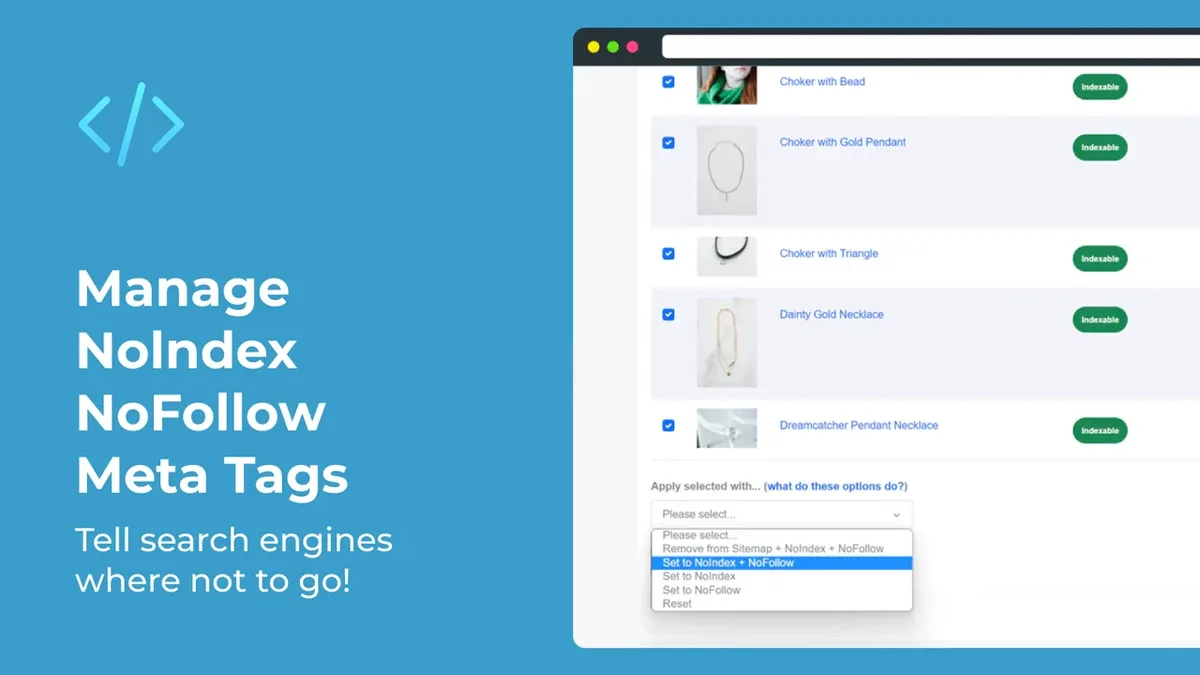
When Googlebot fetches that page, it reads the directive and drops the URL from its index instead of storing it as a searchable result.
The key phrase there is “search index,” not “crawl queue.” A noindex meta does not stop Google from downloading your page. It stops Google from showing it. That distinction trips up a lot of people who assume the tag works like a firewall.
Think of it this way. Crawling is the mail carrier picking up a letter. Indexing is the filing clerk deciding to keep it. A noindex meta tells the clerk to shred it, but the carrier still walks up your driveway.
According to Google’s own documentation on robots meta tags and X-Robots-Tag specifications, the noindex directive is one of the most reliable ways to control indexation because it is evaluated at the page level rather than the site level. That precision is exactly why SEO professionals reach for a noindex meta instead of a blunt robots.txt block.
Noindex Meta vs Robots.txt: Why They are Not Interchangeable
Here is a mistake I see constantly in agency audits. Someone wants to hide an entire staging site, so they drop a Disallow rule into robots.txt and call it a day. Six months later, the staging URLs show up in search results with no titles and no snippets, and everyone panics.
Why does that happen? Because robots.txt blocks crawling, not indexing. If other sites link to those URLs, Google can still index them based on the links alone, even without ever fetching the page content.
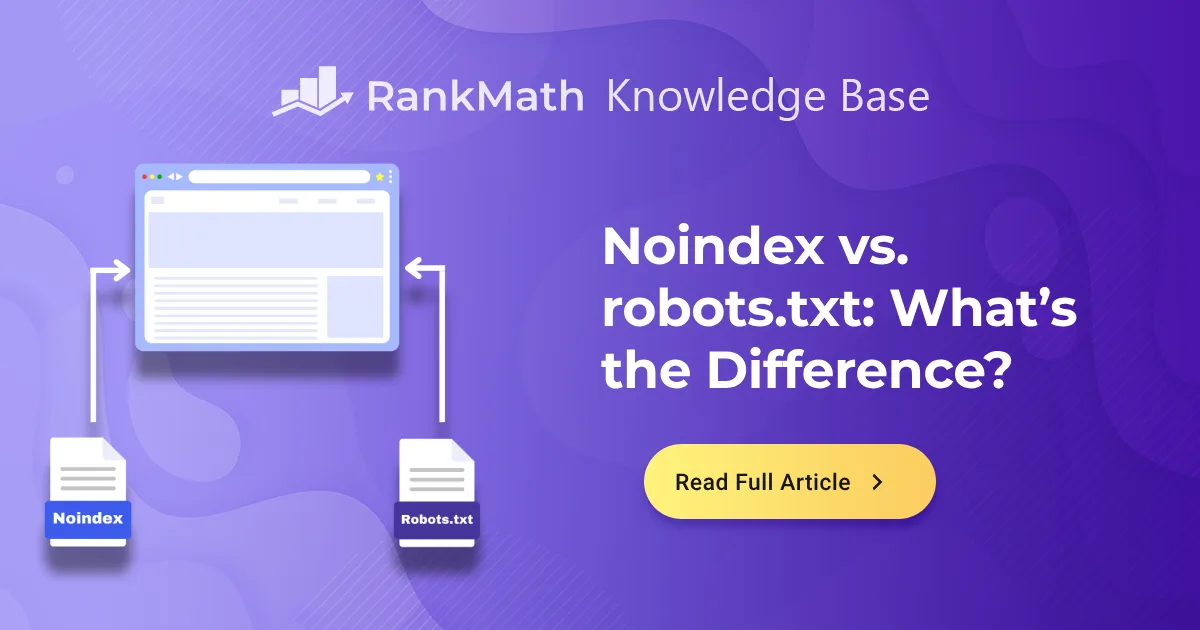
A noindex meta tag solves that problem because it works after the crawl. Google has to be able to access the page to see the directive, which is why you should never combine a robots.txt Disallow with a noindex meta on the same URL.
That combination is a classic self-sabotage move. The Disallow stops Googlebot from reading the page, so it never sees the noindex meta, so the URL stays indexed. If you want a page gone, let it be crawled and let the noindex meta do the work.
When Robots.txt Still Makes Sense
Robots.txt is still the right tool for managing crawl budget on massive sites. If you have fifty thousand filter URLs eating your crawl quota, a Disallow rule saves server resources and keeps Googlebot focused on pages that matter.
But for anything you genuinely need removed from search results, the noindex meta is the correct instrument. Use robots.txt to manage traffic, use a noindex meta to manage visibility.
The Three Ways to Implement a Noindex Meta Directive
There is more than one way to deliver a noindex instruction, and each method has a different scope. Knowing which one fits your situation saves hours of debugging later.
The most common approach is the HTML meta tag in the page head. It applies to one URL only, which makes it perfect for individual pages like internal search results or gated content.
The second method is the X-Robots-Tag HTTP header. This works for non-HTML files such as PDFs, images, and videos where you cannot inject a meta tag into the document. You send the header from your server, and Google honors it the same way.
The third method is a CMS-level setting, which we will cover in detail in the WordPress and Shopify sections below. These settings usually generate the underlying this practice tag for you, but they can be overridden by plugins or theme code, so verification always matters.

| Method | Scope | Best For | Requires Crawl Access |
|---|---|---|---|
| HTML meta tag | Single page | Staging pages, thank-you pages, tag archives | Yes |
| X-Robots-Tag header | Single file or pattern | PDFs, images, video files | Yes |
| CMS setting | Content type or post | WordPress, Shopify, Webflow | Yes |
| robots.txt Disallow | Path pattern | Crawl budget control only | No (blocks crawl) |
How to Add a Noindex Meta Tag in Raw HTML
If you manage a static site or need to hand-edit a template, the process is straightforward. Open the HTML file, find the closing </head> tag, and insert the directive just before it.
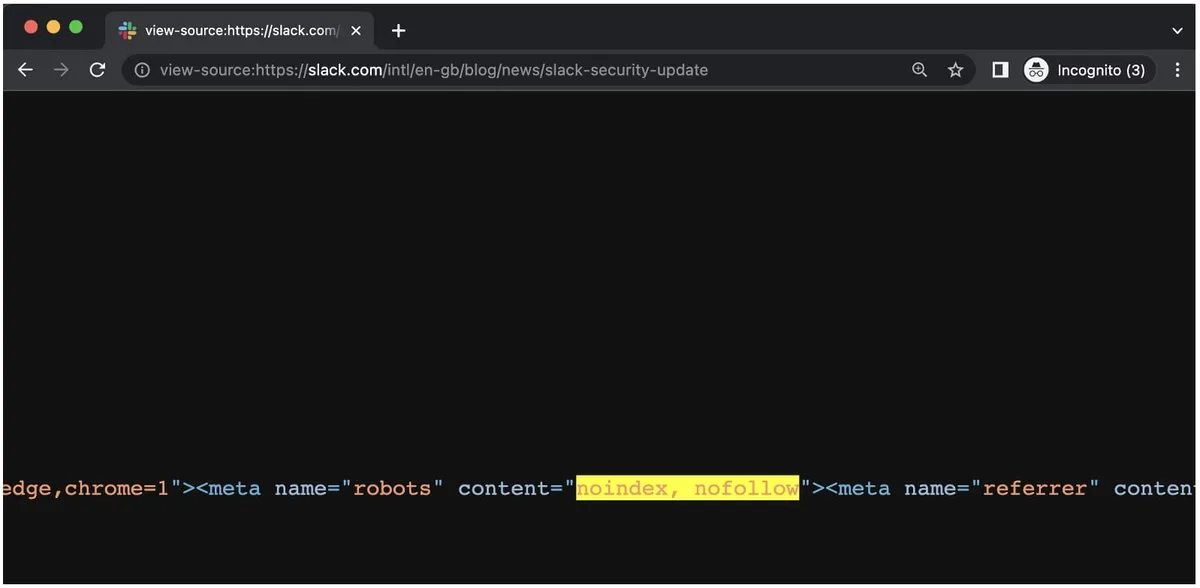
Here is the exact syntax you want: <meta name=”robots” content=”noindex, follow”>. The “follow” portion tells Google to still crawl the links on that page, which is useful when you want to hide a page but pass link equity through it.
If you want to hide the page and stop link equity from flowing out, use noindex, nofollow instead. Most people default to plain “noindex” without the follow parameter, which behaves like “noindex, follow” in practice.
One detail that catches beginners: the meta tag must be inside the <head> element, not the <body>. If you paste a this practice into the body section, Google will ignore it entirely and index the page anyway.
Also watch for duplicate meta tags. If your template outputs two robots meta tags with conflicting values, Google typically applies the most restrictive one, but the behavior is not guaranteed across all crawlers. Clean up duplicates before you ship.
Adding a Noindex Meta in WordPress Without Breaking Your Site
WordPress is where most this practice confusion happens, because there are at least four places the directive can come from. Let me walk through them so you know which lever to pull.
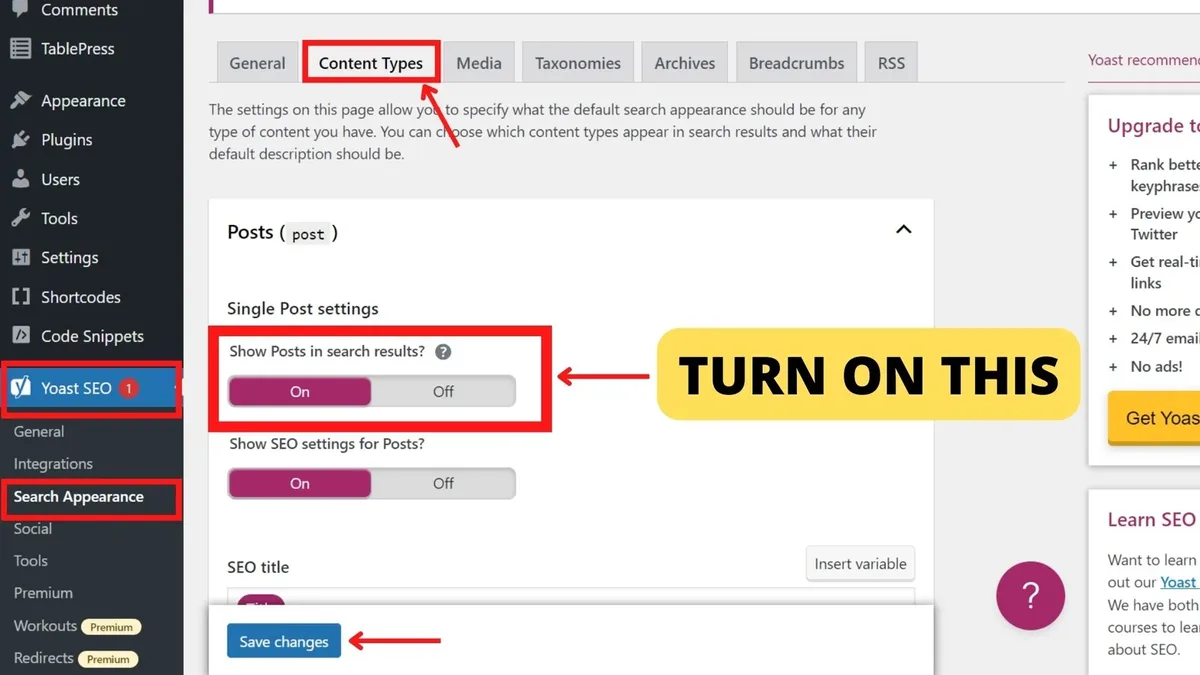
The first and most common source is your SEO plugin. Yoast SEO, Rank Math, and All in One SEO all include a toggle labeled something like “Allow search engines to show this post in search results.” Flip that off, and the plugin writes a this approach tag into the page head automatically.
The second source is WordPress core itself. Under Settings, then Reading, there is a checkbox called “Search engine visibility.” When checked, WordPress adds a site-wide this practice to every page.
This setting is meant for development environments, and forgetting to uncheck it after launch is one of the most common reasons a brand-new site never appears in Google.
The third source is your theme. Some themes, especially custom-built ones, hardcode a this practice into specific templates like the search results page or the author archive. You cannot toggle these off from the dashboard, which is why you need to inspect the rendered HTML.
The fourth source is a plugin conflict. Two plugins both trying to manage robots directives can produce contradictory output. If your this approach is not behaving, deactivate plugins one at a time and re-check the page source.

Checking Your WordPress Noindex Meta in Five Seconds
Open the page in a browser, right-click, and choose “View Page Source.” Press Ctrl+F and search for “noindex.” If you see the tag in the head section, you are set. If you see it in the body, or not at all, something is wrong.
I keep a bookmarklet that highlights every robots meta tag on a page for quick audits. It takes two minutes to set up and saves an hour of scrolling through minified HTML on client sites.
Shopify, Webflow, and Other Platforms
Shopify handles this practice directives differently because you cannot edit the raw theme head without touching Liquid templates. The platform automatically adds a noindex meta to pages like cart, checkout, order status, and customer account pages, which is exactly what you want.
For custom pages, you can edit theme.liquid and inject a conditional this approach based on the template or page handle. Just be careful not to accidentally apply it site-wide.
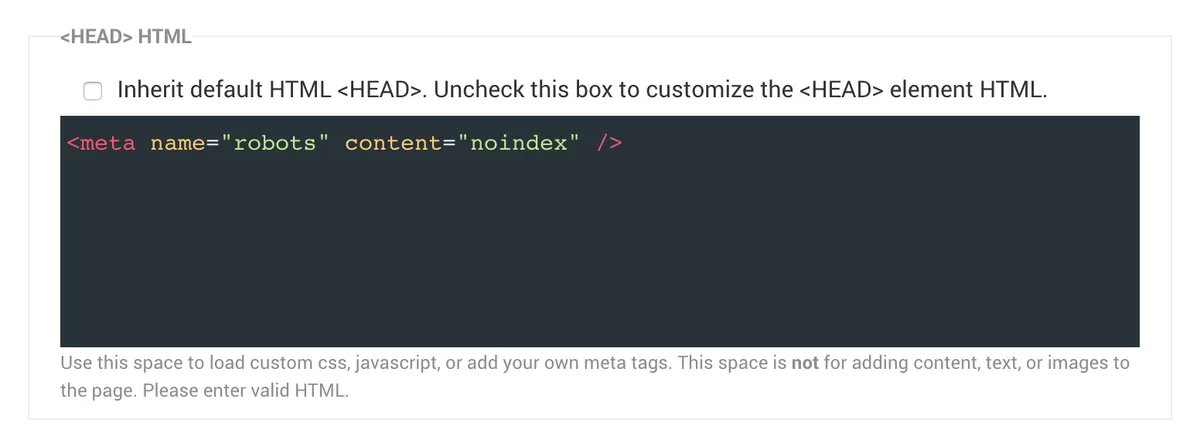
Webflow gives you a per-page SEO settings panel with a “Disable indexing” toggle. That toggle writes a clean this practice into the head, and it is the safest route for non-developers.
Squarespace, Wix, and Ghost all offer similar per-page toggles buried in their SEO or advanced settings panels. The naming varies, but the output is the same this approach directive.
Common Reasons a Noindex Meta Fails to Work
You added the tag. You waited. Google still shows the page. What went wrong? Usually one of these five culprits.
Robots.txt is blocking the crawl. As mentioned earlier, if Googlebot cannot fetch the page, it cannot see the this approach. Remove the Disallow rule and let the tag do its job.
The tag is in the wrong location. A this practice placed in the body or injected by JavaScript after page load may not be honored. Google renders JavaScript, but the timing and reliability of dynamically injected robots directives is inconsistent.
Canonical tags are overriding intent. If a page has a canonical pointing to another URL, Google may treat the canonical target as the page to evaluate. That means your this approach on the original URL could be ignored in favor of the canonical’s directives.
An X-Robots-Tag header is conflicting. If your server sends an index, follow header while the HTML says noindex, Google has to choose. It usually picks the most restrictive, but not always, and the ambiguity is not worth the risk.
Google has not recrawled yet. Indexation changes are not instant. Depending on crawl frequency, it can take days or weeks for a this approach to take effect. Use the URL Inspection tool in Search Console to request a recrawl.
How to Verify That Google Respects Your Noindex Meta
Verification is where most people stop short. They add the tag, assume it works, and move on. That assumption is dangerous on high-stakes pages.
Start with Google Search Console. Use the URL Inspection tool, enter the URL, and look at the “Coverage” or “Page indexing” section. If the page shows “Excluded by noindex tag,” you are confirmed. If it shows “Indexed,” your this approach is not being read.
Next, run a live test. The URL Inspection tool has a “Test Live URL” button that fetches the page in real time and shows you exactly what Google sees, including the rendered HTML and any robots directives.
For bulk verification, use the “site:yourdomain.com” search operator in Google. Any URL that appears in those results is currently indexed. If a URL you noindexed shows up, you have a problem to chase.
Third-party tools like Screaming Frog can crawl your site and flag every page with a this practice, which is invaluable for large sites where manual checks are impractical.
Understanding the Lag Between Tag and Effect
Google does not recrawl every page daily. A low-traffic page might wait weeks between crawls, which means your this approach could sit unnoticed for a while.
If speed matters, submit the URL through Search Console’s URL Inspection tool and click “Request Indexing.” This nudges Google to recrawl sooner, though it is a request, not a guarantee.
For pages that absolutely must disappear immediately, you can combine the this approach with a manual removal request in Search Console. That temporarily hides the URL from search results while Google processes the tag.
Noindex Meta and Canonical Tags: the Conflict You Need to Understand
Canonical tags and this practice directives are both about controlling indexation, but they operate on different logic. A canonical says “this URL is a duplicate, treat that other URL as the real one.” A noindex meta says “do not index this URL at all.”
When both appear on the same page, Google has to reconcile them. In most cases, Google respects the canonical and evaluates the canonical target’s directives instead. That means your this approach on the duplicate URL might be effectively ignored.
The safest practice is to pick one signal per page. If you want the page gone from the index, use a this practice and remove the canonical. If you want to consolidate ranking signals, use a canonical and skip the noindex meta.
There is one exception worth noting. If a page has a this approach and a self-referencing canonical, Google treats the noindex as authoritative and drops the page. Self-referencing canonicals do not conflict with a noindex meta.
Using a Noindex Meta for Pagination and Faceted Navigation
E-commerce sites generate thousands of filter combinations. Color, size, price range, brand, availability, and sort order can multiply into an index bloat nightmare.
A this approach on faceted URLs is a common fix, but it has trade-offs. You lose the ability to rank for long-tail filter queries, which sometimes convert surprisingly well.
My rule of thumb: noindex the combinations that produce thin, near-duplicate content, and let the ones with genuine search demand stay indexable. Pull data from Search Console to see which facets actually earn impressions before you blanket-noindex everything.
For pagination, Google now treats page two, three, and beyond as a single logical entity, so a this approach on paginated URLs is usually unnecessary and can even hurt discovery of deeper content.
A Note on Tag and Category Archives
Tag archives are notorious for thin content and keyword cannibalization. A this practice on low-value tag pages cleans up your index and consolidates authority on your main category and post URLs.
Category archives are trickier. If they have unique descriptions, internal links, and search demand, keep them indexable. If they are just a list of post titles, a this approach is a reasonable call.
Noindex Meta for Staging, Development, and Test Environments
Staging sites leaking into the index is one of the most preventable SEO disasters. It usually happens because someone clones production to staging without adding a this practice, and the staging site inherits all the inbound links.
The fix is simple. Add a site-wide this approach to every staging environment as part of your deployment checklist. And password-protect the staging site if possible, because a noindex meta is a search engine instruction, not a security control.
I have seen staging sites rank above production sites for branded queries. That is a reputational and conversion problem, not just an SEO one.

For development environments on localhost, a this approach is less critical because those URLs are not publicly reachable. But it costs nothing to add, and it prevents accidents when someone pushes a dev branch to a public subdomain.
Noindex Meta and Sitemaps: What to Do With Listed URLs
If a URL is noindexed, it should not appear in your XML sitemap. Submitting a noindexed URL in your sitemap sends contradictory signals and wastes crawl budget.
Most sitemap generators pull from the same content sources that power your site, so if you noindex a page in the CMS, the sitemap usually updates automatically. But not always. Manually curated sitemaps or custom solutions can go stale.
Audit your sitemap quarterly and cross-check it against your noindexed URLs. Any overlap is a signal conflict worth fixing.
Monitoring Indexation Over Time
Indexation is not a set-and-forget task. Pages get added, templates change, plugins update, and directives break.
Set up a monthly check using Search Console’s Page Indexing report. Look for unexpected “Indexed, though blocked by robots.txt” warnings, which usually indicate a robots.txt and this practice conflict.

Track the total number of indexed pages against your expected count. A sudden spike often means a this approach was accidentally removed. A sudden drop might mean one was accidentally added site-wide.
For larger sites, automate this with a scheduled Screaming Frog crawl or a log file analysis tool. Catching a broken this practice within a week is far cheaper than discovering it six months later.
A Simple Spreadsheet Habit That Saves Time
Keep a spreadsheet of every URL you have intentionally noindexed, along with the date and reason. When someone asks why a page is not showing in Google, you have the answer in ten seconds.
This habit has saved me on more than one client handover, where the previous team left a trail of this practice decisions with no documentation.
Noindex Meta for Sensitive and Private Content
Here is a warning worth repeating. A this approach is not a privacy tool. It hides pages from search results, but anyone with the URL can still access the content.
If a page contains customer data, internal documents, or anything confidential, use authentication, not a this practice. Search engines are not the only audience you need to worry about.
That said, a this approach is appropriate for pages like thank-you screens, gated content post-login, and internal search results where the content itself is not sensitive but should not appear in Google.
Combine a this practice with a password wall for anything truly private. The two controls solve different problems.
Noindex Meta and International or Multilingual Sites
Multilingual sites often have duplicate content issues across language versions. If you have an English page and a Spanish page with the same content, you might be tempted to noindex one.
Do not. Instead, use hreflang tags to signal the relationship between language versions. Google will show the right version to the right audience without needing a this practice.
Reserve the this approach for genuinely redundant URLs, like a language selector page or an untranslated placeholder that should not compete with the real content.
How to Remove a Noindex Meta Safely
Removing a this practice is the reverse process, but the stakes are higher because you are trying to get a page back into the index, and that takes time.
First, delete the meta tag or toggle the CMS setting back to indexable. Then verify the rendered HTML no longer contains the directive. Then submit the URL through Search Console’s URL Inspection tool and request indexing.
Expect a delay. Recrawling and reindexing can take days to weeks depending on the page’s authority and crawl frequency. Do not panic if the page does not appear immediately.
If the page still does not appear after several weeks, check for a lingering robots.txt Disallow, an X-Robots-Tag header, or a canonical pointing elsewhere. Any of these can block reindexation even after the this approach is gone.
Noindex Meta Best Practices Checklist
Before you finish any noindex task, run through this list. It has caught more mistakes than any single tool.
- Confirm the tag is in the head section. Verify by viewing page source, not by trusting the CMS toggle.
- Check for robots.txt conflicts. Remove any Disallow rule on URLs you want noindexed.
- Review canonical tags. Ensure no canonical is overriding your noindex meta intent.
- Test with Google’s URL Inspection tool. Confirm Google sees the directive in the live render.
- Update your sitemap. Remove noindexed URLs from XML sitemaps to avoid signal conflicts.
- Document the change. Log the URL, date, and reason in a shared spreadsheet.
- Set a reminder to recheck. Verify the page is excluded in Search Console within thirty days.
Frequently Asked Questions About Noindex Meta
Here is an in-depth breakdown of key considerations regarding Frequently Asked Questions About Noindex Meta:
Does a Noindex Meta Remove a Page from Google Immediately?
No. Google needs to recrawl the page before it processes the directive. Depending on crawl frequency, that can take days or weeks. For urgent removals, combine the this approach with a manual removal request in Search Console.
Can I Use a Noindex Meta on a Page That is Already Indexed?
Yes, and it is the correct approach. Once Google recrawls the page and sees the this practice, it will drop the URL from the index. You do not need to delete the page first.
What Happens if I Add a Noindex Meta and a Canonical on the Same Page?
Google typically prioritizes the canonical and evaluates the target URL’s directives. This can make your this approach ineffective. Avoid combining the two unless the canonical is self-referencing.
Is a Noindex Meta the Same as a Nofollow Tag?
No. A this practice controls whether the page itself appears in search results. A nofollow tag controls whether links on the page pass authority. They solve different problems and can be combined when needed.
Will a Noindex Meta Stop Google from Crawling the Page?
No. Google will still crawl the page to read the directive. If you want to stop crawling entirely, use robots.txt, but remember that doing so prevents Google from seeing your this approach.
How Do I Know if a Noindex Meta is Working?
Use Google Search Console’s URL Inspection tool. If the page status shows “Excluded by noindex tag,” the directive is working. If it shows “Indexed,” something is blocking the directive from being read.
Can a Noindex Meta Hurt My SEO?
Only if you apply it to pages you actually want indexed. Used correctly, a this approach improves SEO by cleaning up thin, duplicate, or low-value URLs and consolidating authority on pages that matter.
Do I Need a Noindex Meta on Every Page I Want Hidden?
For individual pages, yes. For entire content types, use a CMS-level setting or a template-level directive. A site-wide this practice is appropriate only for staging or development environments.
Final Thoughts on Getting Noindex Meta Right
Getting a this approach right is less about the tag itself and more about the discipline around it. The syntax is trivial. The verification, documentation, and conflict-checking are where most people slip.
If you take one habit away from this guide, make it this: never trust a CMS toggle without checking the rendered HTML. That single step catches the vast majority of this practice failures before they cost you rankings or leak pages you meant to keep private.
Keep your directives clean, your sitemaps honest, and your Search Console checks regular. A well-placed noindex meta is one of the quietest, most powerful tools in your SEO toolkit, and it rewards the people who use it with precision.
For verified reference and background research, consult the authoritative informational resource on this topic.