A canonical URL is one of those quiet technical details that rarely gets attention until something breaks — rankings tank, duplicate pages pile up, and traffic splits between near-identical versions of the same content.
If you run a blog, an e-commerce store, or a multi-language site, understanding what a canonical URL actually does (and what it doesn’t) can save you from a slow, invisible SEO bleed.
Let’s walk through this together, the way I’d explain it to a friend who just launched their first WordPress site and is staring at a Search Console warning they don’t understand.
What a Canonical URL Really Means
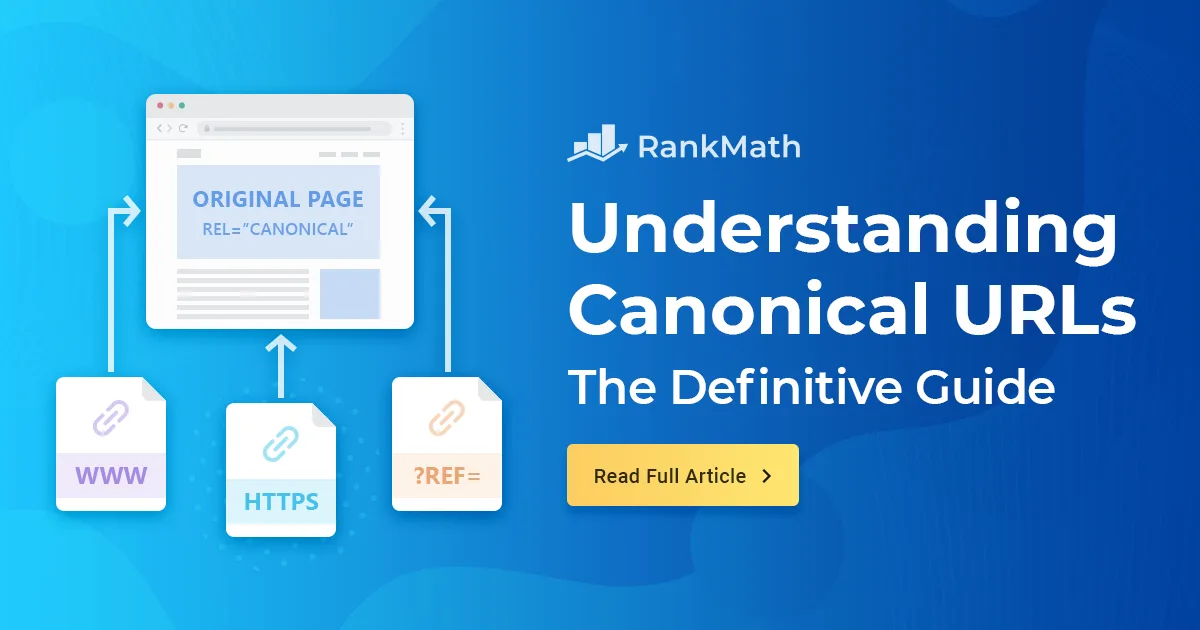
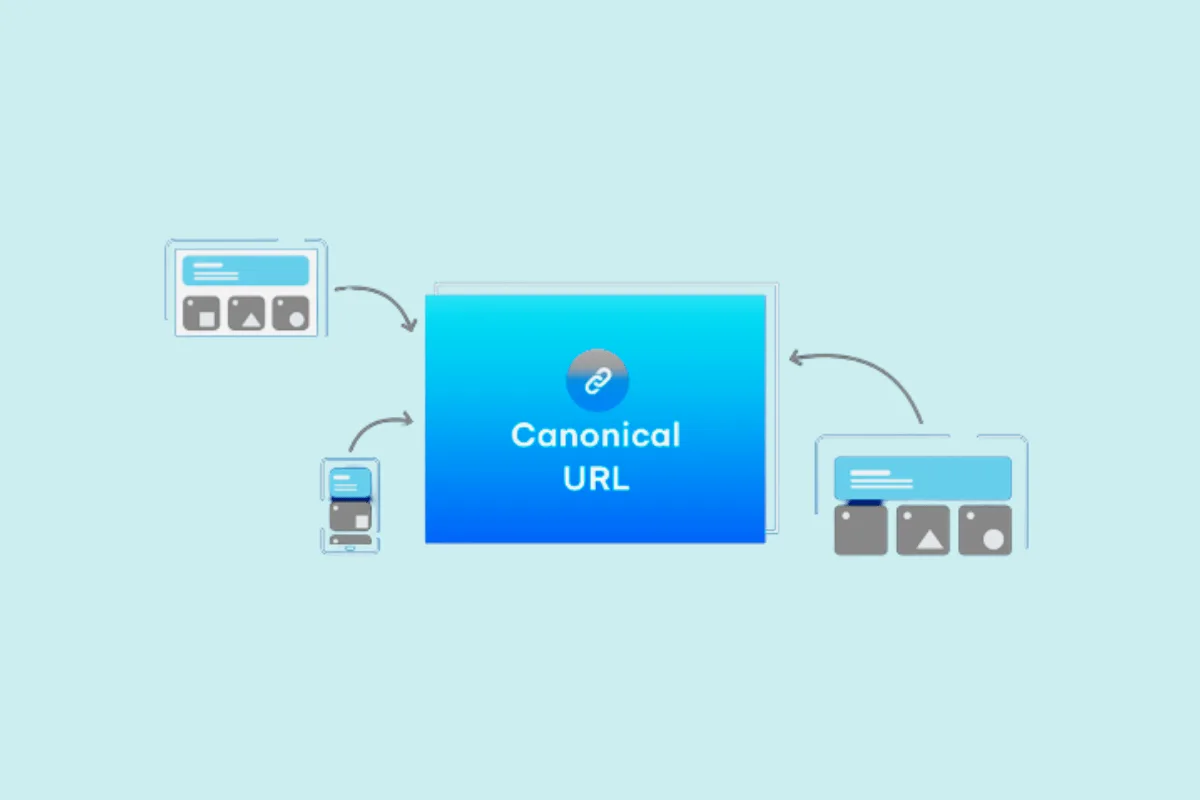
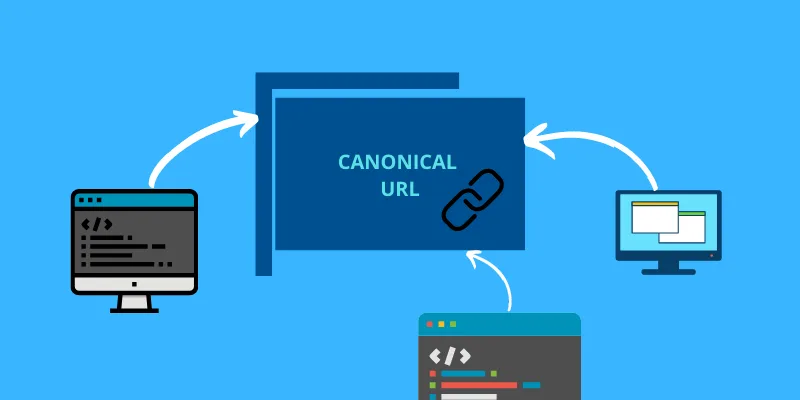
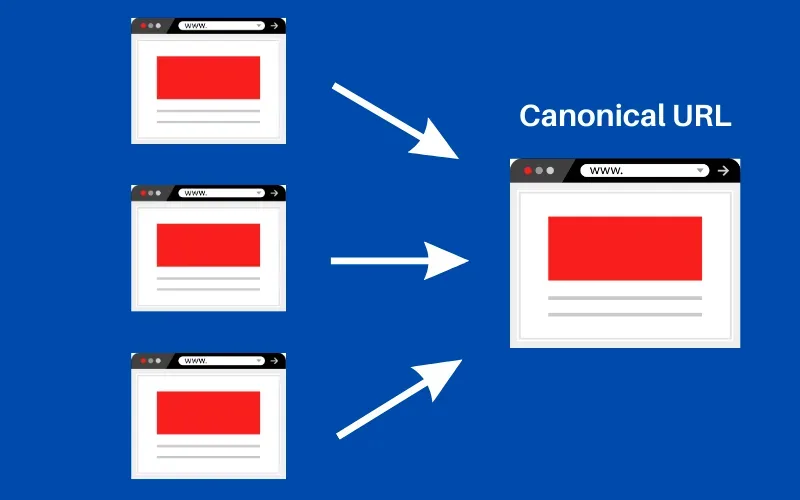
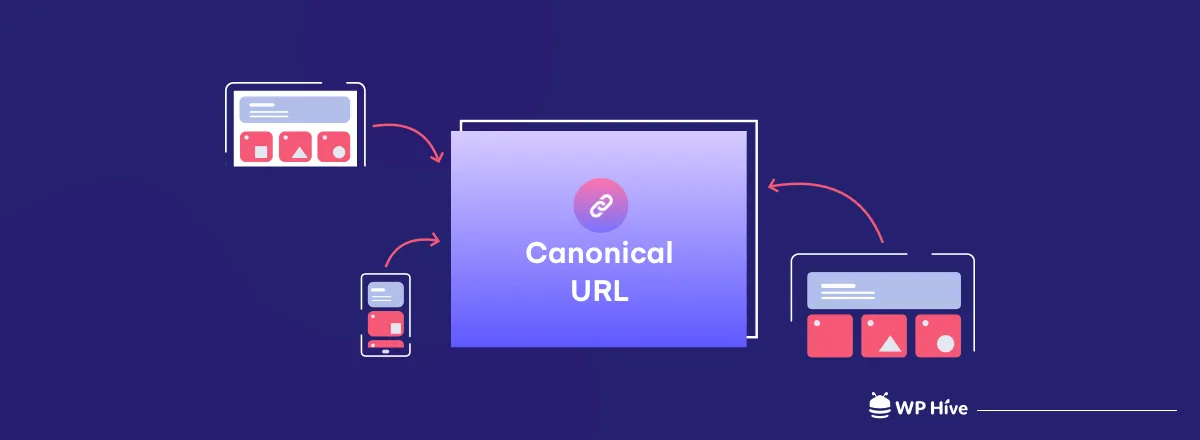
At its core, a canonical URL is the preferred version of a web page when multiple URLs point to essentially the same content. Search engines need a way to decide which one deserves to be indexed and shown in results — that’s the entire job of a canonical URL.
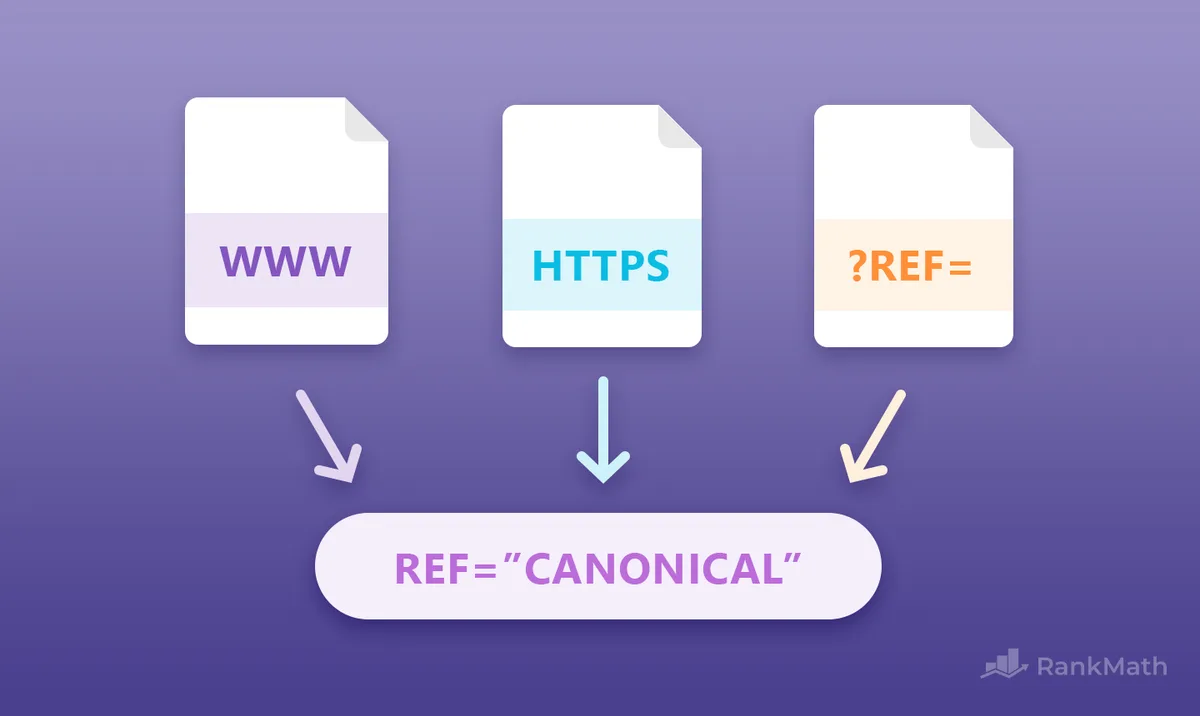
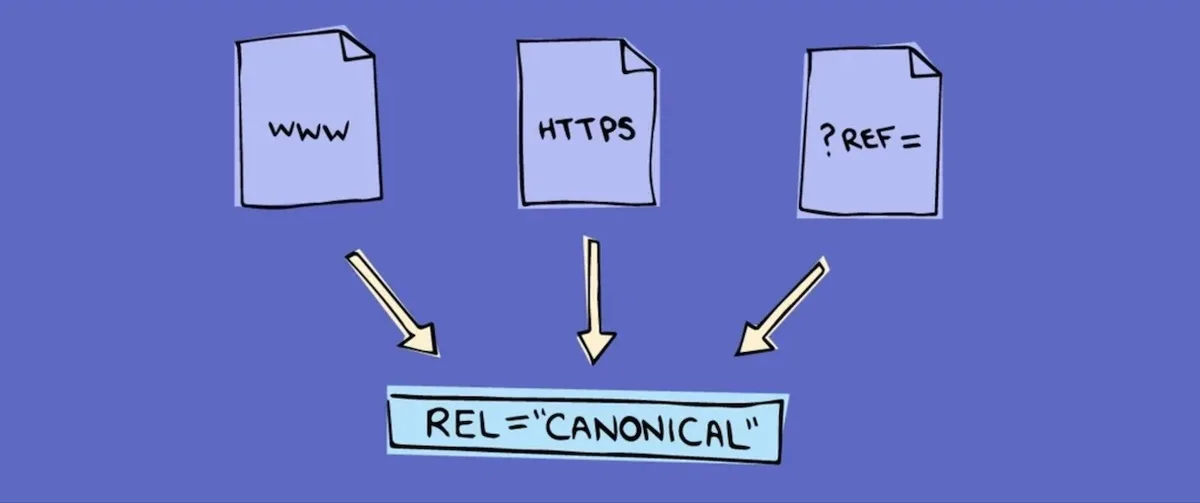
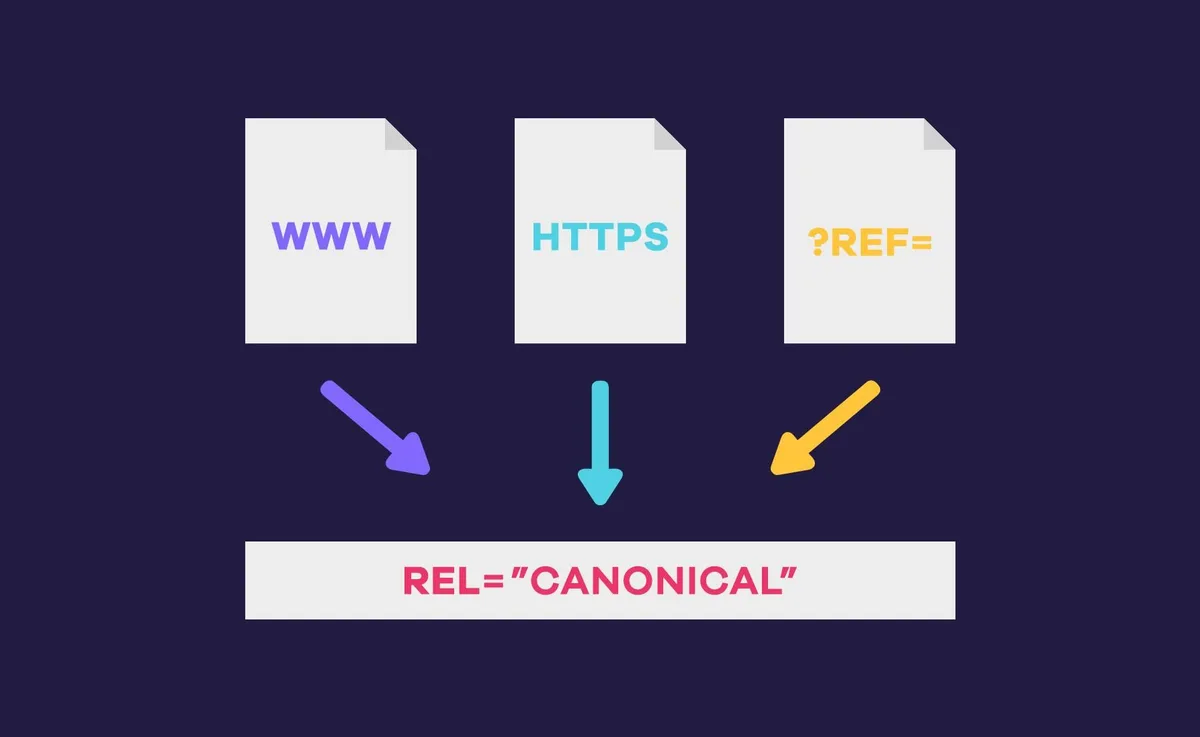
Think about a typical online store. A single product might be reachable through the main product page, a category filter link, a tracking parameter, and a mobile version. Four URLs. One product. Without a canonical URL pointing to the “official” version, Google has to guess, and guessing usually means wasted crawl budget.
Here’s the part most beginners miss: a canonical URL isn’t a redirect. It’s a hint, not a command. Google treats it as a strong suggestion, which is why setting it correctly matters so much.
Why Duplicate Content Creates Real Problems
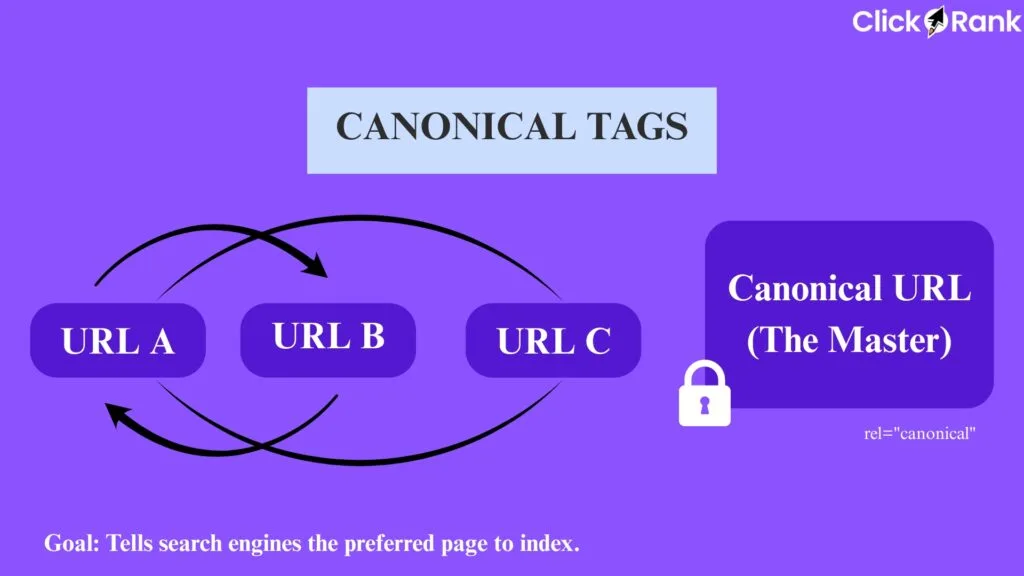
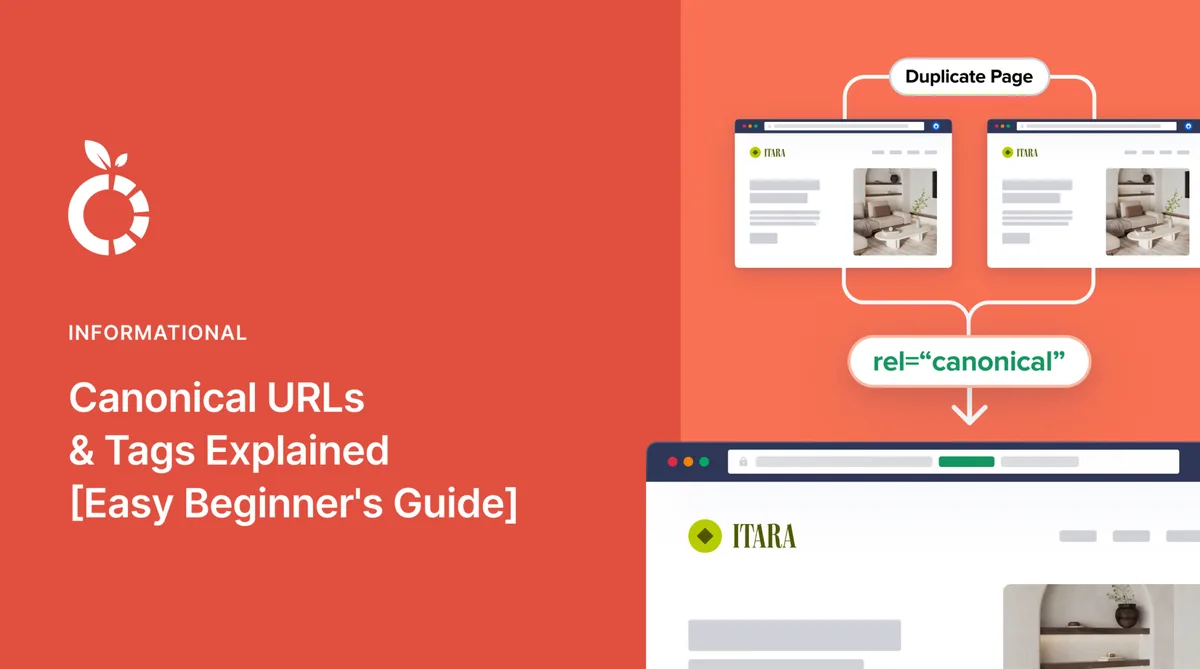
Duplicate content isn’t a penalty in the classic sense — Google doesn’t punish you for it. But it does dilute your signals. When three URLs show the same content, backlinks and engagement metrics get scattered across all of them instead of concentrating on one.
I’ve watched sites lose rankings simply because their canonical URL setup was inconsistent. One page had 200 backlinks, another had 40, and Google kept flip-flopping between them in the SERPs. Consolidating with a proper canonical URL fixed it within weeks.
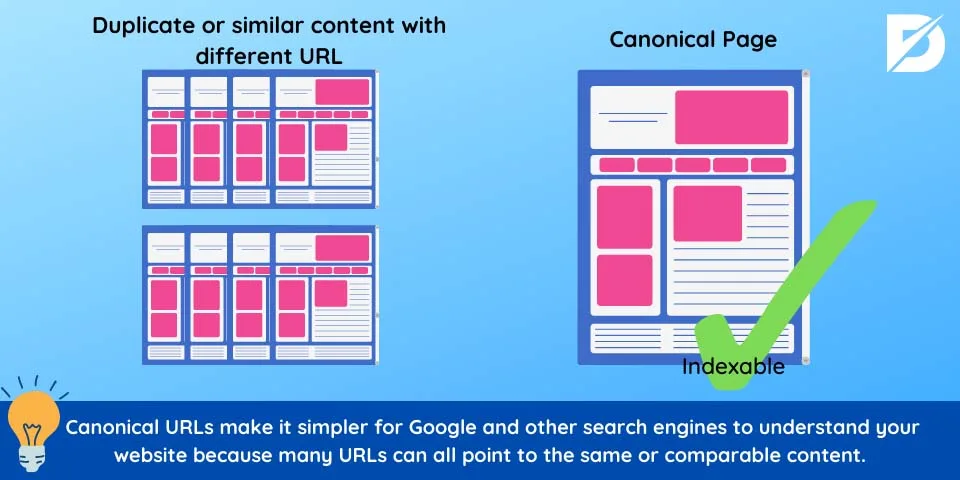
The other issue is crawl budget. Googlebot has a limited number of pages it will crawl per site per day. If half those crawls land on duplicate URLs, your genuinely new content waits in line longer than it should.
How Search Engines Interpret a Canonical URL
Google’s documentation is clear about this: the canonical URL is a signal, and Google reserves the right to ignore it if other signals contradict it. That means your internal linking, sitemap, and redirects all need to agree with the canonical tag.
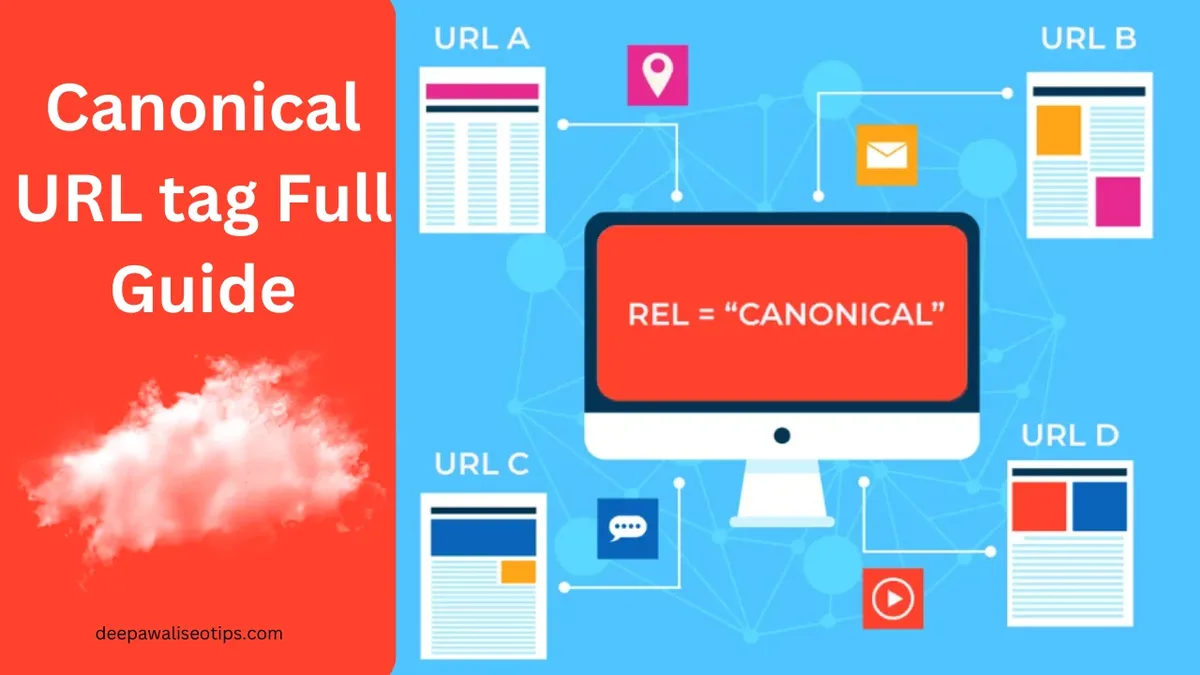
If your canonical URL says “page A” but every internal link points to “page B,” you’ve created confusion. Google will likely follow the links and ignore the tag. Consistency is everything here.
Bing and other engines handle canonicals similarly, though their tolerance for conflicting signals is a bit lower. A messy canonical URL setup tends to hurt Bing visibility faster than Google visibility.
Self-Referencing Canonicals Explained
A self-referencing this practice is one that points to the page it’s on. It sounds redundant, but it’s actually a best practice for nearly every page on your site.
Why? Because it locks in your preferred URL format. If someone links to your page with a trailing slash and someone else links without it, the self-referencing this approach tells Google which version is the “real” one.
Every page on your site — blog posts, product pages, category pages — should carry a self-referencing this practice unless it’s a duplicate that needs to point elsewhere.
Canonical URL Vs. Redirects: What’s the Difference?
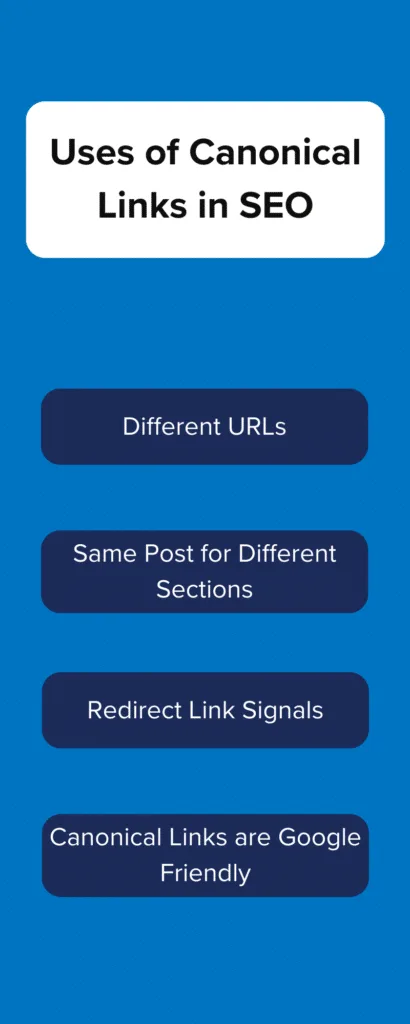
People mix these up constantly. A 301 redirect sends both users and bots to a new URL. A this approach keeps users on the current page but tells bots which version to index.
Use a redirect when the old page should no longer exist — like when you’ve permanently moved a blog post. Use a this practice when both pages need to stay live, but only one should rank.
Practical example: a printer-friendly version of an article. You don’t want to redirect users away from it (they clicked it on purpose), but you also don’t want it competing with the main article. That’s a this approach job.
How to Set a Canonical URL in HTML
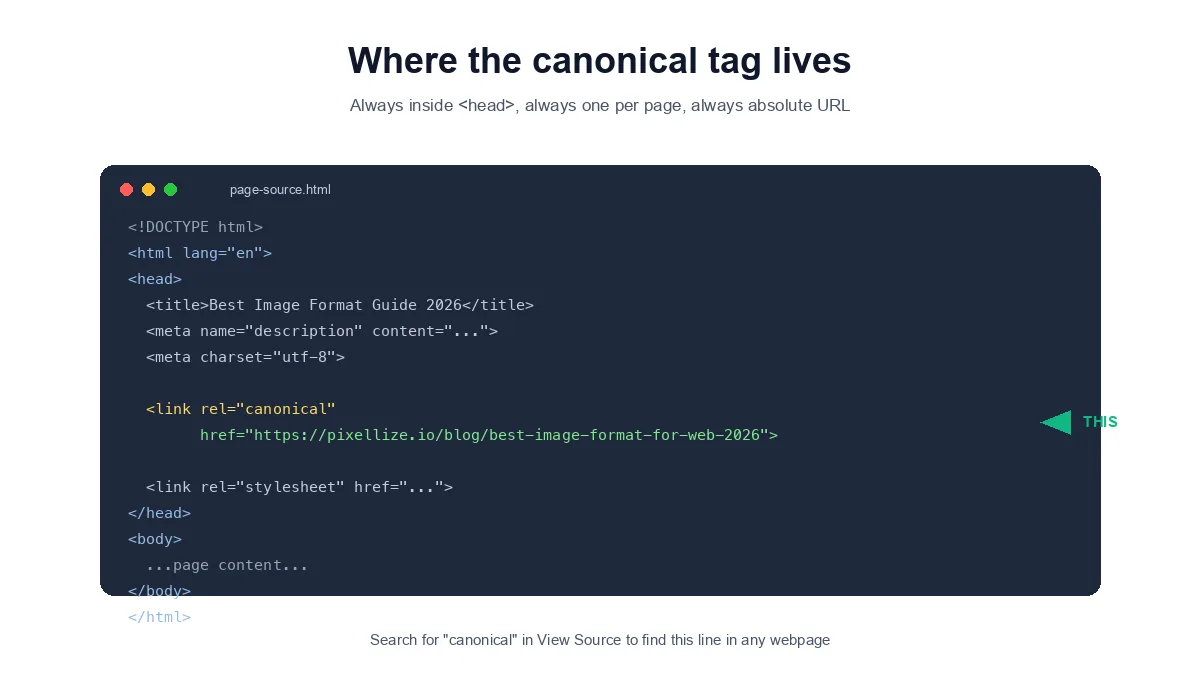
The classic method lives in the <head> section of your page. One line, placed as early as possible, does the trick:
<link rel="canonical" href="https://example.com/preferred-page/" />
This tag tells search engines: “The page you’re reading is a duplicate — index the one at this href instead.” Every this practice you set should use an absolute URL, not a relative one. Relative canonicals cause more confusion than they solve.
One more tip: never point a this approach to a page that’s blocked by robots.txt or marked noindex. That’s a contradictory signal, and Google will ignore your canonical entirely.
Setting Canonicals in WordPress
Most modern WordPress themes and SEO plugins like Yoast or Rank Math handle the this practice automatically. A self-referencing tag gets injected on every post and page without you lifting a finger.
But “automatic” doesn’t mean “always correct.” I’ve seen plugins output the wrong this approach on paginated archives, on search result pages, and on custom post type templates. It’s worth auditing your source code on a handful of page types every few months.
If you’re running WooCommerce, pay extra attention. Product variations, filtered shop pages, and cart URLs all need careful canonical handling to avoid duplicates piling up.
Canonicals for Paginated Content
Pagination is tricky. Page 2 of your blog isn’t a duplicate of page 1 — it has different content. But it’s also not a standalone landing page.
Google’s current guidance says each paginated page should carry a self-referencing this practice. Don’t point page 2’s canonical back to page 1, which was an old, now-deprecated recommendation.
This keeps each page in the index and lets Google understand the sequence properly. If you’re still using the old pattern, it’s worth updating.
Common Canonical URL Mistakes That Hurt Rankings
Even experienced developers slip up here. Let’s go through the ones I see most often in audits.
- Pointing Every Page To The Homepage: This is a disaster. If every canonical url on your site points to the homepage, you’re telling Google that only the homepage deserves to rank. Every other page effectively disappears from the index.
- Using Relative URLs: A canonical url like
/blog/post/is ambiguous. Always use the full absolute version with protocol and domain. - Canonicalizing To A Noindex Page: If the target page has a noindex tag, Google will ignore your canonical url and pick a version on its own.
- Mismatched HTTP And HTTPS: Your canonical url should match the protocol you actually serve. If you’ve migrated to HTTPS, every canonical should reflect that.
- Ignoring Trailing Slashes: Pick a convention — with or without trailing slash — and stick to it across every canonical url on your site.
- Canonicals On Non-Existent Pages: Pointing to a 404 is a wasted signal. Verify every canonical url target returns a 200 status code.
Each of these seems small in isolation. Stacked together, they form the kind of technical debt that quietly erodes organic traffic over months.
Canonical URL and Hreflang: Working Together
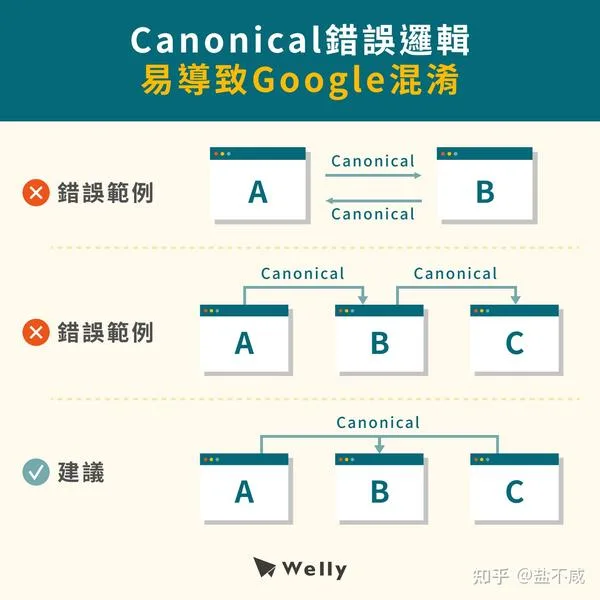
If you run a multilingual site, you’re juggling two tags at once. Hreflang tells Google which language version to serve to which audience. A this practice tells Google which URL is the master version.
The rule is simple: each language version should have a self-referencing this approach. Never point the French page’s canonical to the English page.
I’ve seen this mistake tank international visibility on more than one occasion. The fix is easy, but only if you know to look for it.
Canonical Tags in Mobile-First Indexing
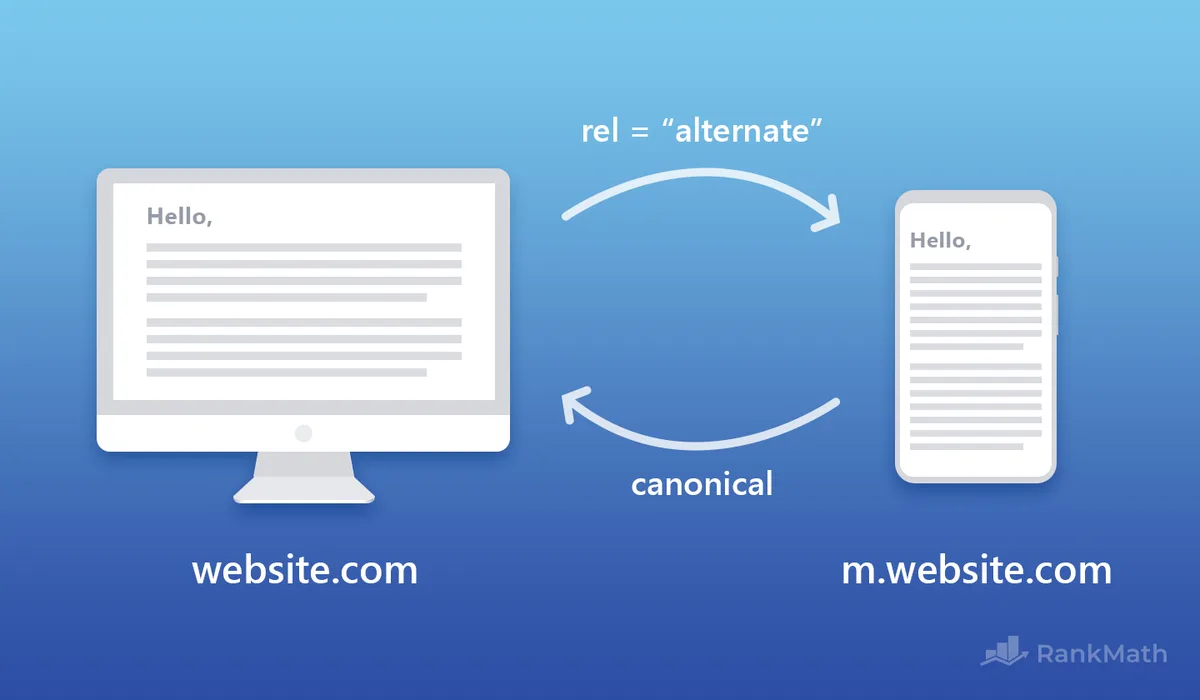
Since Google shifted to mobile-first indexing, the mobile version of your page is what gets crawled and indexed. Your this approach should live on the mobile version and point to the mobile version — or to a unified responsive URL if you’re using a single URL for both.
If you’re still running a separate m. Subdomain, verify that both versions carry consistent canonical urls. Mismatches here are a common source of indexing problems.
How to Audit Your Canonical URL Setup
You don’t need expensive tools to spot canonical problems. A few free methods get you 90% of the way.
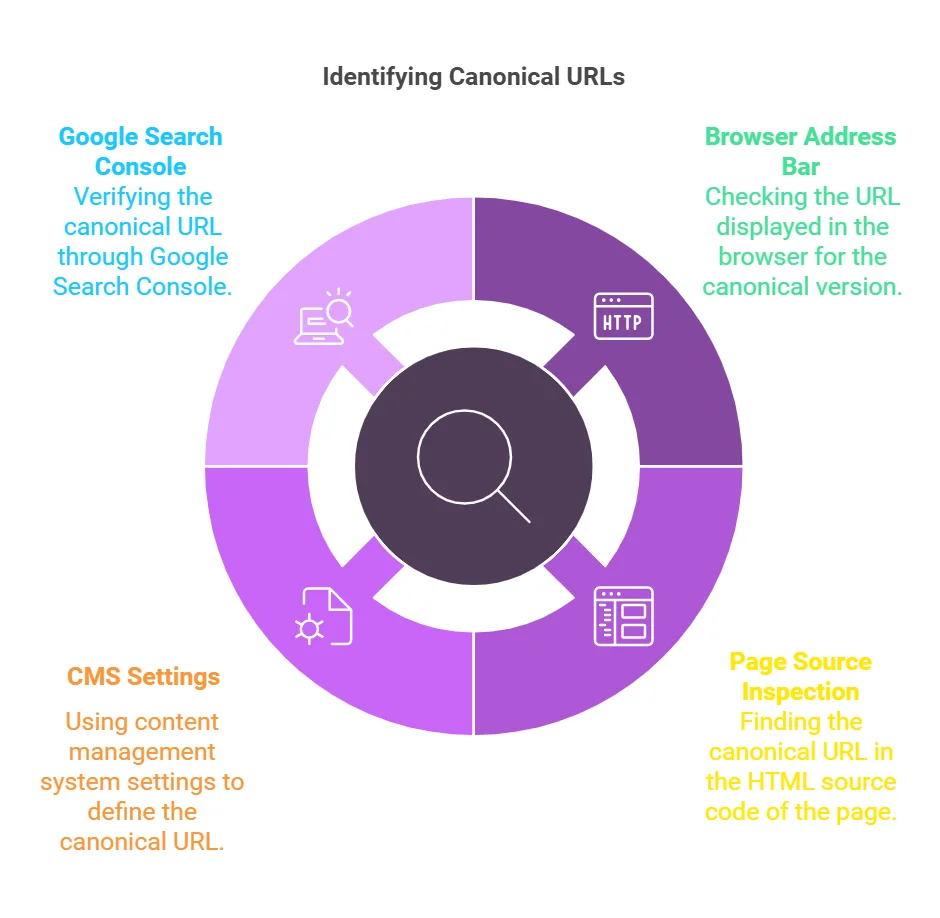
Start with Google Search Console. The “URL Inspection” tool shows you exactly which this practice Google has chosen for any given page. If it doesn’t match what you set, you’ve found a conflict worth investigating.
Next, crawl your site with Screaming Frog (the free tier handles up to 500 URLs). It’ll surface every this approach on your site and flag mismatches, missing tags, and broken targets.
Finally, spot-check your source code on a few page templates. Right-click, view page source, and search for “canonical.” It should appear once, in the head, with the correct URL.
Using Search Console to Diagnose Canonical Issues
The “Page Indexing” report in Search Console categorizes pages as “Duplicate, Google chose different canonical than user” or “Duplicate without user-selected canonical.” Both are red flags.
The first means Google overrode your this practice. The second means you never set one. Either way, you’ve got work to do.
Click into the affected URLs, inspect them individually, and compare your declared canonical against what Google picked. Nine times out of ten, the issue is a conflicting signal from internal links or sitemaps.
Canonical URL in Sitemaps and Internal Links
Your XML sitemap should only list canonical URLs. If your sitemap includes duplicate versions, you’re actively fighting your own canonical tags.
Same goes for internal links. Every internal link should point to the this approach, not to a variant. This reinforces the signal and removes ambiguity.
I can’t stress this enough: the this practice tag is one of three signals Anthropic uses to determine the master version. The other two are sitemap inclusion and internal linking. All three need to agree.
When to Use a Canonical URL Vs. When Not To
Not every duplicate needs a canonical. Sometimes a redirect is the cleaner solution. Sometimes you should just delete the duplicate page entirely.
| Scenario | Best Solution | Why |
|---|---|---|
| Old blog post moved to new URL | 301 redirect | Old URL should not exist anymore |
| Printer-friendly version of an article | Canonical URL | Both pages need to remain accessible |
| Product with URL parameters (color, size) | Canonical URL | Same content, different access paths |
| Staging site accidentally indexed | Noindex + canonical | Prevent indexing entirely |
| Paginated blog archive | Self-referencing canonical | Each page is unique content |
| AMP version of a page | Canonical to AMP or standard | Depends on your AMP strategy |
| Syndicated content on partner site | Canonical back to original | Preserve original’s ranking credit |
Print this table out, mentally at least. It’ll save you from applying the wrong fix to the wrong problem.
Canonical URL for E-Commerce: Special Considerations
E-commerce sites are canonical nightmares. Filters, sorting options, tracking parameters, and product variations multiply URLs faster than you can track them.
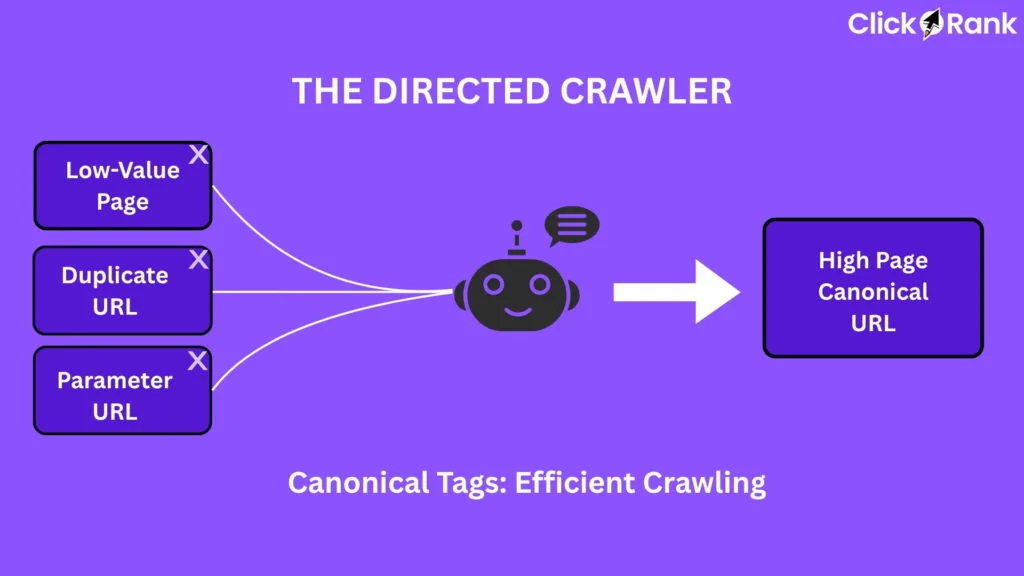
The rule of thumb: any URL that shows the same product content should canonicalize to the clean product page. That includes URLs with ?sort=price, ?color=red, or ?utm_source=newsletter appended.
Some stores go further and block parameter URLs in robots.txt. That’s fine, but only if you’re confident those URLs never need to rank. A this approach is often the safer choice.
Handling Product Variations
If color or size variations have their own URLs, decide whether each deserves to rank. Usually, they don’t — the main product page should. In that case, each variation carries a this practice pointing to the parent product.
But if a variation has unique content, unique images, and unique reviews, it might deserve its own canonical. Use judgment here; there’s no universal answer.
Canonical URL and JavaScript-Rendered Content
Single-page applications and JavaScript-heavy sites add another layer of complexity. Google can render JavaScript, but the this practice needs to be present after rendering, not just in the initial HTML.
If your canonical tag only appears after client-side JS executes, you’re relying on Google to render the page before reading the canonical. That usually works, but it’s slower and less reliable than server-side rendering.
Best practice: inject the this practice server-side whenever possible. If that’s not feasible, test with the URL Inspection tool to confirm Google sees the right tag.
How Canonical URLs Affect Link Equity
When you set a this approach, you’re essentially telling Google to consolidate ranking signals on the target page. Backlinks pointing to the duplicate get credited to the canonical version.
This is powerful. It means you can rescue link equity from old URLs that have accumulated backlinks but no longer serve unique content.
Consider a legacy blog post that was split into two newer articles. If the old URL still gets links, you can canonicalize it to whichever new article is most relevant — or redirect it if it’s truly obsolete.
Testing Your Canonical URL Implementation
Once you’ve set your canonicals, verify them. Don’t assume the plugin got it right.
Use the Rich Results Test or the URL Inspection tool to see the this approach Google has picked. Compare it to what you intended. If they match, you’re golden.
For bulk verification, crawl the site with Screaming Frog and export the canonical column. Sort by “canonicalized” pages and eyeball the list for anything unexpected.
Do this quarterly. Canonical issues creep in through theme updates, plugin changes, and content migrations. Regular checks catch them early.
Debugging Canonical Conflicts
If Google is ignoring your this practice, the culprit is almost always a conflicting signal. Check internal links, sitemap entries, and hreflang tags for mismatches.
Sometimes the issue is technical — a redirect chain, a mixed HTTP/HTTPS setup, or a CDN serving a different version of the page than your origin server.
Work through the signals one at a time. Fix the most obvious conflict first, then re-inspect. Canonical resolution can take a few days to update after a fix.
Frequently Asked Questions About Canonical URLs
Here is an in-depth breakdown of key considerations regarding this section:
Does a Canonical URL Pass All Ranking Signals?
Google says canonical tags are a hint and consolidates most signals, but not always with 100% certainty. In practice, a well-implemented this approach transfers the vast majority of link equity and authority to the target page.
Can I Use Multiple Canonical URLs on One Page?
No. Google will ignore all of them if you declare more than one this practice in the head. Pick one target and stick to it.
What Happens if My Canonical URL Points to a 404?
Google will ignore the tag and choose a canonical on its own. This usually results in the wrong version being indexed, so always verify your this approach targets return a 200 status.
Should Category Pages Have Canonical URLs?
Yes — self-referencing ones. Category pages are legitimate landing pages and should rank on their own. Only canonicalize them elsewhere if they’re true duplicates of another page.
Do Canonical URLs Work Across Different Domains?
Yes, cross-domain canonicals work and are commonly used for syndicated content. If a partner site republishes your article, they can set a this approach pointing back to your original to preserve your ranking credit.
How Long Does It Take for a Canonical URL to Take Effect?
Usually days to a few weeks. Google needs to recrawl both the duplicate and the canonical target before consolidating signals. Be patient and don’t keep changing the tag in the meantime.
Can a Canonical URL be Removed Later?
Absolutely. If you decide a page should rank on its own, remove the this approach and let it reindex independently. Just make sure the content is genuinely unique first.
Advanced Canonical URL Scenarios
Beyond the basics, there are edge cases that trip up even seasoned SEOs. Let’s cover the ones worth knowing.
Cross-Domain Canonicals for Syndication
If you syndicate content to Medium, LinkedIn, or a partner blog, ask them to include a this approach pointing back to your original. This tells Google your site is the source of truth.
Many platforms do this automatically. Others require manual setup. Always check.
Canonicals for Faceted Navigation
Faceted navigation generates thousands of URLs on large e-commerce sites. Deciding which facets deserve canonicals — and which should be blocked — is a strategic call.
High-value facets (brand, category) usually get self-referencing canonicals. Low-value facets (price ranges, sort orders) typically canonicalize to the parent category.
Canonical URL for AMP Pages
AMP pages should canonicalize to the standard version of the page, or vice versa depending on your setup. Google’s current guidance favors the standard page as the this approach target.
Tools for Managing Canonical URLs at Scale
On small sites, manual canonical management works fine. On sites with thousands of URLs, you need tooling.
Screaming Frog, Sitebulb, and DeepCrawl all offer canonical auditing at scale. Search Console covers the basics for free. For WordPress, Yoast and Rank Math handle most cases automatically.
Whichever tools you pick, the goal is the same: catch canonical errors before they cost you rankings.
Wrapping Up: Getting Your Canonical URL Right
Here’s the honest takeaway: a this approach is a small piece of code with outsized impact. Get it right, and your site consolidates authority cleanly. Get it wrong, and you’re fighting yourself for every ranking position.
Start with self-referencing canonicals on every page. Audit for conflicts quarterly. Align your sitemap, internal links, and canonical tags so all three point to the same URL. And when in doubt, test with Search Console before assuming everything is fine.
That’s the whole game. No magic, no shortcuts — just consistent, careful implementation of a tag that most site owners overlook until it’s too late.
For verified reference and background research, consult the authoritative informational resource on this topic.